

Ever since iOS 7, Apple has provided a Text Message Forwarding service that can push SMS messages received through your iPhone's cellular network to your other Apple devices.
Using the same network, the forwarding service also allows you to send messages from your iPad or Mac to other phone numbers, even if they don't support Apple's iMessages platform (dumbphones and Android devices, for example).
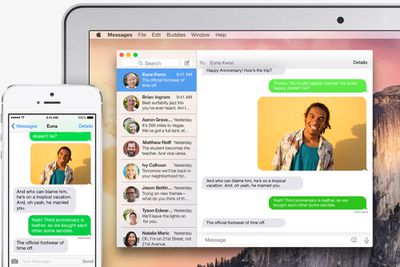
For whatever reason, the Text Message Forwarding feature may not be enabled on your iPhone, so if you tend to miss standard text messages coming through to your phone when you're engaged with something on your Mac or iPad, it's definitely worth enabling.
Once activated, those messages will show up on all your devices in the Messages app as green chat bubbles, allowing you to distinguish them from regular blue iMessages. Keep reading to learn how to activate the feature in iOS 11.
How to Activate Text Message Forwarding in iOS 11
- Launch the Settings app on your iPhone.
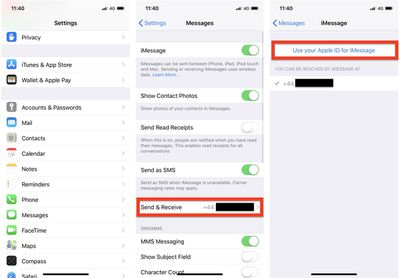
- Tap Messages.
- Tap Send & Receive.
- Tap Use your Apple ID for iMessage.

- Tap Sign in to use your Apple ID for iMessage, or tap Select Other Apple ID and then enter the login credentials for the account you want to use.
- Wait for a moment while iMessage activates. Click OK in any dialog boxes that confirm your Apple ID is now being used for iMessage on your other devices.
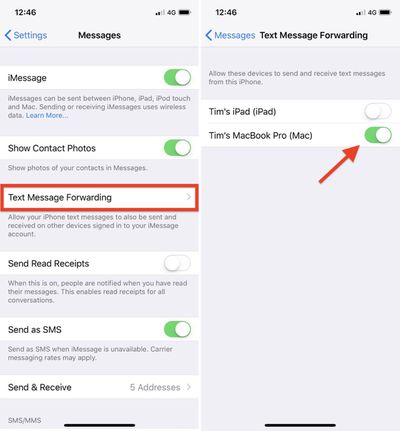
- Tap back to Settings -> Messages, and tap the new Text Message Forwarding option in the menu.
- Use the toggle buttons next to the devices in the list to include or exclude them from the Text Message Forwarding service. Note that only devices logged into the same iCloud account and connected to the same Wi-Fi network will appear in the list.
- A security code may appear on the devices that you enable – make sure to type the code into your iPhone to activate them for the service.
If you followed the steps above but the Text Message Forwarding option doesn't appear in your iPhone's settings app, check that your device is connected to Wi-Fi and the internet connection is good.
Another solution is to turn off and then restart iMessages via Settings -> Messages -> iMessage. You can also try signing out of iMessage and signing in again: Select Settings -> Messages -> Send & Receive, tap your Apple ID at the top, and then tap Sign Out.



















Top Rated Comments