How to Set a Firmware Password on Your Mac - MacRumorsOpen MenuShow RoundupsShow Forums menuVisit ForumsOpen Sidebar
Skip to Content

How to Set a Firmware Password on Your Mac

by

Using a login password on your Mac is a simple way of ensuring your macOS user account stays private, and using FileVault to encrypt your startup disk means only users who can log in to your Mac can read the disk's data. However, neither security method will prevent someone from booting your machine from an external hard drive.
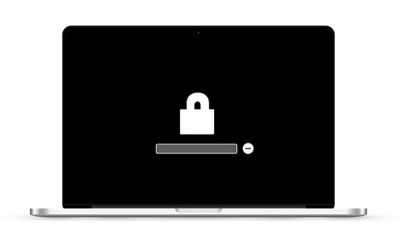
mac locked
One way to eliminate this vulnerability is by setting a firmware password on your Mac, which will prevent it from working with any other bootable volume than the one you've designated. However before you follow through with the procedure, there's a potential drawback you should definitely consider.

The password is held in a special area of persistent memory on your Mac's mainboard, so it's not something you can reset easily like other passwords. In fact, if you forget the firmware password, the only way to get it reset is to schedule an in-person service appointment with an Apple Store or an Apple Authorized Service Provider. With that caveat in mind, here are the steps you can take to set up a firmware password on your Mac.

How to Set a Firmware Password on Your Mac

  1. Power off your Mac if it's already running.
  2. Turn on your Mac and then immediately press and hold down the Command (⌘) and R keys to activate Recovery Mode.
    set a firmware password on your mac

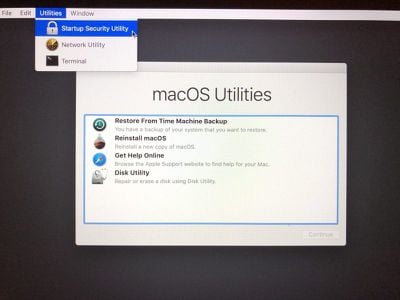
  3. Wait for the OS X Utilities screen to appear, then select Utilities -> Startup Security Utility from the menu bar.
    set a firmware password on your mac 2

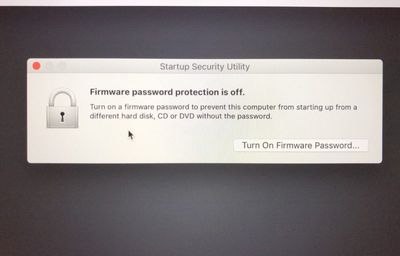
  4. Click Turn On Firmware Password....
    set a firmware password on your mac 3

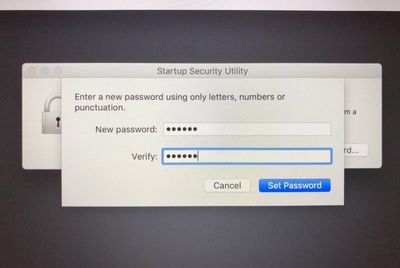
  5. Enter the same firmware password in both fields provided, then click Set Password.
    set a firmware password on your mac 4

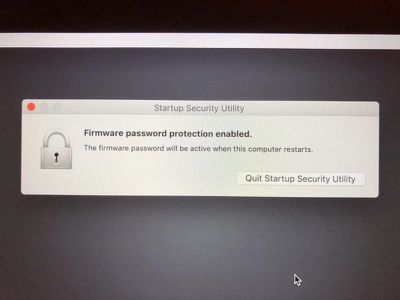
  6. Click Quit Firmware Password Utility.
    set a firmware password on your mac 5

  7. Click the Apple () menu and select Restart.

That's all there is to it. With the firmware password set, no one will be able to access your Mac's data by using an external hard drive. If you want to turn off a firmware password on your Mac that you've set up, the process is basically the same as above, except at step 4 you click Turn Off Firmware Password.


Popular Stories

macOS 27 on MacBook Pro

Apple Says macOS 27 Won't Be Compatible With These Macs

Wednesday June 3, 2026 8:29 am PDT by
During WWDC 2025, Apple revealed that macOS 26 Tahoe would be the final major macOS version for Intel-based Macs. macOS 27 will be compatible with Apple silicon Macs only, meaning that you will need a Mac with an M-series chip or a MacBook Neo with an A18 Pro chip in order to install the software update. Apple will unveil macOS 27 during its WWDC 2026 keynote this Monday, June 8, and the...
MacBook Neo on Yellow Feature

MacBook Neo is So Popular That Apple Reportedly Doubled Production

Wednesday June 3, 2026 9:24 am PDT by
On an earnings call in late April, Apple's CEO Tim Cook said that customer response to the MacBook Neo was "off the charts," and the popularity of the laptop has reportedly led the company to significantly boost production. Apple supply chain analyst Ming-Chi Kuo this week said he believes that MacBook Neo shipments to Apple were doubled from an initial target of 5 million units to 10...
iphone 18 pro blue%402x

iPhone 18 Pro: Dark Cherry, Light Blue, and Dark Gray Chassis Leaked [Update]

Thursday June 4, 2026 5:18 am PDT by
Update: Since publication, new information has come to light suggesting the images have been AI-manipulated and are not in fact iPhone 18 Pro chassis parts. The original article follows. The color options Apple is reportedly planning for the upcoming iPhone 18 Pro and ‌iPhone 18 Pro‌ Max have appeared online today in the form of images of chassis parts of unknown authenticity....