

Apart from the default startup disk, Mac computers can be set to start up from a different disk like an external drive, network volume, or a USB flash drive. This article explains the process for configuring a new start up disk on Macs with Apple silicon and older Intel-based Macs.
When it comes to changing your Mac's startup disk, you can do so for the next startup only or for every startup going forward. Here we'll break down the process for both scenarios. Note that the process involved in changing your startup disk once is different on newer Macs with Apple silicon compared to other Mac computers, so make sure to follow the steps that apply to you.
Before you continue, it's important to note that if you have a Mac with an Apple T2 Security Chip, you may need to set additional security features via the Startup Security Utility in order to change the startup disk. To learn more about the Startup Security Utility, consult Apple's user guide.
How to Change Your Startup Disk Once
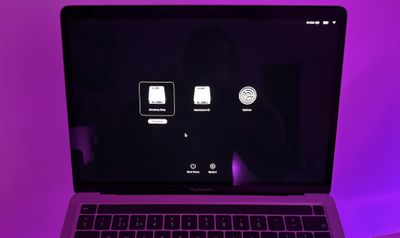
Apple silicon Macs:
- If your Mac is powered on, shut it down: Click the Apple symbol () in the menu bar and select Shut Down..., then confirm in the dialog prompt.
- Press and hold down the power button until "Loading startup options" appears on the screen. (If you're using a Mac mini, wait for the system indicator light to turn amber.)
- When you see the available startup volumes, select one, then click the Continue button.
Intel-based Macs:
- If your Mac is powered on, shut it down: Click the Apple symbol () in the menu bar and select Shut Down..., then confirm at the prompt.
- Press and hold the Option key as you press the power button to start up your Mac.
- When you see the available startup disks, select one, then click the Up arrow.
How to Set a Default Startup Disk
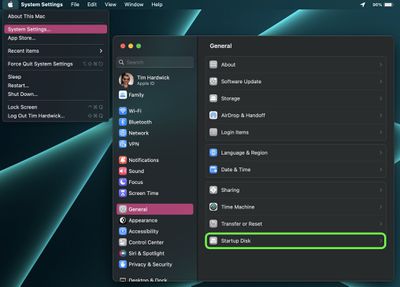
- On your Mac, click the Apple symbol () in the menu bar and select System Settings....
- Click General in the sidebar.
- Select Startup Disk on the right.

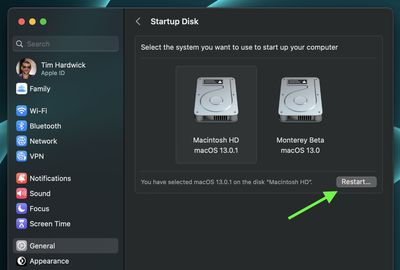
- Click the icon of the disk you want to use.
- Enter your admin password or use Touch ID to confirm the change if required.
- Click Restart....
When selecting a network startup volume, Apple warns users to make sure they select a network startup volume and NOT a network install image. This is because selecting a network install image reinstalls your system software and may erase the contents of your disk.
To avoid such a scenario, just remember that a standard network volume icon appears as a globe with a folder, while a network install icon appears as a globe with a downward-pointing green arrow.















