Losing your Apple Account password can make your digital life a misery, as it can leave you locked out of the account that you use to manage your Apple devices, unable to access your iCloud data and manage your app and service subscriptions.
In this scenario, Apple can't just reset your password for you, especially if your have two-factor authentication enabled. Setting up a recovery key is one alternative solution, but in such cases you can't change your password unless you have a trusted second device as well as the recovery key.
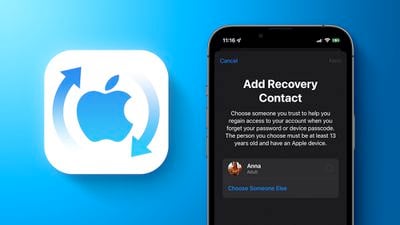
In an effort to make things easier, Apple allows you to set up an account recovery contact that can help make sure you always have access to your account, even if you forget your Apple Account password or device passcode. Your recovery contact is someone who can verify your identity and help you regain access to your account and all of your data if you ever get locked out.
Who Should Be My Recovery Contact?
Your recovery contact should be a person you know and trust, such as a family member or a close friend. They will need an iOS device of their own running iOS 15 or iPadOS 15 or later, or a Mac running macOS Monterey or later, and they must be over the age of 13. They'll also need two-factor authentication turned on for their own account and a passcode set up on their device.
Invite Someone to Be Your Recovery Contact
Note: If you're on a Mac, you can find the same options as above in System Settings ➝ Apple Account.
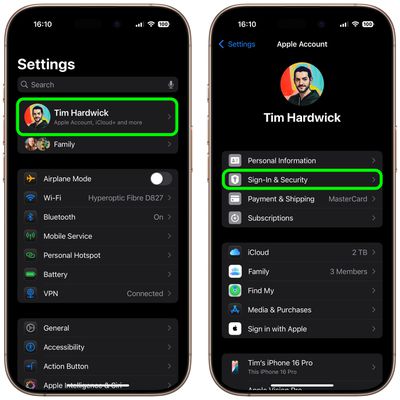
- Open the Settings app on your iOS device and tap your Apple Account banner at the top of the main menu.
- Tap Sign In & Security.

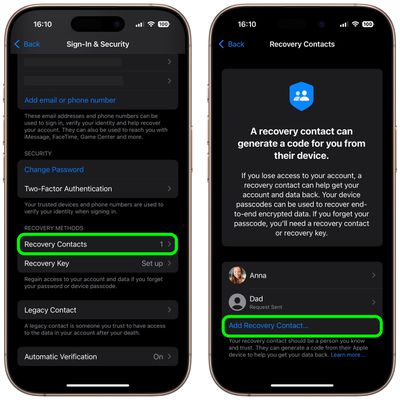
- Under "Recovery Methods," tap Recovery Contacts.
- Read the onscreen information, then tap Add Recovery Contact... and authenticate.
- Choose a recovery contact. If you're part of a Family Sharing group, eligible contacts will appear in the options. Alternately, tap Choose Someone Else to search your contacts.
- Tap Next, and the following screen lets you send your chosen contact a message letting them know you've added them as your recovery contact. You can send the default message or edit it before sending. Tap Send when you're ready, then tap Done.
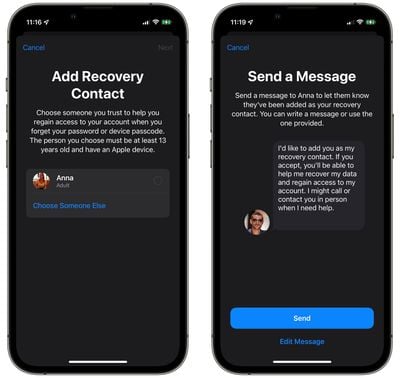
Remember to save the person's phone number so that you can contact them if you need help with account recovery.
Help Someone Regain Access to Their Account
If you are someone's designated recovery contact, here's how you can help them. They'll first have to verify some of their Apple Account account information, and then they'll contact you over the phone or in person. The following steps show how you go about generating and sharing a recovery code that they can then enter on their device. On Mac, the same options can be found in System Settings ➝ Apple Account.
- Open the Settings app on your iOS device and tap your Apple Account banner at the top of the main menu.
- Tap Sign In & Security ➝ Account Recovery.
- Tap your contact's name, then tap Get Recovery Code.
- When your friend is ready, read them their recovery code. Once they've entered it on their device, they'll be able to reset their password and regain access to their Apple Account.
Remove Yourself As a Recovery Contact
If you no longer want to be someone's recovery contact, follow these steps on your iOS device. On Mac, the same options can be found in System Settings ➝ Apple Account.
- Open the Settings app on your iOS device and tap your Apple Account banner at the top of the main menu.
- Tap Sign In & Security ➝ Account Recovery.
- Under "Account Recovery For," tap the person's name.
- Tap Remove Contact.
After completing these steps, the contact will automatically receive a message explaining that you're no longer their account recovery contact.
Note: To set up the recovery contact feature, all of the Apple devices associated with your account must be upgraded to iOS 15/iPadOS 15 or later, or macOS Monterey or later. Apple Watch models must be upgraded to watchOS 8 or later. You will not be able to use the recovery contact feature until you upgrade all of your devices or remove them from your Apple Account.