If you've got an Apple Watch, you can build motivation to stay active and stick to your fitness routine by sharing your activity with your friends and family. Read on to learn how.
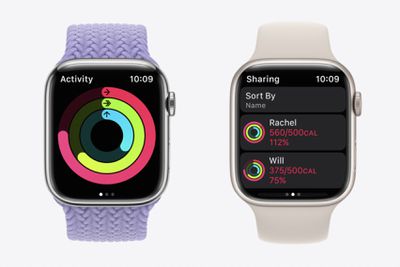
One of the great things about Apple Watch is that Apple has built in a social aspect to its activity tracking features that makes it easier to promote camaraderie in pursuit of a shared exercise goal.
By sharing your activity, you can boost your resolve to achieve that ideal weight or improve your fitness. If you want, you can receive notifications when your friends meet their goals, finish workouts, and earn achievements, all in just a few steps. You can even challenge friends to a competition in which you earn points based on the percentage of your Activity Rings that you close.
How to Share Your Activity With a Friend
If this is the first time you will have shared your activity, open the Fitness app on your iPhone, then tap Sharing. Tap Get Started, then follow the steps below:
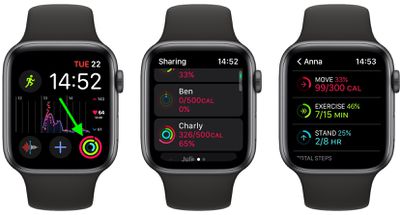
- Open the Activity app on your Apple Watch by pressing the Digital Crown and selecting it from the apps list, or by pressing the Activity watch face complication.
- Swipe left, then turn the Digital Crown to scroll to the bottom of the screen.
- To add a friend, tap Invite a Friend, then select them from your contacts.
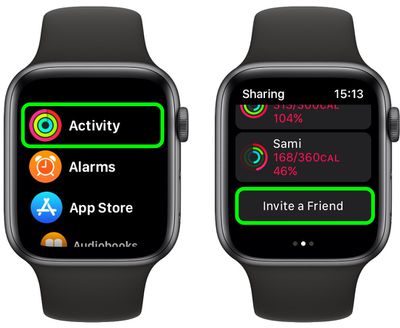
After your friend has accepted your invitation, you'll both be able to see each other's activity. If a friend hasn't accepted your invitation, you can nudge them to do so by tapping their name in the "Invited" section of the Sharing screen and tapping Invite Again.
You can also add a friend using the Fitness app on your iPhone. Launch the Fitness app, tap the Sharing tab at the bottom, then tap the Add Friend icon (the profile of a person next to a plus button) in the top-right corner of the screen.
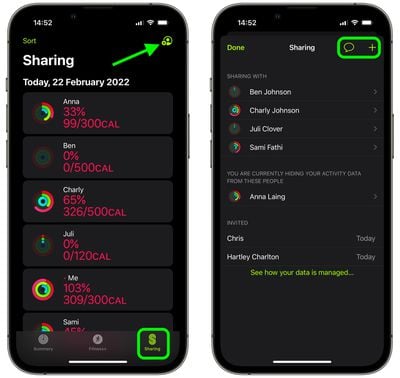
Tap the + icon and select a friend from your contacts to send an email invitation. You can also optionally tap the chat bubble icon to send an invitation over Messages.
How to Check Your Friend's Activity
Once your friend has accepted your invitation to share activity, you can check on their activity at any time by following these steps.
- Open the Activity app on your Apple Watch.
- Swipe left, then turn the Digital Crown to scroll through your friends list.
- Tap a friend to see their activity, including stats and any recorded workouts for the day.
How to Compete With Friends
Why not challenge a friend to a competition in which you earn points based on the percentage of your Activity Rings that you close? Here's how it works: You get a point for every percent you add to your rings each day, the competition lasts seven days, and you can earn up to 600 points a day for a maximum of 4,200 points for the week. Whoever has the most points at the end of the seven days wins the competition.
- Open the Activity app on your Apple Watch.
- Swipe left, scroll down, then tap a friend.
- Scroll down and select Compete.
- Tap Invite, then wait for your friend to accept.
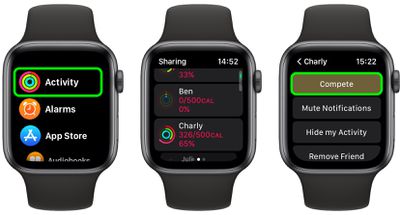
You can also open the Fitness app on your iPhone, tap Sharing, tap a friend, then tap Compete with [your friend's name].
How to Change Activity Sharing Settings
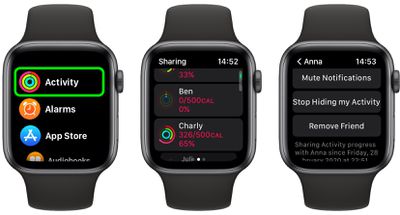
You can change your activity sharing settings for friends in just a few quick steps, so if you want to mute notifications, hide your activity, or remove a friend, do the following:
- Open the Activity app on your Apple Watch.
- Swipe left, scroll down, then tap a friend.
- Scroll down and use one of the options: Mute Notifications, Hide My Activity, or Remove Friend.
Did you know that you can change your activity goals on Apple Watch? Check out our dedicated guide to learn how.