

If you have an iPhone with a notch, you'll have noticed that the battery level indicator in the top-right corner of the screen doesn't show the actual percentage of battery that's left.
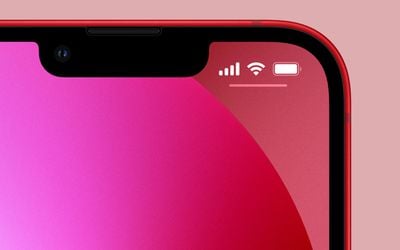
With older iPhones that feature no notch, Apple includes an option within settings to toggle the percentage on or off, but if your iPhone has a notch, there's no setting that will enable it.
Fortunately, there are a few ways you can still keep tabs on the battery percentage of a newer iPhone that we've outlined below. Keep reading to learn how they work.
1. Invoke Control Center
The easiest way to check the percentage level of your iPhone's battery is to swipe down from the top-right corner of the screen to open Control Center. You'll immediately see the percentage shown next to the battery icon in the top-right.
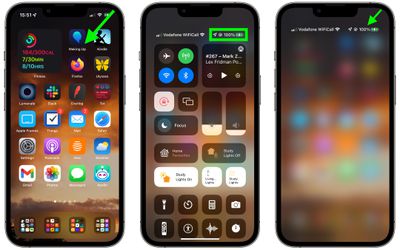
You don't even need to open Control Center fully to bring up the percentage. A small, quick drag diagonally down from the top-right corner of your iPhone screen will reveal it, and removing your finger from the screen will take you back to the Home Screen.
2. Open Today View
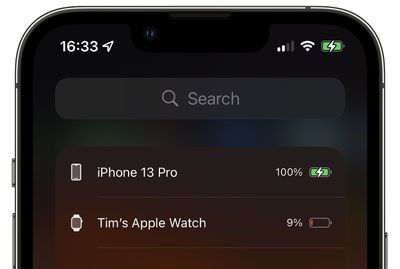
You can also check the battery percentage of your iPhone by using the Batteries widget in the Today View, accessed by swiping right on the Lock screen or on your Home screen's first screen of apps.
If you don't have it installed already, you can add the Batteries widget manually. To do so, enter the Today view, scroll to the bottom of the column of widgets and press the Edit button. Tap the plus (+) button in the top-left corner of the screen to open the Widget Gallery, then enter "Batteries" in the search field or scroll down and select the Batteries widget from the list.
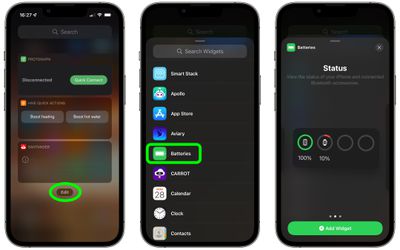
If you don't have any Apple accessories paired with your iPhone, the first square widget will display the battery percentage. If you have an Apple Watch or AirPods though, you won't see the percentage unless you select the second or third widget style. Swipe to the widget that works for you, then tap Add Widget to add it to the Today View.
3. Add a Battery Widget to Your Home Screen
If you want to be able to see the battery percentage of your iPhone when it's unlocked and on the Home Screen, add a battery widget to it.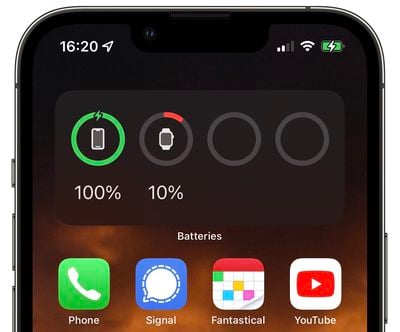
To do so, long press on a blank area of the Home Screen or any additional screen of apps to enter jiggle mode. Tap the plus (+) button in the top-left corner of the screen to open the Widget Gallery, then enter "Batteries" in the search field or scroll down and select the Batteries widget from the list.
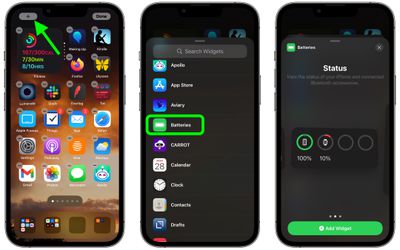
If you don't have any Apple accessories paired with your iPhone, the first square widget will display the battery percentage. If you have an Apple Watch or AirPods though, you won't see the percentage unless you select the second or third widget style. Swipe to the widget that works for you, then tap Add Widget to add it to your Home Screen.
4. Ask Siri
If you're a fan of Siri, you can always ask the virtual assistant "How is the battery life of my iPhone?" or even "How's my battery?" and you should get an answer.
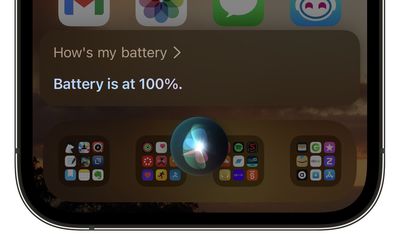
Top tip: You can also ask Siri this question of any Apple accessories you're using, such as Apple Watch or AirPods.
5. Plug in your iPhone
Anytime your iPhone is plugged in and charging, you'll see the battery percentage automatically displayed on the Lock Screen, just below the time.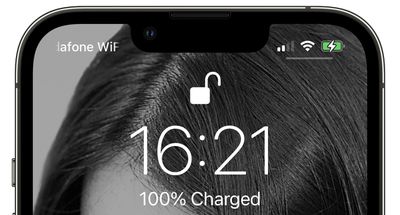
Interested in extending the lifespan of your iPhone's battery? Apple includes an option in its Battery Health settings called "Optimized Battery Charging" that learns from your personal device habits and waits to finish charging all the way up until you need your iPhone. To learn more about the feature, check out our dedicated tutorial.















