Auto-Populate iPhone Home Screen With Your Most Used Apps - MacRumorsOpen MenuShow RoundupsShow Forums menuVisit ForumsOpen Sidebar
Skip to Content

Auto-Populate iPhone Home Screen With Your Most Used Apps

by

Do you find yourself frequently scrolling through multiple Home Screen pages on your iPhone to get to the apps you access most often? If so, chances are you've already filled up the first page with some of your favorite apps. But what if you could automatically make all of your most-used apps appear on page one? With the Siri Suggestions widget, you can.
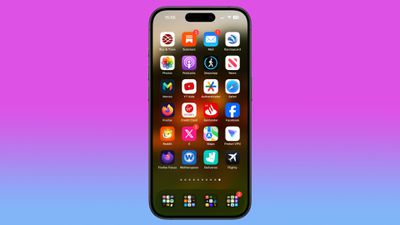
siri suggested apps iphone home screen
The Siri Suggestions widget intelligently recommends apps based on your usage patterns. By populating your Home Screen with multiple instances of this widget, you can ensure that the apps you need most are always just a tap away. Read on to learn how it's done.

  1. With your iPhone unlocked, swipe to a Home Screen page with at least two free rows available.
  2. Press and hold the empty space on the Home Screen until the apps start to jiggle.
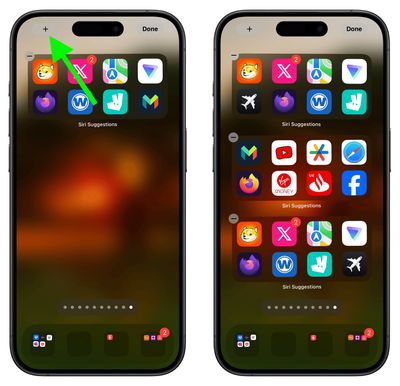
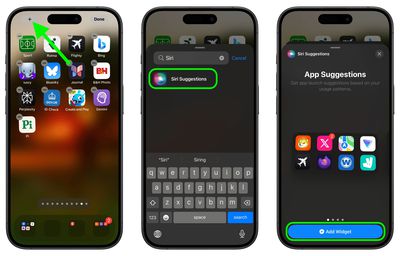
  3. Tap the "+" button in the top-left corner of the screen to access the widget gallery.
  4. Search for "Siri Suggestions" in the widget gallery or scroll through the list to find it.
  5. Tap the Siri Suggestions widget option, then choose the first option showing two rows of apps by tapping Add Widget.
    siri suggestions

  6. Drag the widget to a fresh new page containing no other apps.
  7. Add another instance of the Siri Suggestions widget by tapping the "+" button in the top-left corner of the screen again, then selecting it in the widget gallery, just like you did for the first one.
  8. Add a third Siri Suggestions widget in the same way.
    siri suggestions

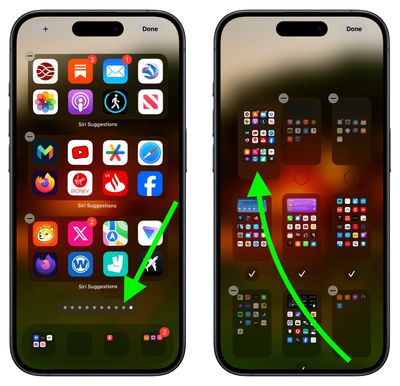
  9. Next, tap the row of dots representing your ‌Home Screen‌ pages.
  10. In the ‌Home Screen‌ grid that appears, touch and drag the page of widgets you just made and move it so that it's the first Home Screen page (the one you see when you unlock your iPhone). The others will move to make way in response to your drag action.
  11. Tap Done in the top-right corner of the screen when you're happy with the new arrangement, then tap Done again to exit jiggle mode.
    Home Screen pages

Don't worry if the widgets first show the same suggested apps as each other – this will correct itself when you swipe away from the page and return to it. That's all there is to it. By following the above steps, you will have quick access to your most-used apps, even if your habits change, ensuring your Home Screen is both dynamic and tailored to your needs.


Top Rated Comments

Apple Mac Daz Avatar
24 months ago
No thx I arrange my apps thats convenient for me, having it auto change would be confusing when you don’t know where your apps are
Score: 30 Votes (Like | Disagree)
24 months ago
Destroy muscle memory with these 8 simple steps!

Static layout for most used apps seems best.

Swipe down and search for everything else. Every time I see someone hunting around for an app on their phone I tell them “swipe down…search”. It’s very quick and easy after you know about the action.
Score: 29 Votes (Like | Disagree)
vegetassj4 Avatar
24 months ago
I have mine set to make random suggestions. This way I am sure to use all of the useless apps I have downlaoded over the years. oooooh...Pocket Frogs....
Score: 9 Votes (Like | Disagree)
Radeon85 Avatar
24 months ago
Looks like an absolute mess to me, I have 325 apps all organised into 21 folders over 1.5 screens and it looks far cleaner than that.

If you want to quickly access your most used apps, then just pull the screen down to show the top 8 siri suggestions.
Score: 8 Votes (Like | Disagree)
24 months ago
What would Steve Jobs say? I'm sure it would not be printable. Life's too short to waste time doing all this.
Score: 6 Votes (Like | Disagree)
Abazigal Avatar
24 months ago
I have been using this setup since widgets came to iOS with iOS 14? 1 stack of 3 medium widgets, plus two rows of Siri widgets. Hide everything else (meaning only 1 homescreen) and if I want to find some other app, either spotlight or App Library.

There does seem to be some intelligence here. For example, Siri will know when I am at a supermarket and surface the loyalty app I use to earn points and make payment. It’s not very consistent though.
Score: 6 Votes (Like | Disagree)

Popular Stories

iphone 18 pro blue%402x

iPhone 18 Pro: Dark Cherry, Light Blue, and Dark Gray Chassis Leaked [Update]

Thursday June 4, 2026 5:18 am PDT by
Update: Since publication, new information has come to light suggesting the images have been AI-manipulated and are not in fact iPhone 18 Pro chassis parts. The original article follows. The color options Apple is reportedly planning for the upcoming iPhone 18 Pro and ‌iPhone 18 Pro‌ Max have appeared online today in the form of images of chassis parts of unknown authenticity....
Aston Martin CarPlay Ultra Screen

Apple Says CarPlay Ultra is Coming to These Vehicle Brands

Thursday May 21, 2026 11:53 am PDT by
Last year, Apple launched CarPlay Ultra, the long-awaited next-generation version of its CarPlay software system for vehicles. Nearly a year later, CarPlay Ultra is still limited to Aston Martin's latest luxury vehicles, but that should change fairly soon. In May 2025, Apple said many other vehicle brands planned to offer CarPlay Ultra, including Hyundai, Kia, and Genesis. CarPlay Ultra...
iOS 27 All the New App Features

iOS 27: All the Rumored App Features

Wednesday June 3, 2026 3:48 pm PDT by
Siri is getting a major overhaul in iOS 27, but Apple also has some big updates planned for apps like Camera, Photos, and Wallet. There are multiple new AI features in the works, plus some non-AI upgrades. Camera Apple is moving Visual Intelligence from the Camera Control button to the Camera app in iOS 27, according to Bloomberg. There will be a Siri mode that will be available alongside...