How to Use the Sound Recognition Accessibility Feature in iOS 14 - MacRumorsOpen MenuShow RoundupsShow Forums menuVisit ForumsOpen Sidebar
Skip to Content

How to Use the Sound Recognition Accessibility Feature in iOS 14

by

In iOS 14 and iPadOS 14, Apple has added an accessibility feature called Sound Recognition that enables iPhones and iPads to listen for certain sounds, like a doorbell or a baby crying, and alert the user if they're detected.
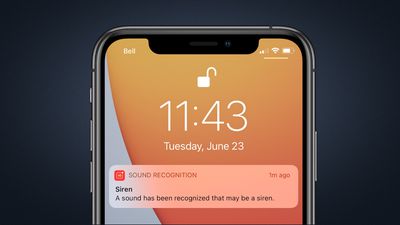
ios 14 sound recognition notification
The feature is designed to help people that are hard of hearing, but Apple cautions that it shouldn't be relied upon in circumstances where the user may be harmed or injured, in high-risk or emergency situations, or for navigation.

With that caveat in mind, here's how to enable Sound Recognition on a device running iOS 14 or iPadOS 14.

How to Enable Sound Recognition on iPhone and iPad

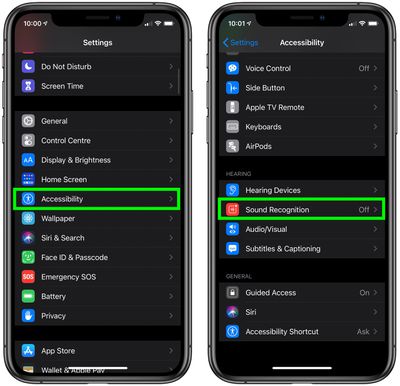
  1. Launch the Settings app on your device.
  2. Tap Accessibility.
  3. Under Hearing, select Sound Recognition.
    settings

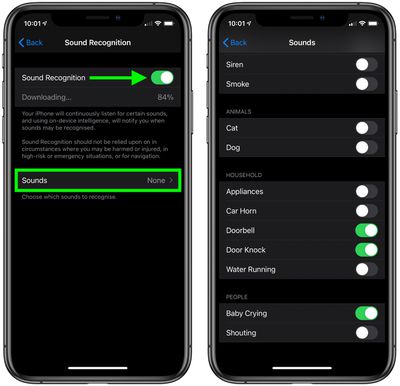
  4. Toggle the switch for Sound Recognition to the green ON position and wait a moment for the feature to download. Note that enabling the option requires 5.5MB of on-device storage.
  5. Tap Sounds.
  6. Select which sounds you want your device to listen for by toggling the switch next to each option.
    settings

Once the feature is enabled, your iPhone or iPad will continuously listen for the sounds you selected, and using on-device intelligence, will notify you when those sounds are recognized.

How to Add Sound Recognition to the Control Center

Once you've enabled Sound Recognition, you can add it to your device's Control Center to make it easier to switch on and off.

  1. Launch the Settings app on your iPhone or ‌iPad‌.
  2. Tap Control Center
  3. Under More Controls, tap the green plus (+) button beside Sound Recognition to add it to the list of Included Controls above. You can use the hamburger handles on the far right of the controls list to arrange them in the order you want.
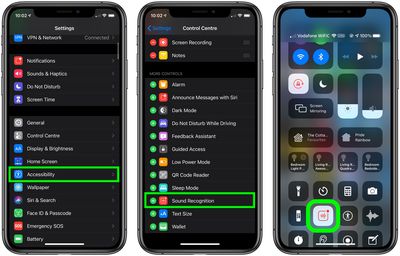
    settings

Once that's done you can access the Sound Recognition button by launching Control Center on your iOS device: On an ‌‌iPad‌‌ or with a Home button, double-tap the Home button; on ‌iPhone‌ 8 or earlier, swipe up from the bottom of the screen; and on a 2018 iPad Pro or ‌iPhone‌ X and later, swipe down from the upper right of the screen.

Tap the Sound Recognition button to turn it on or off. You can also long press the button and change which sounds your device should listen for.


Related Forum: iOS 14

Top Rated Comments

77 months ago
They need to add a sound recognition for me cursing when I can't find my phone. That'll be much faster than using Find My Phone on the computer.
Score: 9 Votes (Like | Disagree)
CarlJ Avatar
77 months ago

They need to add a sound recognition for me cursing when I can't find my phone. That'll be much faster than using Find My Phone on the computer.
This is one of the less often mentioned awesome bits in the Apple Watch: swipe up on the face, tap the "Ping iPhone" button, iPhone immediately makes noise.
Score: 5 Votes (Like | Disagree)
77 months ago
Would the notifications also show up on an Apple Watch? May be nice to have iPhone "listening" for the door when I am stuck in my temporary office in basement and I know a package is coming.
Score: 4 Votes (Like | Disagree)
77 months ago

This is one of the less often mentioned awesome bits in the Apple Watch: swipe up on the face, tap the "Ping iPhone" button, iPhone immediately makes noise.
And . . my most USED feature.

The Apple Watch. . . Raison d'etre!
Score: 3 Votes (Like | Disagree)
hortod1 Avatar
77 months ago
Seat behind you on an airliner - baby crying.

Siri - hey there’s a baby crying
Score: 3 Votes (Like | Disagree)
ConfusedChris Avatar
77 months ago
It would be good to be able to record sounds that you want it to listen for. For example, a tone the washing machine makes when it is finished. A letter posted through the letterbox, the dog scratching at the door, ...

Assumes, of course, that a device was near enough etc. Perhaps HomePod would be best.

edit: There could be an online library of generic sounds to choose from. Machine learning would tweak it to your particular sound.
Score: 2 Votes (Like | Disagree)

Popular Stories

Apple Card iPhone 16 Pro Feature

Apple Card Promo to Offer Free AirPods Pro 3

Friday May 15, 2026 8:59 am PDT by
Starting as early as next week, customers who sign up for an Apple Card at Apple's retail stores in the U.S. will receive $249 cash back when they purchase AirPods Pro 3, according to Bloomberg's Mark Gurman. The promotion has yet to be officially announced by Apple, so exact terms and conditions are not available at this time. AirPods Pro 3 are priced at $249 in the U.S., so customers who...
Apple WWDC25 iOS 26 CarPlay Light mode 250609

Six Popular iPhone Apps Now Available on CarPlay

Thursday May 14, 2026 9:10 am PDT by
Apple's CarPlay system for accessing iPhone apps on a vehicle's dashboard screen has received six popular apps in recent weeks: ChatGPT, Perplexity, Grok, Google Meet, WhatsApp, and the indie artist streaming platform Audiomack. Make sure you have the latest version of each app and they will automatically appear on CarPlay. ChatGPT Starting with iOS 26.4, CarPlay supports voice-based...
ipad mini 7 blue

OLED iPad Mini: Release Date, Pricing, and What to Expect

Thursday May 14, 2026 5:08 am PDT by
According to the latest rumors, Apple is close to launching its next-generation iPad mini. So what should we expect from the successor to the iPad mini 7 that Apple released over a year ago? Read on to find out. Processor and Performance Apple is working on a next-generation version of the iPad mini (codename J510/J511) that features the A19 Pro chip, according to information found in code...