

Apple's iOS software includes a Clock app that also has a handy timer feature, but you don't even need to open the Clock app to use it. Keep reading to learn how to set a timer on your iPhone in a jiffy.
Whether you're busy cooking or just want to limit the amount of time you spend on a certain task, timers come in handy for all sorts of things. And the quicker you can set a timer, the more time you'll have to tend to whatever it is you're doing.
Here are two of the fastest ways to set a timer on your iPhone.
Method 1:
- Invoke Control Center by swiping down diagonally from the top-right of the screen. (If your iPhone has a Home button, swipe up from the bottom of the screen.)
- Long press on the Timer button.
- Swipe up on the slider to set the timer duration, then tap Start.
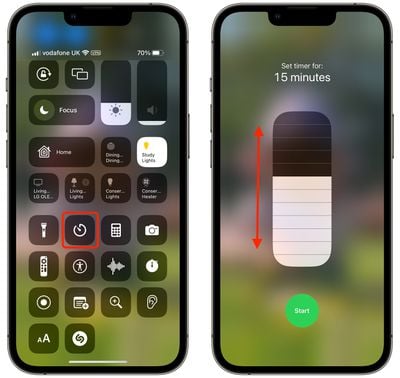
Note that each tile in the slider increases the timer duration in the following steps: 1, 2, 3, 4, 5, 10, 15, 20, 30, and 45 minutes, and 1 or 2 hours. If you want to set a timer for a more specific duration, try the second method below.
Method 2:
Simply say "Hey Siri, set a timer for [duration]." If you don't get a response from Siri, the voice assistant may be disabled. To check, open the Settings app, tap Siri & Search, and make sure the toggle is on next to Listen for "Hey Siri."
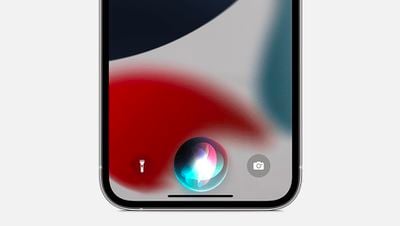
Alternatively, you can press and hold the Side button on your iPhone to invoke the Siri voice assistant. If that's not working, check that the option Press Side Button for Siri is enabled in the same Settings menu as above.
Note that if you have an Apple Watch, you can ask Siri to set a timer by holding the watch up to your mouth and making the request. You can also press and hold the Digital Crown to invoke Siri if you prefer. And if you have a HomePod that's within earshot, you can ask the same thing of Siri via the smart speaker, too.















