How to Set Up a System-Wide Word Count Service on Your Mac - MacRumorsOpen MenuShow RoundupsShow Forums menuVisit ForumsOpen Sidebar
Skip to Content

How to Set Up a System-Wide Word Count Service on Your Mac

by

In this article, we're going to show you how to create a system-wide service that enables you to get an immediate word count and character count in TextEdit, Safari, Mail, or indeed any app on your Mac that lets you highlight text. It offers a handy home-made solution if you often find yourself pasting into a blank Word or Pages document for no other reason than to find out how many words are in a text selection.

word count automator service 2
The steps below will guide you through the process of creating your own word count service using the macOS Automator app. It's a simple procedure to follow and should only take five minutes, but if you'd rather use a third-party solution, then check out WordCounter, a free Mac menu bar utility from Onekerato.

How to Create a Word Count Service in Automator

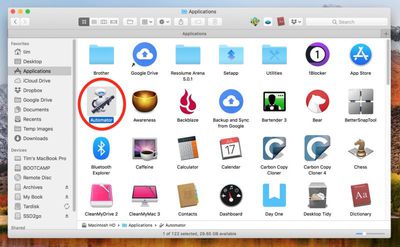
  1. Launch Automator from the Applications folder.
    1 Automator

  2. Click New Document.

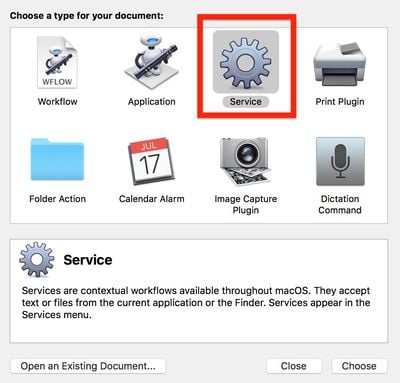
  3. Choose Service as the type of your document.
    2 Automator document type

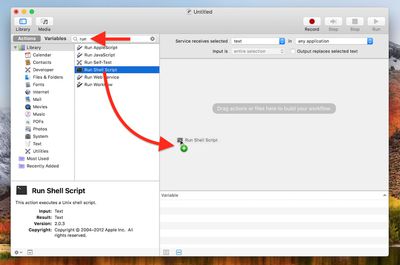
  4. Type "run" into the Library search field at the top of the Automator sidebar, then drag the Run Shell Script action into the empty workflow area.
    automator drag shell script

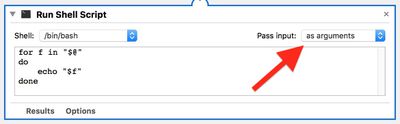
  5. In the Run Shell Script action window, change the Pass Input: option to as arguments using the dropdown menu.
    automator run shell script

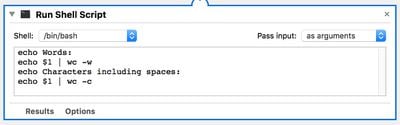
  6. Clear the text in the shell script box (highlight the text with your mouse cursor and hit Backspace) then copy and paste the following text into the same area:

    echo Words:

    echo $1 | wc -w

    echo Characters including spaces:

    echo $1 | wc -c
    automator word count script

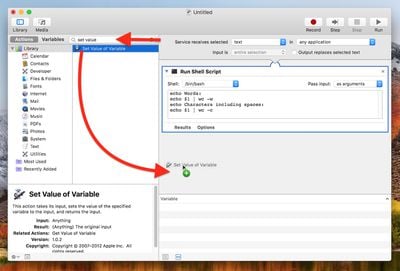
  7. Clear the Library search field at the top of the Automator sidebar and type "set value", then drag the Set Value of Variable action into the workflow area.
    automator set value of variable

  8. Click the Variable: dropdown menu and select New Variable....

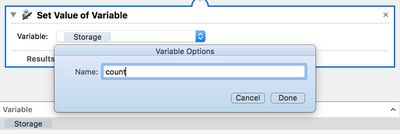
  9. In the blue dialog that appears, click inside the Name: input field. It may default to "storage", but you can rename it – we'll call it "count". Click Done, and you should now see "count" (or whichever name you used) appear in the variable list below the workflow area.
    automator variable name

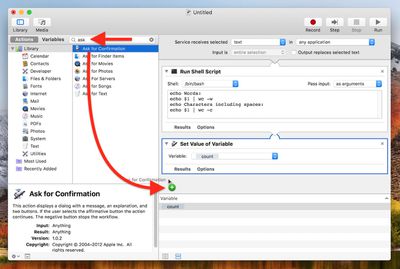
  10. Clear the Library search field at the top of the Automator sidebar again, and this time type "ask", then drag the Ask for Confirmation action into the workflow area.
    drag ask for confirm

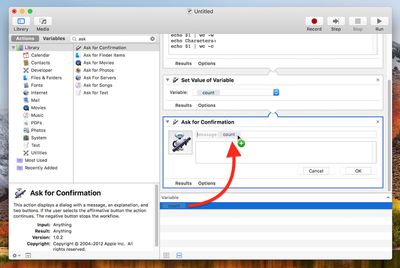
  11. Now, drag your "count" variable from the variable list up to the "Message" title in the Ask for Confirmation action.
    drag count variable

  12. In the Automator menu bar, select File -> Save..., call your new service "Word Count", and click Save.
Next time you want to get a word count and/or character count for some text you've highlighted, simply right-click (or Ctrl-click) on the text and select Services -> Word Count from the contextual dropdown menu.
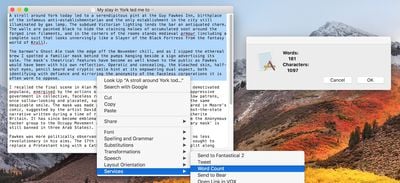
word count
You can assign a key shortcut to it for even faster access. To do so, launch System Preferences, select the Keyboard pane, and click the Shortcuts tab. Select Services from the sidebar and you should find Word Count near the bottom of the list. Just click it, select Add Shortcut, and finally, enter your custom key combination.
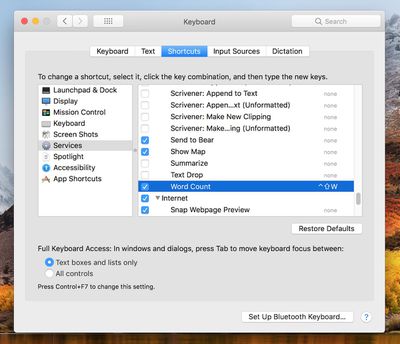

word count shortcut

Top Rated Comments

106 months ago
Srsly guys... I don't think I'll need this. But you rock! Keep these guides and tutorials coming!!! They are MUCH appreciated!
Score: 11 Votes (Like | Disagree)
106 months ago
Srsly guys... I don't think I'll need this. But you rock! Keep these guides and tutorials coming!!! They are MUCH appreciated!
Was gonna say exactly this till I saw your post. Reminds me of MacOXSHints.
[doublepost=1526030048][/doublepost]
Or get WordService for free from the App Store to give you text stats and so much more:
https://itunes.apple.com/app/wordservice/id899972312?mt=12
Maybe but this also teaches you stuff.
Score: 6 Votes (Like | Disagree)
fairuz Avatar
106 months ago
Automator is one of the many amazing productivity features in macOS that few know about. It's saved me so much time.
Score: 2 Votes (Like | Disagree)
IJ Reilly Avatar
106 months ago
Or get WordService for free from the App Store to give you text stats and so much more:
https://itunes.apple.com/app/wordservice/id899972312?mt=12
Beat me to it. I've used this indispensable collection of services for over 15 years. Can also be downloaded here:

https://www.macupdate.com/app/mac/10523/wordservice
[doublepost=1526061714][/doublepost]
Maybe but this also teaches you stuff.
I learned that I don't have to do it myself. ;)
Score: 2 Votes (Like | Disagree)
95 months ago
Has anyone actually checked how exact this is? I'm testing it now and the "characters including spaces" count seems to always be one more than it should be, regardless of the text or the program that I'm using the action in (e.g. safari, textedit, etc). Can anyone confirm if it's working 100% properly or not on their mac?

I know it's not a 'huge deal', and I can just manually deduct 1 myself, but it'd be interesting to know if anyone else is experiencing this and if so, if there's a way to get it exact. The exact character count is what I'm using this function for, because I use sites which limit titles & descriptions to exact character counts; and some sites, for some reason, don't actually tell you how many characters you've entered, just that you've "exceeded the maximum number of characters".

Thanks
Score: 1 Votes (Like | Disagree)
ArtOfWarfare Avatar
106 months ago
There are definitely existing Sublime plugins for word count. I'm using this one ('https://github.com/titoBouzout/WordCount')and it's great.

Of course. There's plenty of plugins for Sublime for anything lots of people need to do.

I was saying that, more generally, I write plugins for Sublime when I regularly need to do something with text in some specific way. As opposed to writing a MacOS service, where it'll only work on Macs.
Score: 1 Votes (Like | Disagree)

Popular Stories

iCloud iPhone 17 Pro

iPhone Users Who Pay for iCloud Storage Get Two New Perks on iOS 27

Thursday July 2, 2026 6:10 am PDT by
If you pay for certain iCloud+ storage plans beyond the 5GB that Apple offers for free, you will receive two more perks on iOS 27 at no additional cost. A summary of the two new iCloud+ perks on iOS 27:Increased daily usage limits for some new Apple Intelligence features, including image generation in the revamped Image Playground app. HomeKit Secure Video cameras receive generated video...
iPhone 4 on Black Feature

Apple Facing One of Its Worst Leaks Since the iPhone 4

Thursday July 2, 2026 9:53 am PDT by
Apple supplier Tata Electronics recently suffered a cyberattack that resulted in thousands of confidential files being published on the dark web, and this reportedly included some photos and documents related to the upcoming iPhone 18 Pro. We have elected not to share any of the leaked photos in this story due to the illegal nature in which they were obtained, but they can easily be found...
American Express Gold Apple Pay Feature

American Express Announces New Apple Pay Feature

Tuesday June 30, 2026 10:27 am PDT by
American Express today announced that you can now redeem Membership Rewards points when checking out with Apple Pay on the web and in apps on the iPhone and iPad. When checking out with Apple Pay on iOS 18 or iPadOS 18 or later, tap on your eligible American Express card (Platinum, Gold, Green, and others) and select the Membership Rewards points option. You can use points to cover all or...