

Tab Groups are a new Safari feature introduced in iOS 15 that aim to make organizing and preserving your open browser tabs more manageable without having to have those tabs active.
Tab Groups are a way to easily save and manage related tabs, such as those used when planning trips or shopping, or groups can be used to store the tabs you visit daily.
If you're planning a trip, for example, you can save all of your tabs into a "Vacation" group, accessing them when needed and leaving your device free for other content when you're not doing active planning. Or of you have a set of websites you always open up for work, you can save these in a dedicated Tab Group.
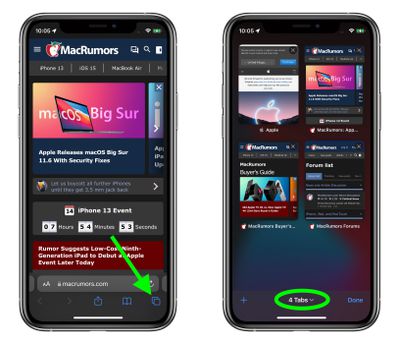
You can open up the new tiled tab view in Safari and then long press on the Tabs icon in the middle to save your open tabs into a Tab Group or to open one of your saved Tab Groups. Here's a rundown of the steps involved.
How to Create a Tab Group
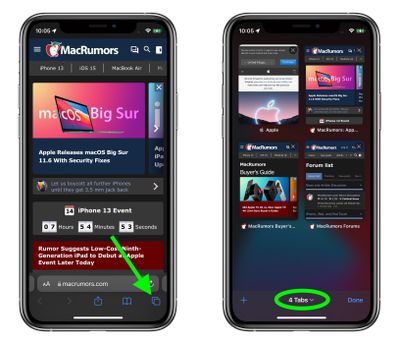
- Launch Safari and tap the Open Tabs button in the bottom right corner of the screen.
- Tap or long press the middle of the tab bar at the bottom of the screen.

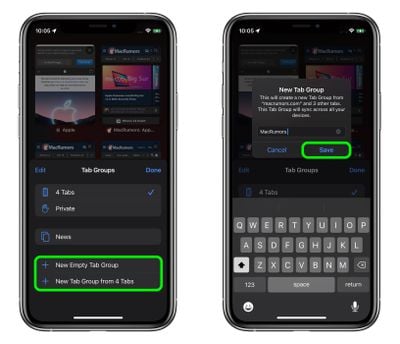
- Select New Empty Tab Group. Alternately, if you already have the tabs open that you want to group together, select New Tab Group from X Tabs.
- Enter an identifying name for your Tab Group, then tap Save.
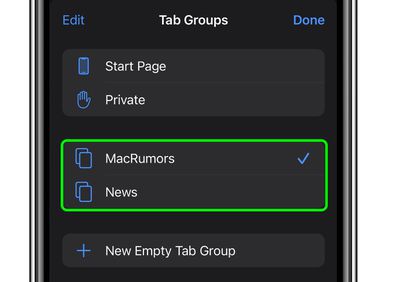
Once you've created a Tab Group (or several) you can switch between them easily by tapping the Tab bar in the open tabs view and selecting the one you want. Any tabs that are opened when a Tab Group is selected will automatically be included in that group.
How to Delete a Tabs Group
When you no longer need a Tab Group, it's easy to delete it. Here's how.
- In you're viewing a webpage, tap the Open Tabs button in the bottom right corner of the screen.
- Tap the middle of the tab bar at the bottom of the screen.
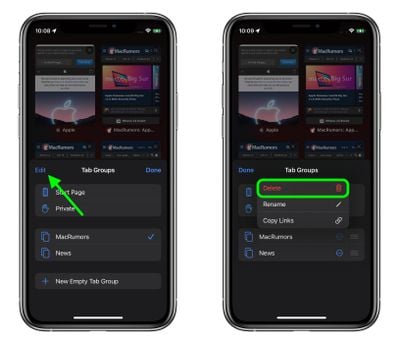
- Tap Edit in the top left corner of the menu card.
- Tap the circled ellipsis icon next to the Tab Group you want to get rid of, then tap Delete.
All of your Tab Groups sync across your devices so you can access them on iPhones and iPads running iOS and iPadOS 15 as well as on Macs running macOS Monterey.



















