

How to Take a Quick Burst of Photos on iPhone - MacRumorsOpen MenuShow RoundupsShow Forums menuVisit ForumsOpen Sidebar
Skip to Content

How to Take a Quick Burst of Photos on iPhone

by

If you're looking for a great way to capture a shot of an action scene or an unexpected event on your iPhone, try Burst mode in Apple's stock Camera app. In Burst mode, the camera on your iPhone captures a series of photos in rapid succession, at a rate of ten frames per second.
iphone 16 camera
When photographing anything dynamic like sports events, wildlife, or children at play, burst mode increases the likelihood of obtaining sharp, well-timed images. By taking multiple shots in quick succession, you can select the best frame where the subject's motion is perfectly frozen. Here's how to shoot Burst mode photos on iPhone.

Shooting in Burst Mode

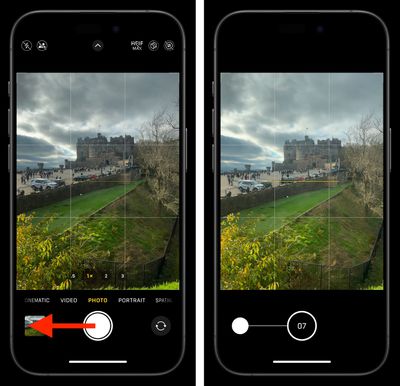
  1. In the Camera app, press and drag the shutter button to the left beneath the viewfinder.
  2. Keep your finger pressed down to continue taking photos in rapid succession.
  3. Take your finger off the shutter when you want to end the burst of shots.
camera

When shooting in Burst mode, notice how the counter increases in the shutter's original position for as long as you hold it down. This indicates how many shots are being captured in the current burst.

Apple also includes an option in iOS settings that when enabled lets you press and hold the Volume Up button to take Burst shots. Go to Settings ➝ Camera, then turn on Use Volume Up for Burst.

Choosing the Best Shot

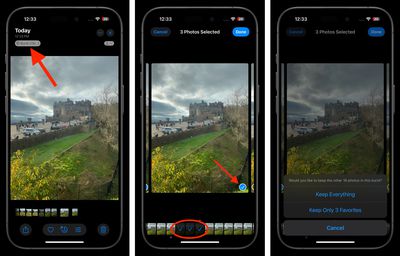
  1. After shooting in Burst mode, tap the image thumbnail in the Camera app, or open the Photos app and select the Burst you just captured.
  2. Tap Burst in the top-left corner, then tap the best shot or shots you want to keep as an individual photo. (You can swipe across the photos or scroll the row of thumbnails below to view them.) Gray dots below the thumbnails mark the suggested photos to keep.
  3. Tap Done, then choose Keep Everything or Keep only X Favorite (X being the number of shots you selected).
photos

When you take a series of burst photos, they automatically appear in the Photos app under the Album name "Bursts." You'll also find them in the Recent Days section.


Top Rated Comments

MasterControlProgram Avatar
22 months ago

Are you serious Matthew? This feature has been in place since those “early days”.

Imagine you were flying and the pilot didn’t know all the controls of the aircraft. You are that pilot.
Wasn't the original burst mode activated by holding the button though? These days that activates video recording, so it's understandable not to think to swipe the button left to trigger burst mode.
Score: 8 Votes (Like | Disagree)
Razorpit Avatar
22 months ago
Thanks for the reminder. This is a feature I should use more often than I do.
Score: 6 Votes (Like | Disagree)
rotlex Avatar
22 months ago
No idea why they ever changed the method for doing burst. Just holding down the shutter buttron was so much more intuitive. Why not allow it to be customized to the uers preference?
Score: 5 Votes (Like | Disagree)
22 months ago
Great feature…. but….

In the early days of iOS, you could discover features by exploring. The interface was simple and intuitive. Now there are features like this, hidden behind obscure gestures/actions. I’d never have found this if I’d not seen the article. Maybe that’s just me.
Score: 5 Votes (Like | Disagree)
ApAx Avatar
22 months ago
You used to be able to press and hold the on screen button. There is already an on-screen label to switch to video mode and cycle through all camera modes. I expect a dedicated burst-only mode button to be added to iPhone 17 to bring clarity and ease of use to the incomprehensibly difficult on-screen button that we have had for 17 years.
Score: 3 Votes (Like | Disagree)
22 months ago
So i just tried this. In 14 years of iPhone ownership i dont think i have ever done ‘burst’ shooting. Should be press and hold for burst and swipe for video imo. You need to know you want a burst before shooting you can’t just press harder like a dslr
Score: 3 Votes (Like | Disagree)

Popular Stories

iCloud iPhone 17 Pro

iPhone Users Who Pay for iCloud Storage Get Two New Perks on iOS 27

Thursday July 2, 2026 6:10 am PDT by
If you pay for certain iCloud+ storage plans beyond the 5GB that Apple offers for free, you will receive two more perks on iOS 27 at no additional cost. A summary of the two new iCloud+ perks on iOS 27:Increased daily usage limits for some new Apple Intelligence features, including image generation in the revamped Image Playground app. HomeKit Secure Video cameras receive generated video...
iPhone 4 on Black Feature

Apple Facing One of Its Worst Leaks Since the iPhone 4

Thursday July 2, 2026 9:53 am PDT by
Apple supplier Tata Electronics recently suffered a cyberattack that resulted in thousands of confidential files being published on the dark web, and this reportedly included some photos and documents related to the upcoming iPhone 18 Pro. We have elected not to share any of the leaked photos in this story due to the illegal nature in which they were obtained, but they can easily be found...
American Express Gold Apple Pay Feature

American Express Announces New Apple Pay Feature

Tuesday June 30, 2026 10:27 am PDT by
American Express today announced that you can now redeem Membership Rewards points when checking out with Apple Pay on the web and in apps on the iPhone and iPad. When checking out with Apple Pay on iOS 18 or iPadOS 18 or later, tap on your eligible American Express card (Platinum, Gold, Green, and others) and select the Membership Rewards points option. You can use points to cover all or...















