How to Back Up Your Mac Using Time Machine - MacRumorsOpen MenuShow RoundupsShow Forums menuVisit ForumsOpen Sidebar
Skip to Content

How to Back Up Your Mac Using Time Machine

by

Time Machine iconFinding a reliable backup solution for the Mac that runs in the background and isn't a drain on system resources was once considered a challenging prospect.

With the arrival of OS X 10.5 Leopard, Apple changed that preconception by introducing its native backup solution, called Time Machine. This article explains the benefits of using Time Machine and runs you through the setup and restore process.

Benefits of Using Time Machine

Time Machine has won over many Mac users due to its automated scheduling and intuitive recovery process, along with its ability to run in the background without affecting overall system performance.

The application achieves this by making an initial full backup of your Mac's system disk and then stacking subsequent changes to the volume in a chronological hierarchy. Hourly backups, daily backups and weekly backups occur automatically, while the oldest backups are overwritten with new ones as the external backup disk reaches full capacity.

This creates a layered snapshot system that's reflected in Time Machine's navigable timeline and makes the recovery of individual files and folders a simple affair.
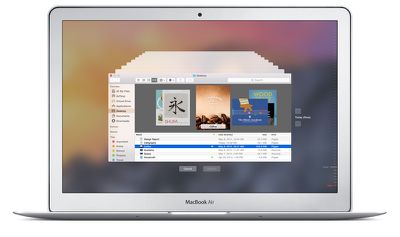
Time Machine on a MacBook Air
Another big plus with Apple's solution is that a Time Machine backup can be used in Recovery Mode to restore your Mac to its original state if the worst happens and your drive fails.

Likewise, the same backup volume can be used by Apple's Migration Assistant during an OS X installation to quickly transfer your applications, files and settings from an old Mac to a new one.

If you're using a Mac notebook running OS X Lion or later and you move away from the backup disk, Time Machine will save daily backups to your Mac's startup disk and even manage these local snapshots to ensure you still have storage space available.
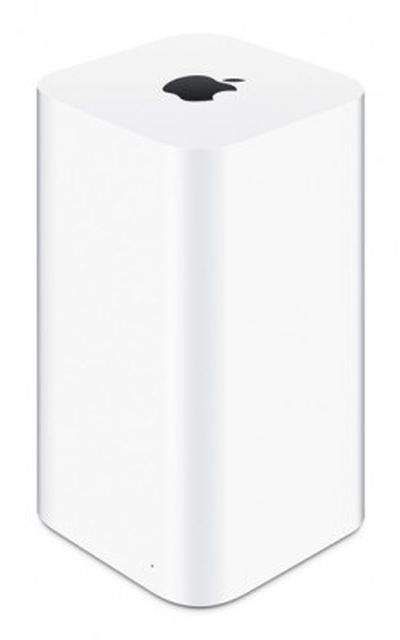
Time Capsule

What You Need

Apple's AirPort Time Capsule (from $299) is a Wi-Fi base station with a built-in backup disk, making it an ideal wireless solution for Time Machine since it avoids the need to keep an external hard drive physically connected to your Mac.

You can also use an external drive connected over a network, so long as it supports Apple File Protocol (AFP) file sharing. Otherwise, any hard drive that connects via USB, Thunderbolt or FireWire and uses a Mac filesystem format will do the job.

Bear in mind that the initial backup takes time, so you may want to set up Time Machine in the evening and leave your Mac on overnight for the process to complete.

Setting up Time Machine

When you connect an external hard drive to your Mac, a prompt may appear asking if you want to use it as a Time Machine backup disk. If you'd prefer to secure your backups with a password, check the "Encrypt Backup Disk" option, then click "Use as Backup Disk".
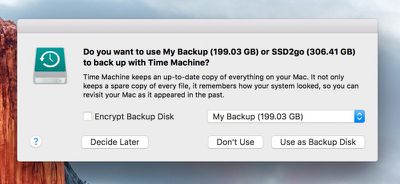
Time Machine query dialog

If the dialog prompt doesn't appear, follow these steps:

  1. Open Time Machine's settings by selecting System Preferences from the top-left Apple menu in the menu bar and clicking the Time Machine icon in the preference pane.
  2. Turn on the Time Machine slider and tick the "Show Time Machine in menu bar" option if it isn't already selected.
  3. To exclude specific items from your backups, click "Options…" and use the + button to select the files or folders in question. Here you can also choose whether to back up when your Mac's running on battery power and whether or not to be notified when old backups get deleted. Click Save when you're done.
  4. Click "Select Backup Disk…" and choose the drive you'd like to use from the list. Finally, tick the box if you want to Encrypt backups and then click "Use Disk".
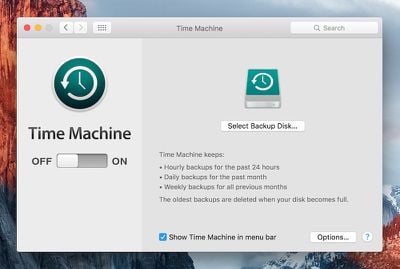
Time Machine preference pane

And that's it. The chosen volume will be formatted and the initial backup begins a couple of minutes later. Time Machine looks after the rest.

Using Multiple Backup Disks

Of course, using one backup disk may prove impractical if you often move your Mac between two locations. Fortunately, Time Machine supports multiple backups and will automatically rotate backups between disks, so there's nothing to stop you from keeping one in both places.

To add another backup disk to Time Machine, simply wait for the initial backup to complete on the first disk and then repeat step 4. Time Machine will ask if you want to use this new volume instead or to take turns backing up between the two disks. Select "Use Both".
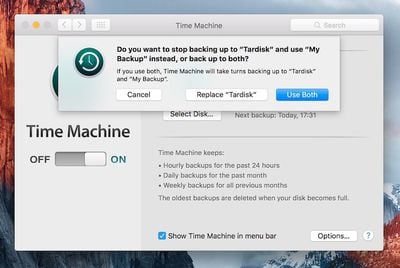
Time Machine Use Both Disks

Restoring From a Backup

To restore individual files and folders from your desktop, follow these steps:

  1. Enter Time Machine by selecting the option from the Time Machine icon on the OS X menu bar.

  2. In the screen that appears you'll see a Finder window and several more receding into the distance; select a date from the timeline right of the screen or click the up/down arrows to navigate the backup snapshots and locate the deleted item (or an earlier version of an item) you want to recover.

  3. Select the relevant item in the snapshot window, click Restore, and Time Machine will copy the file or folder to its original location on your Mac's startup disk.
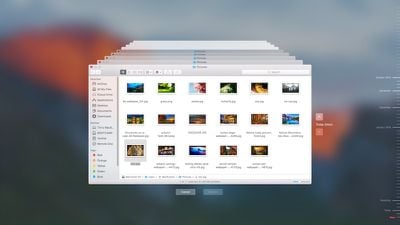
Time Machine screen
If you're using multiple backup disks and want to restore an item from another backup volume, return to the desktop, hold down the Option key and click on the Time Machine icon in the menu bar. Select the option that appears to "Browse Other Backup Disks…" and choose the attached volume in question.

Finally, to restore your startup disk wholesale in the event of a disaster, restart your Mac and hold down the Command and R keys to enter Recovery Mode. Select the option to "Restore your Mac from a Time Machine backup" from the OS X Utilities window and follow the steps on screen.

Alternatives to Time Machine

If you'd prefer more scheduling flexibility than Time Machine offers or you want to back up to a bootable clone disk, check out third-party apps like SuperDuper! ($27.95) and Carbon Copy Cloner ($39.99).

Alternatively, CrashPlan offers a free off-site backup solution as well as a cloud-based option for as little as $5 a month.


Top Rated Comments

141 months ago
Great article. Ignore the condescending comments. Some people are new and learning... "just search for it" is a terrible attitude
Score: 9 Votes (Like | Disagree)
JeffyTheQuik Avatar
141 months ago
This is nice for those new to Macs, or those that have forgotten to do so. This kind of thing would have been nice to have when I entered the Mac waters back in 2008.

Thank you!
Score: 4 Votes (Like | Disagree)
Crosscreek Avatar
141 months ago
SuperDuper runs every night on my Mac so I always have a fresh bootable copy from external WD drive.
Score: 4 Votes (Like | Disagree)
Weaselboy Avatar
141 months ago
If you're using a Mac notebook running OS X Yosemite or later and you move away from the backup disk, Time Machine will save daily backups to your Mac's startup disk and even manage these local snapshots to ensure you still have storage space available.
Just a correction Tim, local snapshots came out with Lion. http://pondini.org/TM/30.html

Well written article. Thank you.
Score: 4 Votes (Like | Disagree)
glenthompson Avatar
141 months ago
This doesn't offer any way of backing up the hard drive to itself, does it?

I mean... surely that would be more useful than nothing, wouldn't it?
Pretty much this is a useless approach. The only thing it would protect you against is accidental deletion or overwriting of a file. Almost any other disaster scenario would leave you without a backup. Think fire, theft, flood, etc.


Best practice for backups is to have at least 3 copies of your data with one of those copies being off-site.
Score: 2 Votes (Like | Disagree)
WigWag Workshop Avatar
140 months ago
I appreciate these articles, very helpful to the new folks.
Score: 1 Votes (Like | Disagree)

Popular Stories

apple pro tell logo

Apple Launching Five New Products Today

Thursday November 5, 2026 12:59 am PST by
Apple is launching five new products on Friday, November 6, following pre-orders that opened last week, including its first touchscreen MacBook Pro models. The following new products will be available from today: iPad mini with OLED display and A20 Pro chip iMac with M6 chip 14-inch MacBook Pro with M6 chip 14-inch MacBook Pro with OLED touchscreen 16-inch MacBook Pro with OLED...
duo aquarium

More Fun iPhone Duo Apps: 30 New Picks to Try

Friday November 6, 2026 3:27 pm PST by
When the iPhone Duo launched, we shared a list of some of the fun apps developers created for the new form factor. Two weeks out, developers are continuing to come up with fresh ideas, so we thought we'd share some of our favorites. Games Marbles Unhinged ($2.99) - Marbles Unhinged is a marble maze designed for the Duo. When you fold it, the floor turns into a ramp. If you stand the top...
silver iphone 18 pro

Apple Rumored to Drop the iPhone's Action Button Next Year

Friday November 6, 2026 6:07 am PST by
Apple plans to merge the iPhone's Action button with the Camera Control starting next year, according to the leaker known as "Instant Digital." In a new post on Weibo, the leaker claimed that a single press of the combined button would open the camera, while a long press would trigger the function assigned to the Action button. They explicitly clarified that the dedicated Action button would ...
Latest Stories
Early Apple Black Friday Deals on Apple Watch, MacBook Air, and More
13 hours ago
'Backglow' Lets You Customize New MacBook Pro's Glowing Apple Logo
13 hours ago
Top Stories: Apple Product Launches, iOS 27.3 Beta, and More
20 hours ago
More Fun iPhone Duo Apps: 30 New Picks to Try
1 day ago
Hands-On With Apple's New OLED Touchscreen MacBook Pro
2 days ago
Apple Store With All-New Design Opening Soon in Southern California
2 days ago
Control the Glowing Apple Logo on Your New MacBook Pro
2 days ago
Apple Shares New 'Apple Card: Apply and Use in Minutes' Ad
2 days ago
Apple Says More Than 100,000 Apps Optimized for iPhone Duo, Here's What's Still Missing
2 days ago
Early Black Friday Deals Kickoff With Steep Discounts on Apple Watch Ultras and More
2 days ago
The MacRumors Show: iOS 27.3 Looks Like a Huge Update
2 days ago
Best Buy's Black Friday Event Begins With Sitewide Savings on Apple, TVs, More
2 days ago
Apple Releasing Yet Another Two New Products Next Week
2 days ago
MacBook Air Drops to Lowest Price in Months With Amazon's $250 Discount
2 days ago
Apple Rumored to Drop the iPhone's Action Button Next Year
2 days ago
Apple's Extended Return Policy Now in Effect for 2026 Holiday Season
2 days ago
Apple Music Classical Updated With New Icon and Refreshed Design
2 days ago
OLED iPad Mini, M6 iMac, and New MacBook Pros Available From Today
2 days ago
Apple Surveys iPhone Duo Buyers About Crease and Camera
2 days ago
Apple's First Touchscreen Mac is Now Arriving to Customers
2 days ago
Claude Gets Personal Finance Feature With Bank Account Linking
2 days ago
Apple Arcade Adds Crossy Road Rush and NBA 2K27
3 days ago
Apple's New HomeView Smart Home Hub: Here's How Much RAM It Has
3 days ago
iPad Mini vs. iPad Air Buyer's Guide: Now Just $50 Apart
3 days ago
First iOS 27.3 and macOS Golden Gate 27.3 Public Betas Now Available
3 days ago
Apple Announces a New Mac Sales Record
3 days ago
Paid $200 for Logic Pro? Apple Says You Won't Get This New Feature
3 days ago
Instagram's Edits Video Editor is Now Available on Mac
3 days ago
Prevent Siri and Search From Accessing Specific iPhone Apps
3 days ago
Best Early Black Friday Deals on iPhone 18 Pro and iPhone Duo
3 days ago