
How to Update macOS Using a Simple Terminal Command - MacRumorsOpen MenuShow RoundupsShow Forums menuVisit ForumsOpen Sidebar
Skip to Content

How to Update macOS Using a Simple Terminal Command

by

The Mac App Store Is a Free Download through Software Update Apple Confims 2If you're sick of waiting for the progress bar to complete every time you reboot after a macOS software update, then you'll be pleased to learn there's another way to update your Mac that could potentially reduce your downtime.

The process involves a simple Terminal command, and allows you to continue using your Mac as the update downloads and the initial software installation takes place in the background. In our tests, we found that this method was capable of shaving off several minutes of idle time during installation restarts, but that the time-saving depends on the machine and the update in question.

Users with older Macs in particular will likely appreciate this tip, as it saves having to fire up the Mac App Store altogether, which can be slow-going and sometimes even downright unresponsive. Read on to find out how it's done.

How to Update macOS From the Command Line

Before following these steps, ensure you have a full backup of your system, which should be par for the course when performing any update. Note that the following procedure only lists stock Apple system updates (iTunes, Photos, printer drivers the like), but not updates for other Apple apps that aren't installed with macOS (Xcode, for instance), and not third-party updates from the Mac App Store.

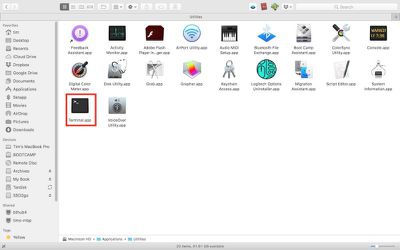
  1. To update macOS from the command line, first launch Terminal, which can be found in the Applications/Utilities folder. This will open a Terminal window and a command prompt for you to begin typing.
    Terminal

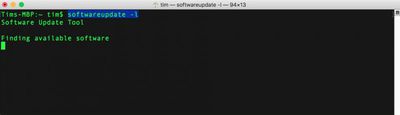
  2. Input the following command and press Enter: softwareupdate -l
    software update terminal

  3. Wait as your Mac searches Apple's servers for any macOS software updates currently available for your system. If no updates are available, you'll be returned to the command prompt.
Now let's take a look at the command's output. Available updates always appear as items in a list. In our example, only one update is available at this time, but every item follows the same format, as shown:
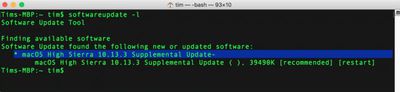
update identifier
The asterisked line denotes the individual software update package that's available for your Mac to download. This line is also known as the identifier.
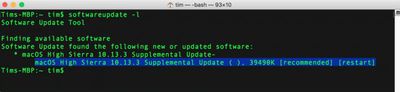
update details
The second line offers a more detailed description of the update, including the version number (usually in brackets) and the download file size in kilobytes. [Recommended] means the update is recommended for all users, and [restart] indicates that your Mac needs to reboot for installation to complete.

To download and install a specific update in the list, use the following format, but replacing NAME with the update's identifier:

softwareupdate -i NAME

Or:

softwareupdate --install NAME

Note that if the package name you’re trying to install has spaces in it, you'll need to enclose the whole thing in single quotes. So for example:

softwareupdate --install 'macOS High Sierra 10.13.3 Supplemental Update-'

Also, be alert for spaces at the end of the package names. If present, they also need to be included within the quotes.

Moving on, to download a specific update for your system without also installing it then and there, you can use:

softwareupdate -d NAME

Updates downloaded in this way can be subsequently installed with the same -i or --install command above, or even through the Mac App Store. These updates are downloaded to a folder located in /Library/Updates, but they aren't designed to be installed by double-clicking the packages in that directory. You'll need to use the --install command or visit the Mac App Store to actually initiate the install.

Lastly, to download and install all available updates for your system, type the command:

softwareupdate -i -a

Using these commands, you'll be able to leave the update to download and continue to install in the background while you get on with other things. All being well, Terminal will eventually prompt you to restart your machine manually so that the full installation procedure can complete. (Note that the softwareupdate utility requires admin authentication for all commands except the -l or -list command. If you run softwareupdate as a normal admin user, you will be prompted for a password where required.)
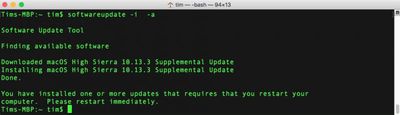
restart prompt
As some users will no doubt be aware, there are several additional options that can be used in conjunction with the softwareupdate utility. For example, -schedule on/off enables/disables your Mac's scheduled background check for updates. More adventurous readers can use man softwareupdate and softwareupdate -h for a summary list of commands.


Top Rated Comments

113 months ago
My point, a good OS, no need for terminal. Apple makes a good OS, for most terminal rarely if ever needed. The reason I stay with MacOS.
As a software engineer I'm always amazed that there are people who are so CLI-phobic. The GUI has little or nothing to do with the OS. Neither does the terminal for that matter. They are both human user interfaces to communicate with the machine OS.

The difference is the CLI typically provides more options and is more concise in how you do things.

Given the time and resources to create a GUI there are often compromises made to get the basic functionality without providing all of the options.

macOS is a Unix based OS at it's core, just like Solaris, Linux or FreeBSD. Lots of money allowed Apple to create better than average GUI apps and interfaces. There is little magic in the Darwin OS itself.

Praising the CLI over the GUI is a matter of preference and what you need to get done.
Score: 14 Votes (Like | Disagree)
113 months ago
Buy Apple Products so I do not need the terminal commands. When I feel like I am missing the good old days, fire up my RaspberryPi. :D

I used to think like this also. But these days the Apple UI is getting so bad, that I have started using the command line more and more. I have to agree with the article, the App Store app sucks. When it was just the software update app it seemed to work just fine.


But the App Store app UI is usually out of sync with what is actually happening. If you are like me, when its time to install updates, I want them installed now, not sometime in the future when the App Store app feels like. Usually, I have made extra backups and cleaned everything up, before installing. After the update I check a number of things to make sure they are not hosed.

5 years ago I installed Apple update without any additional work, the day they were released. Not any more. Apple has, by its actions, lost my trust. Today I won't install any update until after its been out for weeks, if not longer. IMO Apple's main thrust these days is publicity, not performance and reliability and I am not willing to let their lack of ability effect my income.
Score: 8 Votes (Like | Disagree)
Kaibelf Avatar
113 months ago
I just stick with "sudo softwareupdate -ia" for all my updates these days. That has never caught me up in any errors, and always works.
Score: 8 Votes (Like | Disagree)
ArtOfWarfare Avatar
113 months ago
Apple has a pretty comprehensive set of commmand line tools that it seems like nobody ever talks about.

I found this one useful several years ago when the Mac App Store just wasn’t working for me.
Score: 8 Votes (Like | Disagree)
KazKam Avatar
113 months ago
I know I've posted this in other threads related to software updates in macOS, but man, I REALLY miss the old Software Update. It was concise but still had all the information I needed to make an informed decision about an update (each update its own line item, terse description and change log, restart requirement, FILE SIZE, and it seemed much faster at scanning your system and refreshing available updates.

The App Store "Updates" tab OTOH is slooooooooow, convoluted, takes up four times the space yet tells me less, buries individual updates under macOS updates, and won't tell me how large a file is before I decide to download it. It sucks.

Edit: I half wonder if Apple is being intentionally obtuse about updates. I get the impression they'd be super happy if the choice of updating anything was taken out of the hands of users entirely and they were able to foist every update instantaneously, damn the consequences.
Score: 5 Votes (Like | Disagree)
MacsRgr8 Avatar
113 months ago
NERD ALERT! ;)
Yes, and finally so!
Back to the good ol' geek UNIX fun of macOS!!
Score: 5 Votes (Like | Disagree)

Popular Stories

apple pro tell logo

Apple Launching Five New Products Today

Thursday November 5, 2026 12:59 am PST by
Apple is launching five new products on Friday, November 6, following pre-orders that opened last week, including its first touchscreen MacBook Pro models. The following new products will be available from today: iPad mini with OLED display and A20 Pro chip iMac with M6 chip 14-inch MacBook Pro with M6 chip 14-inch MacBook Pro with OLED touchscreen 16-inch MacBook Pro with OLED...
duo aquarium

More Fun iPhone Duo Apps: 30 New Picks to Try

Friday November 6, 2026 3:27 pm PST by
When the iPhone Duo launched, we shared a list of some of the fun apps developers created for the new form factor. Two weeks out, developers are continuing to come up with fresh ideas, so we thought we'd share some of our favorites. Games Marbles Unhinged ($2.99) - Marbles Unhinged is a marble maze designed for the Duo. When you fold it, the floor turns into a ramp. If you stand the top...
silver iphone 18 pro

Apple Rumored to Drop the iPhone's Action Button Next Year

Friday November 6, 2026 6:07 am PST by
Apple plans to merge the iPhone's Action button with the Camera Control starting next year, according to the leaker known as "Instant Digital." In a new post on Weibo, the leaker claimed that a single press of the combined button would open the camera, while a long press would trigger the function assigned to the Action button. They explicitly clarified that the dedicated Action button would ...
Latest Stories
Early Apple Black Friday Deals on Apple Watch, MacBook Air, and More
15 hours ago
'Backglow' Lets You Customize New MacBook Pro's Glowing Apple Logo
15 hours ago
Top Stories: Apple Product Launches, iOS 27.3 Beta, and More
22 hours ago
More Fun iPhone Duo Apps: 30 New Picks to Try
2 days ago
Hands-On With Apple's New OLED Touchscreen MacBook Pro
2 days ago
Apple Store With All-New Design Opening Soon in Southern California
2 days ago
Control the Glowing Apple Logo on Your New MacBook Pro
2 days ago
Apple Shares New 'Apple Card: Apply and Use in Minutes' Ad
2 days ago
Apple Says More Than 100,000 Apps Optimized for iPhone Duo, Here's What's Still Missing
2 days ago
Early Black Friday Deals Kickoff With Steep Discounts on Apple Watch Ultras and More
2 days ago
The MacRumors Show: iOS 27.3 Looks Like a Huge Update
2 days ago
Best Buy's Black Friday Event Begins With Sitewide Savings on Apple, TVs, More
2 days ago
Apple Releasing Yet Another Two New Products Next Week
2 days ago
MacBook Air Drops to Lowest Price in Months With Amazon's $250 Discount
2 days ago
Apple Rumored to Drop the iPhone's Action Button Next Year
2 days ago
Apple's Extended Return Policy Now in Effect for 2026 Holiday Season
2 days ago
Apple Music Classical Updated With New Icon and Refreshed Design
2 days ago
OLED iPad Mini, M6 iMac, and New MacBook Pros Available From Today
2 days ago
Apple Surveys iPhone Duo Buyers About Crease and Camera
2 days ago
Apple's First Touchscreen Mac is Now Arriving to Customers
3 days ago
Claude Gets Personal Finance Feature With Bank Account Linking
3 days ago
Apple Arcade Adds Crossy Road Rush and NBA 2K27
3 days ago
Apple's New HomeView Smart Home Hub: Here's How Much RAM It Has
3 days ago
iPad Mini vs. iPad Air Buyer's Guide: Now Just $50 Apart
3 days ago
First iOS 27.3 and macOS Golden Gate 27.3 Public Betas Now Available
3 days ago
Apple Announces a New Mac Sales Record
3 days ago
Paid $200 for Logic Pro? Apple Says You Won't Get This New Feature
3 days ago
Instagram's Edits Video Editor is Now Available on Mac
3 days ago
Prevent Siri and Search From Accessing Specific iPhone Apps
3 days ago
Best Early Black Friday Deals on iPhone 18 Pro and iPhone Duo
3 days ago