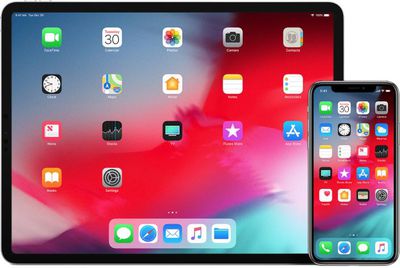
Keeping your iPhone or iPad software up-to-date is an important way to ensure that you have the latest features, bug fixes, and security enhancements, and that you're generally getting the best from your device. This article explains how to update your iPhone or iPad to the latest version of iOS or iPadOS, over the air or using a Mac or PC.
Back Up Your iOS Device First
Before you update to a new software version, you should always make a backup of your device first. Creating an iPhone or iPad backup should be routine for most users, as it's a simple procedure and the easiest way to recover your data if something goes wrong during the update procedure.
How to Update Your iPhone or iPad Wirelessly
If you get a notification on your device that says an update is available, tap Install Now. You can also follow these steps:
- Plug your device into a power outlet using a Lightning cable and power plug, and make sure you're connected to a Wi-Fi network.
- Launch the Settings app.
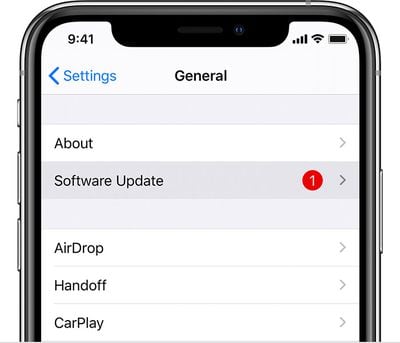
- Tap General, then tap Software Update.

- Tap Download and Install. You may see a message asking to temporarily remove some apps because the update needs more storage space than is currently available. If so, tap Continue or Cancel. If you select Cancel, you should free up space on your device manually by deleting apps and other files that take up storage.
- To Update now, tap Install. Alternately, tap Later and choose Install Tonight or Remind Me Later. If you tap Install Tonight, make sure to plug your device into power before you go to bed. Your device will update automatically overnight.
- Enter your passcode if prompted to do so.
How to Update an iPhone or iPad Using a Mac or PC
If you can't update your device over the air, you can update it manually using a Mac or Windows PC. Here's how.
- On a Mac running macOS Catalina 10.15, launch a Finder window. On a Mac running macOS Mojave 10.14 or earlier, or on a PC, launch the iTunes app.
- Connect your iPhone or iPad to your computer using a Lightning cable.
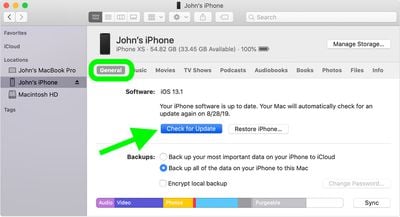
- If you opened a Finder window, you'll see your iOS device appear in the sidebar – Click it to select it. If you opened iTunes, view your device by clicking on its icon in the upper-left corner of the iTunes window.
- Click General or Settings, then click Check for Update.
- If an update is available, click Download and Update.
- Enter your passcode on your iOS device if prompted, and the update process will complete automatically.
If the update fails or you see an error code, try restarting your device. If that doesn't work, perform a restore of the backup you made prior to attempting to update your device.
Turn on Automatic Software Updates
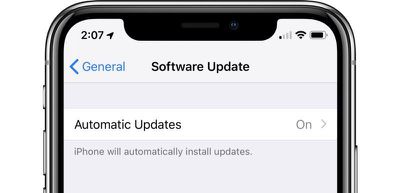
There's an option on iPhone and iPad to enable automatic software updates. With this feature turned on, when a new version of iOS is released, your iPhone or iPad will be updated automatically and you won't need to do a thing.
- Launch the Settings app on your iOS device.
- Tap General -> Software Update.
- Tap Automatic Updates.
- Toggle the option to the green ON position.
Unless this is turned on, your iOS device will wait for you to manually tap the install button when an update is released, though it will continue to download new updates in the background. To turn off automatic updates, follow the same steps, toggling the update from on to off.