This article walks you through the typical transaction process that's used to buy things online with Apple Pay when browsing on a Mac. Once you've set up Apple Pay on your Mac and familiarized yourself with it, there's a good chance it will become your preferred payment option for online purchases because it's so convenient. You can use it wherever you see the Apple Pay symbol.
Apple Pay transactions are authorized on your Mac using the Touch ID sensor on your MacBook Air or MacBook Pro. If you have an older Mac that doesn't feature a Touch ID sensor, you can still use Apple Pay to buy things online, but you'll have to use the cards stored in the Wallet app on your iPhone or Apple Watch. The second set of steps shows you how this works.
How to Use Apple Pay on Macs With a Touch ID Sensor
- Open Safari on your Mac.
- Visit an online merchant that accepts Apple Pay as a payment method on the web.
- Find the merchandise or service that you want to buy and progress the order to the checkout process.
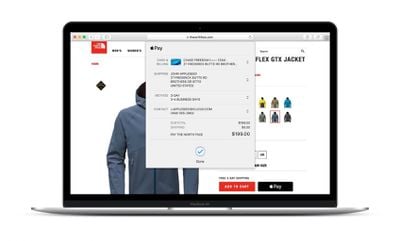
- Select Apple Pay as your payment method (it's usually displayed as a black button that says "Buy with Apple Pay").
- Check that your shipping and billing information is correct in the Apple Pay dropdown pane.
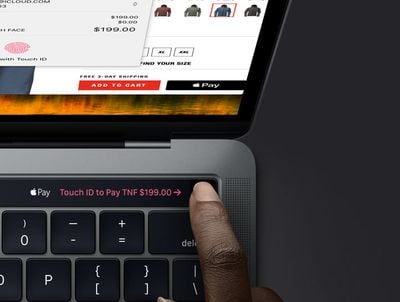
- Place your registered finger on the Touch ID sensor at the top-right corner of your MacBook's keyboard to authenticate the transaction.

How to Use Apple Pay on Macs Without a Touch ID Sensor
- Open Safari on your Mac.
- Visit an online merchant that accepts Apple Pay as a payment method on the web.
- Find the merchandise or service that you want to buy and progress the order to the checkout process.
- Select Apple Pay as your payment method (it's usually displayed as a black button that says "Buy with Apple Pay").
- Check that your shipping and billing information is correct in the Apple Pay dropdown pane.
- Pick up your iPhone or raise whichever wrist your Apple Watch is worn on.
- If your iPhone has a Home button, place your Touch ID-registered finger on it to authenticate the transaction. If your iPhone has Face ID, double-press the Side button to authenticate with your face. If you're wearing Apple Watch, press the Side button on it to pay with Apple Pay.
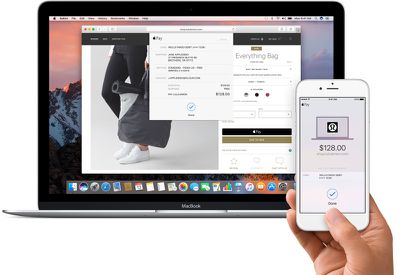
That's all there is to it. Note that to complete your purchase using iPhone or Apple Watch, they must be signed in with the same Apple ID as on your Mac.