

How to Use the New Continuity Camera Feature in macOS Mojave - MacRumorsOpen MenuShow RoundupsShow Forums menuVisit ForumsOpen Sidebar
Skip to Content

How to Use the New Continuity Camera Feature in macOS Mojave

by

In macOS Mojave, Apple has extended its Continuity features so that now you can use your iPhone or iPad's camera to take a photo or scan a document, and it will be immediately available on your Mac.
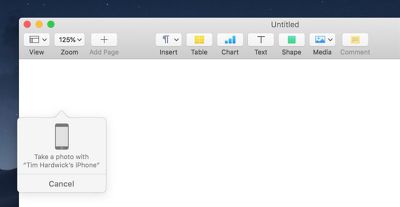
continuity camera 2
Continuity Camera works in several native Mac apps, including Pages, Keynote, and TextEdit. The following steps explain how to use it. Bear in mind that both your iOS device and your Mac need to be logged into the same Apple ID for this feature to work.

How to Add a Photo Using Continuity Camera

  1. Launch the app that you want to import a photo into.
  2. Open an existing project or document, or create a new one.
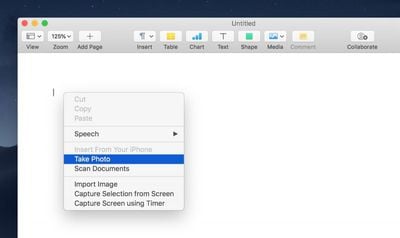
  3. Right-click (or Ctrl-click) the location where you want to insert the photo.
    continuity camera 1
  4. In the contextual menu, click Take Photo under the name of the iOS device that you want to use.
  5. Take the photo on your iPhone or iPad.
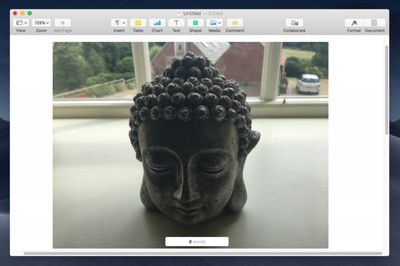
  6. Tap Use Photo on your iOS device, and the image will appear in the open project or document on your Mac.
    continuity camera 3

How to Scan a Document Using Continuity Camera

  1. Launch the app you want to use and open a project or document, or create a new one.
  2. Right-click (or Ctrl-click) the space where you want to insert the captured document.
  3. In the contextual menu, click Scan Document under the name of the iOS device that you want to use.
  4. Using your iPhone or iPad's camera, frame the document in the onscreen viewfinder. The document should turn yellow and scan automatically. You can repeat this step to scan several documents if desired.
  5. Tap Save on your iOS device, and your scanned documents will be inserted into the open project or document on your Mac.
Related Forum: macOS Mojave

Top Rated Comments

Benjamid Avatar
103 months ago
Hmm, I don’t get why it can’t just create a document as pdf. It’s already annoying that I have to create a note to scan documents in iOS than move the scan to files and then delete the note...
Score: 5 Votes (Like | Disagree)
100 months ago
Hmm, I don’t get why it can’t just create a document as pdf. It’s already annoying that I have to create a note to scan documents in iOS than move the scan to files and then delete the note...
You can scan docs directly from your iPhone to a file on your Mac. In Finder, Ctrl-click in an empty area in the folder where you want scanned docs to be saved, then choose Import from iPhone or iPad > Scan Documents. This saves as a PDF.

Attachment Image
Score: 4 Votes (Like | Disagree)
BWhaler Avatar
103 months ago
I’m really looking forward to Mohave. Reminds me of old school Apple, where there were new touches which ended up being remarkable useful in your workflow. And quality, the old, “ it just works”

Fingers crossed App,e has learned some good lessons this year. I’m hopeful.
Score: 3 Votes (Like | Disagree)
103 months ago
In macOS Mojave, Apple has extended its Continuity features so that now you can use your iPhone or iPad's camera to take a photo or scan a document, and it will be immediately available on your Mac.

MacRumors content image

Continuity Camera works in several native Mac apps, including Pages, Keynote, and TextEdit. The following steps explain how to use it. Bear in mind that both your iOS device and your Mac need to be logged into the same Apple ID for this feature to work.

How to Add a Photo Using Continuity Camera
[LIST=1]
* Launch the app that you want to import a photo into.
* Open an existing project or document, or create a new one.
* Right-click (or Ctrl-click) the location where you want to insert the photo.
MacRumors content image
* In the contextual menu, click Take Photo under the name of the iOS device that you want to use.
* Take the photo on your iPhone or iPad.
* Tap Use Photo on your iOS device, and the image will appear in the open project or document on your Mac.
MacRumors content image

How to Scan a Document Using Continuity Camera
[LIST=1]
* Launch the app you want to use and open a project or document, or create a new one.
* Right-click (or Ctrl-click) the space where you want to insert the captured document.
* In the contextual menu, click Scan Document under the name of the iOS device that you want to use.
* Using your iPhone or iPad's camera, frame the document in the onscreen viewfinder. The document should turn yellow and scan automatically. You can repeat this step to scan several documents if desired.
* Tap Save on your iOS device, and your scanned documents will be inserted into the open project or document on your Mac.


Article Link: How to Use the New Continuity Camera Feature in macOS Mojave ('https://www.macrumors.com/how-to/use-continuity-camera-in-macos-mojave/')
[doublepost=1530967502][/doublepost]Note that the camera app must be open/active on your iOS device for it to show the 'Take a photo' and 'Scan document' contextual menu items. If Camera app is NOT open, you get the regular contextual menu without those items.
Score: 2 Votes (Like | Disagree)
103 months ago
Hmm, I don’t get why it can’t just create a document as pdf. It’s already annoying that I have to create a note to scan documents in iOS than move the scan to files and then delete the note...
This gets a photo directly from iOS directly into most Mac apps WITHOUT having to use AirDrop and Copy / Paste. If you need a PDF of ONLY the image ... just Open Photo on iOS device and Save it as a PDF.

Also ... if you already have an image on the Mac -- copy it to the Clipboard -- Open Preview and Save as a PDF.

Having several ways to skin a cat is a big help.
Score: 2 Votes (Like | Disagree)
amaze1499 Avatar
103 months ago
This. I came here to type exactly this.
Because some like to scan directly into a document. This feature makes totally sense to me.
Score: 2 Votes (Like | Disagree)

Popular Stories

Apple Card iPhone 16 Pro Feature

Apple Card Promo to Offer Free AirPods Pro 3

Friday May 15, 2026 8:59 am PDT by
Starting as early as next week, customers who sign up for an Apple Card at Apple's retail stores in the U.S. will receive $249 cash back when they purchase AirPods Pro 3, according to Bloomberg's Mark Gurman. The promotion has yet to be officially announced by Apple, so exact terms and conditions are not available at this time. AirPods Pro 3 are priced at $249 in the U.S., so customers who...
Apple WWDC25 iOS 26 CarPlay Light mode 250609

Six Popular iPhone Apps Now Available on CarPlay

Thursday May 14, 2026 9:10 am PDT by
Apple's CarPlay system for accessing iPhone apps on a vehicle's dashboard screen has received six popular apps in recent weeks: ChatGPT, Perplexity, Grok, Google Meet, WhatsApp, and the indie artist streaming platform Audiomack. Make sure you have the latest version of each app and they will automatically appear on CarPlay. ChatGPT Starting with iOS 26.4, CarPlay supports voice-based...
ipad mini 7 blue

OLED iPad Mini: Release Date, Pricing, and What to Expect

Thursday May 14, 2026 5:08 am PDT by
According to the latest rumors, Apple is close to launching its next-generation iPad mini. So what should we expect from the successor to the iPad mini 7 that Apple released over a year ago? Read on to find out. Processor and Performance Apple is working on a next-generation version of the iPad mini (codename J510/J511) that features the A19 Pro chip, according to information found in code...
















