

In watchOS 26, Apple made the Control Center more customizable than ever. You can rearrange it and add third-party app controls, and if you don't like your changes, you can revert to the original design. Here's how it works.
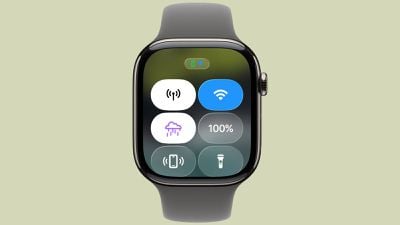
With watchOS 26, the Apple Watch Control Center got a major upgrade. It still offers instant access to default functions like turning on the flashlight, toggling Low Power Mode, or pinging your iPhone when it's lost, but now it does much more.
From Your iPhone
Previously, Apple limited customization to rearranging icons or adding shortcuts from Apple's built-in apps. In watchOS 26 though, thanks to the Control Widget API, iPhone developers can create custom controls to be added to the Control Center. This is the case even if the iOS app offering the control lacks a corresponding watchOS app.
When you tap on one of these controls, the action is performed on your paired iPhone. These custom controls can also be assigned to the Action button on Apple Watch Ultra models and to the Smart Stack widget. Support is currently sparse, but hopefully we'll see more developers make use of it in the future.
Customize Control Center on Apple Watch
To rearrange, add and remove Control Center buttons, press the side button, scroll to the bottom, then tap Edit. There's a new section of "Suggested" controls at the top of the screen, which can help you avoid having to scroll through long lists, and a new "From Your iPhone" section at the bottom of the editing menu. Note that third-party app developers have to have created a control using the Control Widget API for it to show here.
If you don't like your changes, you can easily revert Control Center to the original layout with default controls: open the Settings app, tap Control Center, then tap Reset Control Center layout.
You can also revert Control Center via your iPhone – go to the Watch app, tap My Watch, tap Control Center, then tap Reset Control Center.















