How to Use the Magnifier Feature on iPhone and iPad - MacRumorsOpen MenuShow RoundupsShow Forums menuVisit ForumsOpen Sidebar
Skip to Content

How to Use the Magnifier Feature on iPhone and iPad

by

Apple includes an accessibility feature in iOS that's useful if you have a visual impairment, but can even come in handy if your eyes are simply tired or you're struggling to read something like small print, especially in poor light.


It's called the Magnifier, and has several advantages over just opening up the camera app and zooming in to get a better look at something.
magnifier ios save image
Enabling it is easy: Launch the Settings app on your iPhone or iPad, navigate to General -> Accessibility -> Magnifier, and toggle on the Magnifier switch.
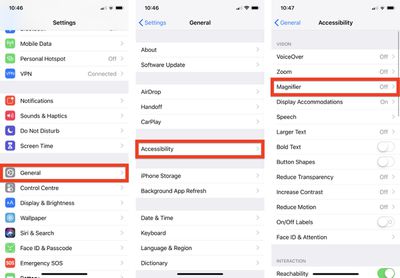
magnifier ios accessibility
After that, all you need to do to use it is triple-click the Side button (or Home button, depending on your device). You can also add it to the Control Center by going to Settings -> Control Center -> Customize Controls, and tapping the green plus button next to Magnifier.

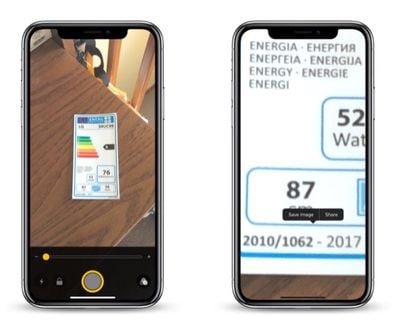
When you launch Magnifier, you'll see a camera-like interface at the bottom of the screen, but with some unique features. The slider controls the magnification of the scene in the lens frame, while the button at the bottom left turns on the flashlight so you can illuminate it. The padlock button next to that locks the focus.
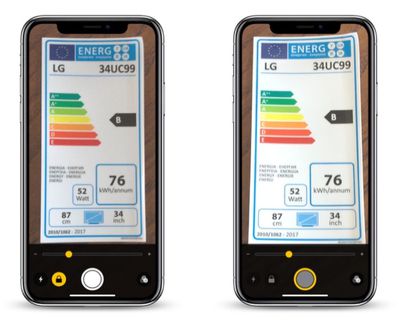
magnifier ios
Tapping the big button in the center freezes the image (a frozen image is indicated by a yellow ring around the button), allowing you to move your phone around freely and still look at the image. You can also use the magnification slider to zoom in and out of the frozen image.

Note that when you freeze an image in the Magnifier, it isn't saved to your photo album. But if you want to save the entire image, you can.

Simply tap and hold on the frozen picture and select Save Image from the contextual popup menu. You'll find a Share option in there, too.
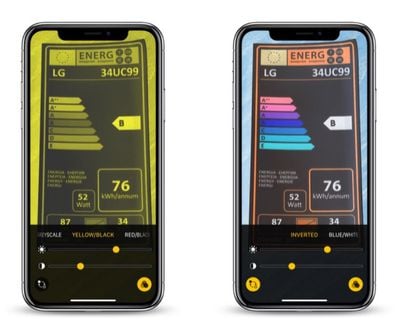
magnifier ios color schemes
Over on the far right of the Magnifier interface is a button made up of three circles that provides access to additional sliders for adjusting brightness and contrast.

If you suffer from color blindness or another visual impairment, you can swipe through several color schemes in this extended menu and even invert the colors to find which combination works for you.

Top Rated Comments

ScooterComputer Avatar
102 months ago
This is one of the best, least-known-about features in iOS. I work with a LOT of older folks who are buying into the Apple ecosystem in DROVES… and this feature, ALONE, gets me more "happiness" from the folks that I show it to, configure it for, than any other. Just completely unable to put into words how much small accessibility features like this can really fundamentally change how users use their iPhones. You –KNOW– a feature is awesome when you see 70+ year olds you've enabled Magnifier for showing other 70+ year olds how to enable it months later; that's a success. I wish Apple wouldn't bury it so deeply, and I wish Apple would create an app for older users to walk them through some of the accessibility features that may be helpful to them; what I find, especially, is that older users tend not to like to think they need help, don't like the word "accessibility"—call it excessive pride, I dunno—but if you reframe the features as just "configuring your environment for you, for what you need and do", they're fine with it, acccept it. Perhaps the Tips app might be the place for Apple to showcase these kinds of features, but I find most users are not discovering them on their own. Which is a shame. Thanks, MacRumors, for putting it front and center!

EDIT: Oh, and perhaps I should also mention, I'm nowhere near 70 and I use Magnifier ALL THE TIME! It is great for reading serial numbers and MAC addresses off hard to reach devices, as I find the auto-focus system to be an improvement for such things over the standard Camera auto-focus. Reading fine print in ads. Etc. Just a handy handy feature.
Score: 8 Votes (Like | Disagree)
Analog Kid Avatar
102 months ago

(b) My experience has been that the triple-click launch method is EXTREMELY dodgy, very likely (30% or so) to lock the phone in some sort of strange state where it's not at all obvious how to get out of magnification mode. Maybe Apple has FINALLY fixed this with iOS 12.1?
For this reason, my preferred launch method is to put a launcher on the Control Center page.
As an accessibility function that could be very useful to the elderly, it would be nice to have this available from the lock screen alongside, or instead of, the flashlight or camera buttons...
Score: 1 Votes (Like | Disagree)
102 months ago
This is one of the best, least-known-about features in iOS. I work with a LOT of older folks who are buying into the Apple ecosystem in DROVES… and this feature, ALONE, gets me more "happiness" from the folks that I show it to, configure it for, than any other. Just completely unable to put into words how much small accessibility features like this can really fundamentally change how users use their iPhones. You –KNOW– a feature is awesome when you see 70+ year olds you've enabled Magnifier for showing other 70+ year olds how to enable it months later; that's a success. I wish Apple wouldn't bury it so deeply, and I wish Apple would create an app for older users to walk them through some of the accessibility features that may be helpful to them; what I find, especially, is that older users tend not to like to think they need help, don't like the word "accessibility"—call it excessive pride, I dunno—but if you reframe the features as just "configuring your environment for you, for what you need and do", they're fine with it, acccept it. Perhaps the Tips app might be the place for Apple to showcase these kinds of features, but I find most users are not discovering them on their own. Which is a shame. Thanks, MacRumors, for putting it front and center!

EDIT: Oh, and perhaps I should also mention, I'm nowhere near 70 and I use Magnifier ALL THE TIME! It is great for reading serial numbers and MAC addresses off hard to reach devices, as I find the auto-focus system to be an improvement for such things over the standard Camera auto-focus. Reading fine print in ads. Etc. Just a handy handy feature.
Absolutely! Let me add two comments.
(a) There are alternative magnification apps available. However the Apple solution seems to do a better job of locking onto focus fast, and then stabilizing the text against jitters. And this seems to have improved in more recent hardware. My iPhone XS seems to be quite a bit more visually stable than my iPhone 7 (OIS? or better processing?). So if this is something you care about and use a lot, it might be worth seeing how well it performs in a newer iPhone compared to what you have, and might make it worth the upgrade.

(b) My experience has been that the triple-click launch method is EXTREMELY dodgy, very likely (30% or so) to lock the phone in some sort of strange state where it's not at all obvious how to get out of magnification mode. Maybe Apple has FINALLY fixed this with iOS 12.1?
For this reason, my preferred launch method is to put a launcher on the Control Center page.
Score: 1 Votes (Like | Disagree)
102 months ago
This is well done. Bravo Apple!
Score: 1 Votes (Like | Disagree)

Popular Stories

iOS 27 Next to iPhone

Here's When iOS 27 Rolls Out Today in Every Time Zone [Update: It's Out]

Sunday September 13, 2026 3:00 am PDT by
Update 10:04 a.m.: iOS 27 is rolling out now, though it may take a bit for all users to see it, so keep checking! Apple is about to release iOS 27, which will finally deliver more advanced Siri AI capabilities as well as a variety of other refinements, improvements, and new features to iPhones. It's Apple's biggest software update of the year, and Apple announced at Wednesday's iPhone event...
iOS 27 Icon iPhone

iOS 27 Available Now With These 8 New Features

Monday September 14, 2026 9:00 am PDT by
Update — 10 a.m. Pacific Time: Apple has released iOS 27. During its iPhone 18 Pro and iPhone Duo event last week, Apple announced that iOS 27 will be released widely on Monday, September 14. iOS 27 should be available around 10 a.m. Pacific Time / 1 p.m. Eastern Time today via the Settings app, under General → Software Update. Below, we have highlighted eight new features and...
Apple iCloud Plus expansion hero

iCloud+ Now Includes Apple TV, Apple Arcade, and Curated Apple Music Stations in Over 100 Countries

Tuesday September 15, 2026 1:43 am PDT by
Apple today announced a new subscription initiative that turns paid iCloud+ subscriptions into a broader services bundle in more than 100 countries. In select countries, Apple says every paid iCloud+ plan, including the cheapest 50GB tier, now includes Apple TV and Apple Arcade "at no additional cost," while family sharing extends the storage, TV and Arcade access to up to five people....