

Notifications in iOS 15 got a design overhaul on iPhone and iPad, and one of the marquee feature additions is notification summary. This article explains what it is and how to use it.
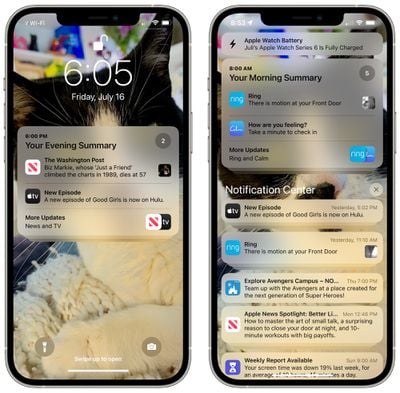
With the notification summary, you can schedule select app notifications to be delivered alongside others as a bundle at a specific time of the day. The idea is that by bundling non-urgent notifications and receiving them in a summary at convenient times, you can reduce the amount of times your device pings you and lessen distractions throughout the day.
You can create up to 12 daily summaries and schedule them to arrive on the Lock Screen and in the Notifications Center when you want. For example, you could opt to have them delivered during your lunch break, after dinner, or last thing before bedtime, and and on-device machine learning will automatically populate each summary based on priority.
Here's how to set up scheduled summaries.
- Launch the Settings app and tap Notifications.
- Tap Scheduled Summary, then toggle on the switch next to Scheduled Summary to reveal the scheduling options menu.
- Under "Schedule," tap the time next to the 1st Summary and adjust it to when you'd like to receive it. If you want to receive additional daily summaries (up to 12 in total), tap Add Summary and similarly set the time.
- You can manually assign apps to your summary by toggling the switches next to them in the "Apps in Summary" list further down the options menu. Use the tabs to either view the apps list in alphabetical order or by the number of notifications sent by each app (the numbered red dots indicate the average daily number of notifications).
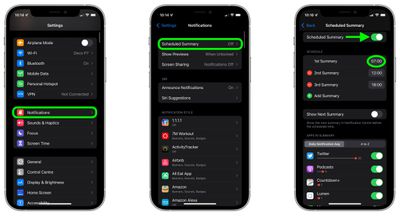
That's all there is to it. Now that you have a notification summary (or summaries) scheduled, expect to see it appear in Notifications Center and on your Lock Screen at the set time.
Tip: You can add any app's notifications to your scheduled summary from the Lock Screen or Notification Center: Simply swipe left on the notification in question, tap Options, and select Add To Summary.















