

When Apple announced the new iPhone 13 series, it also introduced several new camera features, including Photographic Styles for photos and Cinematic mode for shooting video. In this article, we take a look at what Photographic Styles are and how to use them.
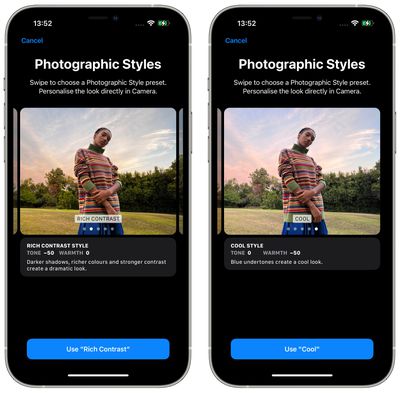
Photographic Styles consist of a series of subtle filter-like adjustments that you can enable before you've taken any photos, allowing you to bring a stylistic effect to your shots beforehand that won't affect the skin tone of your subjects. These styles come in four presets: Vibrant, Rich Contrast, Warm, and Cool.
Vibrant captures the shot in bright, vivid, yet natural-looking colors, while Rich Contrast adds a more dramatic look that makes shadows darker and increases color and contrast. Warm adds a summery golden undertone to subjects, and cool uses blue undertones to achieve its signature cool look.
These styles work more intelligently than filters, since they capture certain elements of the photo as it's taken, rather than applying changes in post-processing. In addition, Tone and Warmth are customizable for each style, so you can get the exact look that you want, and keep it that way throughout your photo shoot. Photographic Styles can be used with the front-facing camera, too, so you can style up your selfies. Bear in mind though that a style can't be removed from a photo once it's shot.
Here's how to use Photographic Styles on all models of iPhone 13.
- Launch the Camera app on your iPhone 13.
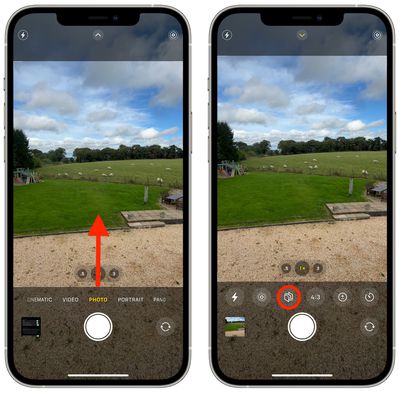
- If you've not used Photographic Styles before, or you previously chose the Standard mode, swipe the horizontal menu below the viewfinder so that Photo mode is selected, then swipe up from the bottom of the viewfinder and tap the Photographic Styles icon (it looks like three cards lined up in a row).

- Swipe through the four presets (in addition to the Standard option) and you can preview each one applied to the scene currently in the viewfinder.
- Use the optional Tone and Warmth sliders below the viewfinder to adjust the look to your preferences.
- When you're ready, hit the Shutter button.
- Now that your style is active, you'll see the Photographic Style icon appear in the top-right corner of the Camera interface. Tap it to change the style at any time.
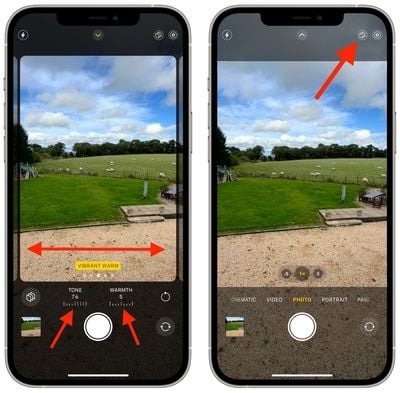
By default, the Photographic Style you select will remain active the next time you launch the Camera app until you select another one or return to the Standard style. You can also change which Photographic Style is active using the Settings app.
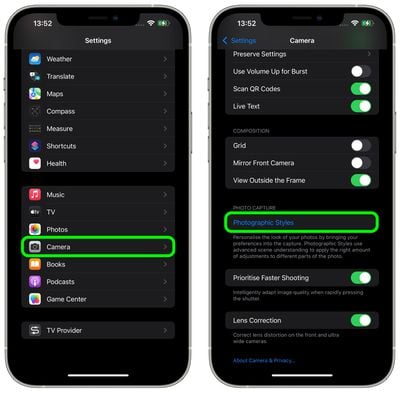
In Settings, tap Camera, then under "Photo Capture" select Photographic Styles.
Taken a shot with your favorite Photographic Style? Why not share it in the comments below.















Top Rated Comments
Tone - 35 Warmth - 50
Gets ride of those sickly yellow greens while adding some punch.
Macro mode is also cool (taken using the above style)
The cynic in me would be surprised if Photographic Styles relied on hardware changes, or an A15 chip.
I‘m afraid of commitment.