How to Use Screen Time on Mac - MacRumorsOpen MenuShow RoundupsShow Forums menuVisit ForumsOpen Sidebar
Skip to Content

How to Use Screen Time on Mac

by

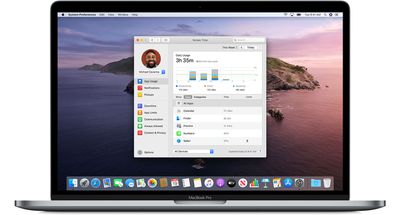
With the release of macOS Catalina, Apple introduced Screen Time functions that enable users to keep track of their usage and place self-imposed limits on the time they spend using their Mac. Screen Time also serves as a parental control system, since it can be used to place restrictions on what a child can access, who they can contact, and how long they spend on apps, websites, and more.
macos catalina 10 15 4 screen time hero
This article explains how to use Screen Time on your Mac and covers the following subjects. Click one to go straight to it.

How to Enable Screen Time on Mac

Make sure that your Mac is running macOS Catalina, then follow these steps:

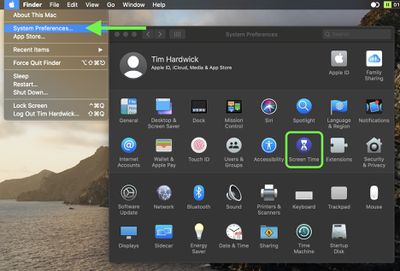
  1. Launch System Preferences from your Mac's Dock, from the Applications folder, or from the Apple menu bar ( -> System Preferences...).
  2. Select Screen Time in the preference panel.
    sys prefs

  3. Click the Options button in the bottom-left corner.
  4. Click the Turn On button in the top-right corner.
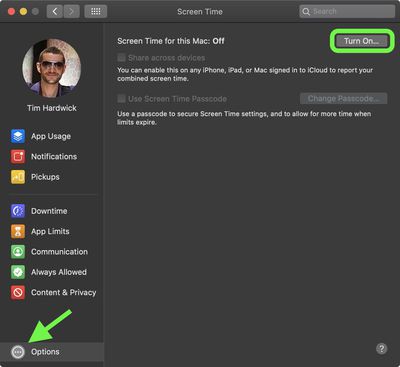
    turn on screen time mac

How to Disable Screen Time on Mac

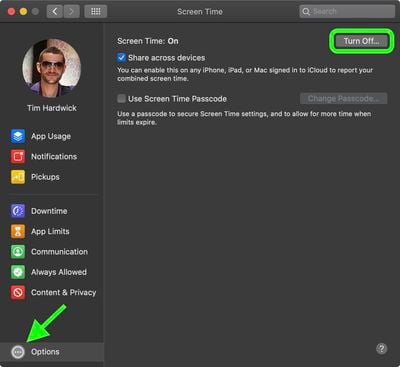
To stop using Screen Time on Mac, follow these steps:

  1. Launch System Preferences from your Mac's Dock, from the Applications folder, or from the Apple menu bar ( -> System Preferences...).

  2. Select Screen Time in the preference panel.
  3. sys prefs

  4. Click the Options button in the bottom-left corner.
  5. Click the Turn Off button in the top-right corner.
  6. turn off screen time mac

How to Use a Screen Time Passcode on Mac

Setting a password in Screen Time on Mac allows you to secure your settings. You can also use the password to extend the allotted time for users.

  1. Select Screen Time in System Preferences.

  2. Click the Options button in the bottom-left corner.

  3. Check the box next to Use Screen Time Password, then enter a passcode to use.
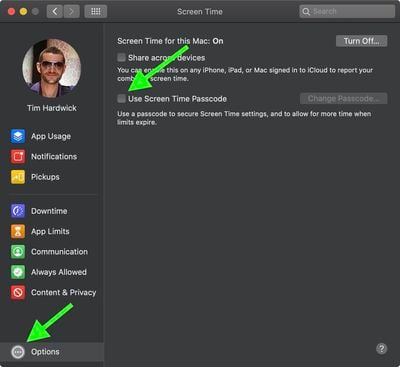
    screen time

How to Share Screen Time Across Devices on Mac

Sharing Screen Time across all of your devices allows you to get a more accurate idea of how much time you spend online. First though, you have to enable sharing:

  1. Select Screen Time in System Preferences.
  2. Click the Options button in the bottom-left corner.
  3. Check the box next to Share Across Devices.
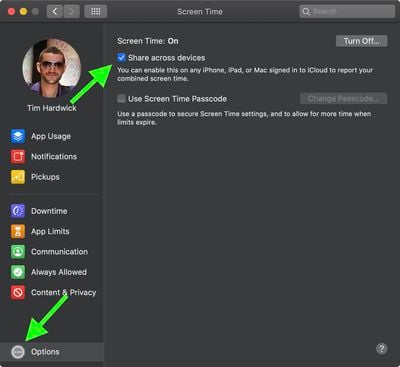
    screen time

How to View App Usage in Screen Time on Mac

  1. Select Screen Time in System Preferences.
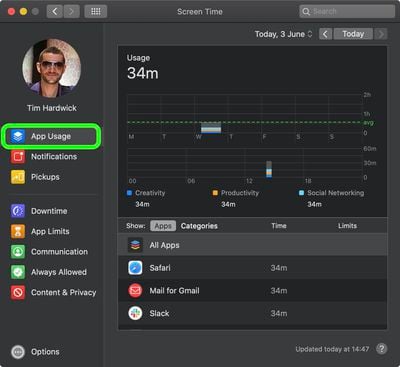
  2. Select App Usage in the sidebar.
  3. Check your app usage. You can break it down by day, by app, or by category. If there are limits, you'll see those here, too.
    screen time

How to Limit Usage in Screen Time on Mac

Screen Time allows you to set limits based on app categories. Here's how to go about it:

  1. Select Screen Time in System Preferences.
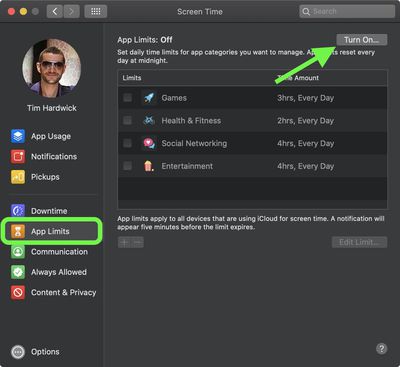
  2. Select App Limits in the sidebar.
  3. Click the Turn On button to activate App Limits.
  4. Click the plus (+) button to add an app category.
    screen time

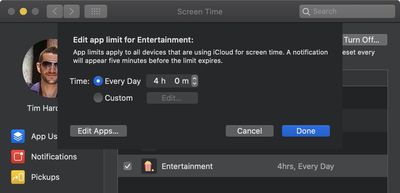
  5. Highlight the app category, then set the limit using the radio buttons. You can choose to set limits Every Day or create your own Custom schedule.
    screen time

  6. Repeat steps 5 to 6 for each app category you want to limit.

  7. Click Done to finish.

You can remove app limits by unchecking the box next to each app category you added, or you can turn off app tracking entirely by clicking the Turn Off... button in the top-right corner.

How to Approve Screen Time Requests on Mac

Screen Time shows Requests when you have unanswered requests from a child account. Here's how to find them:

  1. Select Screen Time in System Preferences.
  2. Select Requests in the sidebar.
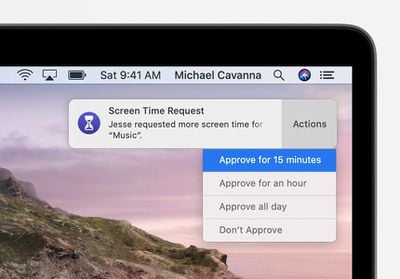
  3. Any requests for more time will appear under Requests. To manage a request, click Don't Approve or choose Approve..., then select one of three options from the dropdown: Approve for 15 minutes, Approve for an hour, or Approve all day.
    screen time

Requests for approval also arrive as notifications, and you can approve directly from the notification.

How to Schedule Downtime in Screen Time on Mac

During Downtime, only apps you choose to allow will be accessible, as well as phone calls, when applicable. Follow these steps to set up a Downtime schedule:

  1. Select Screen Time in System Preferences.
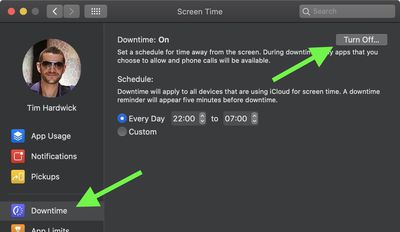
  2. Select Downtime in the sidebar.
  3. Click the Turn On button to activate Downtime.
  4. Click the radio button next to Every Day or Custom depending on the schedule you want to set.
    screen time

Every Day activates Downtime at the same time each day, while Custom allows you to adjust the time for each day of the week or turn off Downtime for certain days by unchecking the box next to them.

How to Set Always Allowed Content in Screen Time on Mac

You can allow certain things on your Mac such as communication with specific people or launching particular apps, regardless of other restrictions you might have set up. Here's how:

  1. Select Screen Time in System Preferences.
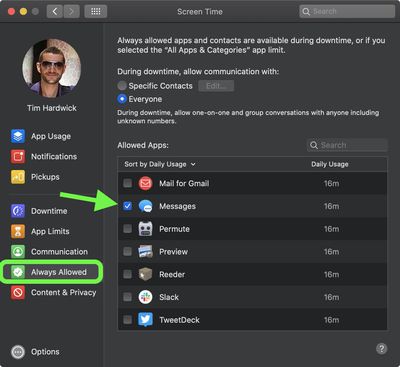
  2. Select Always Allowed in the sidebar.
  3. Check the box next to each item you want to always allow.
    screen time

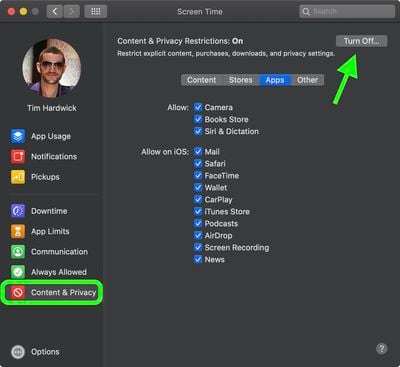
How to Set Content and Privacy in Screen Time on Mac

To restrict content and adjust privacy controls in Screen Time, follow these steps:

  1. Select Screen Time in System Preferences.
  2. Select Content & Privacy in the sidebar.
  3. Click the Turn On button in the top-right corner to activate Content & Privacy.
  4. Use the tabs to select options for Content, Stores, Apps, and Other.
  5. Check the boxes next to the items you want to allow.
    screen time

With the release of macOS Catalina 10.15.4, Apple added new Screen Time options to let parents control who their children are able to contact on Mac. To learn more, check out our dedicated article detailing the new options.


Popular Stories

duo aquarium

More Fun iPhone Duo Apps: 30 New Picks to Try

Friday November 6, 2026 3:27 pm PST by
When the iPhone Duo launched, we shared a list of some of the fun apps developers created for the new form factor. Two weeks out, developers are continuing to come up with fresh ideas, so we thought we'd share some of our favorites. Games Marbles Unhinged ($2.99) - Marbles Unhinged is a marble maze designed for the Duo. When you fold it, the floor turns into a ramp. If you stand the top...


apple pro tell logo

Apple Launching Five New Products Today

Thursday November 5, 2026 12:59 am PST by
Apple is launching five new products on Friday, November 6, following pre-orders that opened last week, including its first touchscreen MacBook Pro models. The following new products will be available from today: iPad mini with OLED display and A20 Pro chip iMac with M6 chip 14-inch MacBook Pro with M6 chip 14-inch MacBook Pro with OLED touchscreen 16-inch MacBook Pro with OLED...
silver iphone 18 pro

Apple Rumored to Drop the iPhone's Action Button Next Year

Friday November 6, 2026 6:07 am PST by
Apple plans to merge the iPhone's Action button with the Camera Control starting next year, according to the leaker known as "Instant Digital." In a new post on Weibo, the leaker claimed that a single press of the combined button would open the camera, while a long press would trigger the function assigned to the Action button. They explicitly clarified that the dedicated Action button would ...
Latest Stories
Siri AI Rumored to Become 'More Like an Agent' as Early as Next Year
8 hours ago
Apple Taking New Approach to Developing iOS 28 and macOS 28
10 hours ago
Early Apple Black Friday Deals on Apple Watch, MacBook Air, and More
1 day ago
'Backglow' Lets You Customize New MacBook Pro's Glowing Apple Logo
1 day ago
Top Stories: Apple Product Launches, iOS 27.3 Beta, and More
2 days ago
More Fun iPhone Duo Apps: 30 New Picks to Try
2 days ago
Hands-On With Apple's New OLED Touchscreen MacBook Pro
2 days ago
Apple Store With All-New Design Opening Soon in Southern California
2 days ago
Control the Glowing Apple Logo on Your New MacBook Pro
2 days ago
Apple Shares New 'Apple Card: Apply and Use in Minutes' Ad
2 days ago
Apple Says More Than 100,000 Apps Optimized for iPhone Duo, Here's What's Still Missing
2 days ago
Early Black Friday Deals Kickoff With Steep Discounts on Apple Watch Ultras and More
2 days ago
The MacRumors Show: iOS 27.3 Looks Like a Huge Update
2 days ago
Best Buy's Black Friday Event Begins With Sitewide Savings on Apple, TVs, More
2 days ago
Apple Releasing Yet Another Two New Products Next Week
2 days ago
MacBook Air Drops to Lowest Price in Months With Amazon's $250 Discount
2 days ago
Apple Rumored to Drop the iPhone's Action Button Next Year
2 days ago
Apple's Extended Return Policy Now in Effect for 2026 Holiday Season
2 days ago
Apple Music Classical Updated With New Icon and Refreshed Design
3 days ago
OLED iPad Mini, M6 iMac, and New MacBook Pros Available From Today
3 days ago
Apple Surveys iPhone Duo Buyers About Crease and Camera
3 days ago
Apple's First Touchscreen Mac is Now Arriving to Customers
3 days ago
Claude Gets Personal Finance Feature With Bank Account Linking
3 days ago
Apple Arcade Adds Crossy Road Rush and NBA 2K27
3 days ago
Apple's New HomeView Smart Home Hub: Here's How Much RAM It Has
3 days ago
iPad Mini vs. iPad Air Buyer's Guide: Now Just $50 Apart
3 days ago
First iOS 27.3 and macOS Golden Gate 27.3 Public Betas Now Available
3 days ago
Apple Announces a New Mac Sales Record
3 days ago
Paid $200 for Logic Pro? Apple Says You Won't Get This New Feature
3 days ago
Instagram's Edits Video Editor is Now Available on Mac
3 days ago