

If you're someone that has a lot of files on your desktop, you're going to love the new Stacks feature in macOS Mojave, which is designed to organize all of your files into neat little piles on your desktop, getting rid of clutter.
Unfortunately, Stacks is an option that's limited to the desktop and not available within individual file folders.
Enabling and Disabling Stacks
Toggling Stacks on and off is done with just a couple of clicks on the desktop. When at the desktop, right click to bring up the desktop options menu, and then choose the "Stacks" option.
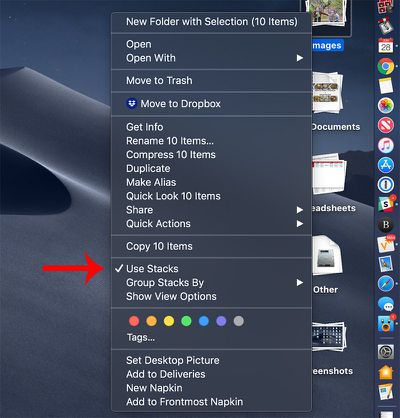
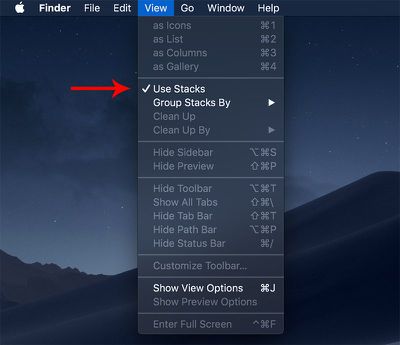
You can also use the Finder to enable Stacks.
- Open a Finder window.
- In the menu bar at the top of the Mac, go to View.
- Check the "Use Stacks" option.

Turning on Stacks will automatically organize your files by file type. Some of the available Stacks include documents, images, PDF documents, spreadsheets, other, and screenshots.
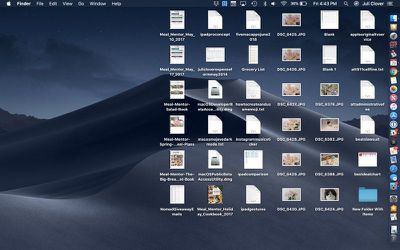
If you want to turn Stacks off and go back to a full view of all the files on the desktop, right click again and uncheck the Stacks option. Alternatively, reverse the Finder steps.
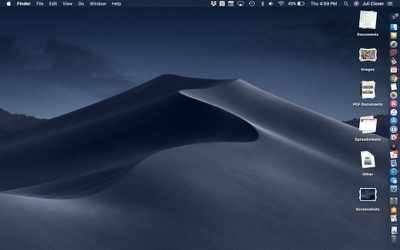
Viewing Files in a Stack
If you want to view all of the files that are contained within a Stack, just click, and it will expand the Stack and put a little arrow on the Stack's name so that you know which Stack you're viewing.
With the Stack expanded, if you click on a file, it will open up in whatever app is set to be the default app for that file type.
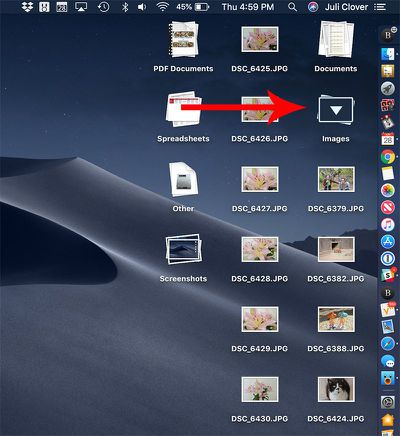
When done, click the Stack again to collapse it back down into an organized pile.
To open up all of your Stacks at once, option click on the any Stack, which will expand all of the desktop Stacks at once. Option click again on any of the open Stacks to close them all.
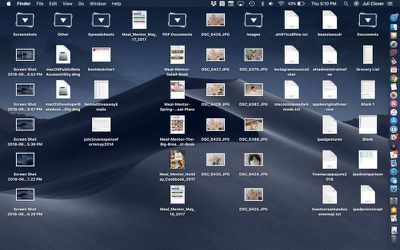
Tip: If for some reason you want to open up or close all of your Stacks with a slower expanding/collapsing animation, shift click instead of just clicking regularly.
Customizing Stacks
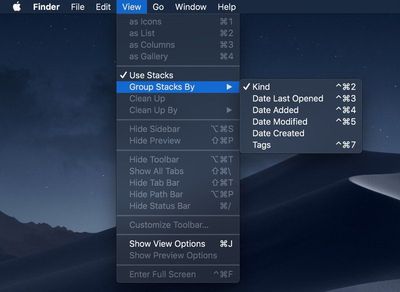
Stacks are organized by file type by default, but you can change the Stack organizational system, grouping your files by Date Last Opened, Date Added, Date Modified, Date Created, and Tags.
- Open Finder.
- In the menu bar, click on the View option.
- Select the "Group Stacks By" option.
- Choose one of the available options to change the way your Stacks are sorted.
The most powerful sorting option in Stacks is of course Tags, which are user set and can be used to identify certain types of files, such as all documents relating to a specific topic.
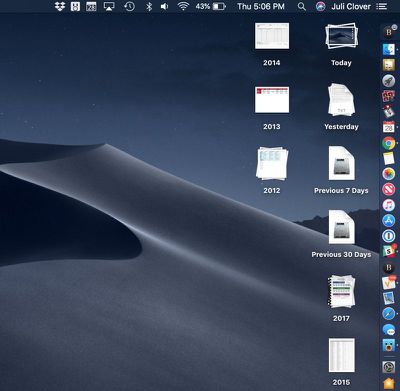
When grouped by one of the date options, Stacks will be listed in increments of Today, Yesterday, Previous 7 Days, Previous 30 Days, and then after that, by year.
Further Stacks Options
If you want to stick one of your Stacks into a folder, you can do so by right clicking on one of the Stacks and selecting the "New Folder With Selection" option.
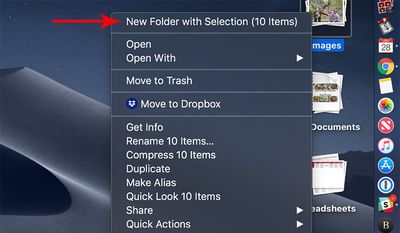
Using the same right click options that are available when a Stack is selected, you can open the files, open them in a specified app, rename files, share files, compress files, send files to trash, and more. You basically have all of the same organizational options that you would have selecting any group of files on your desktop, but without the need to select them manually.
















Top Rated Comments
I hate the way the Stacks look when expanded. It looks confusing and ridiculous. Everything moves, even if its revealing a mere 1 or 2 files. Visually it is just bad. I have no idea how they approved this.
STACKS??????? we have seen this before... with HYPERCARD! Waaaaaay ahead of its time..1987
https://en.wikipedia.org/wiki/HyperCard
I prefer to group files per project. Getting all of your project files out of these stacks to archive them seems like a hassle.