

With the release of iOS 13 and iPadOS 13, Apple introduced a number of new text editing taps and gestures that can be performed on both iPhones and iPads. These taps and gestures make it quicker and easier to do things like select text, copy and paste, undo and redo edits, and move the cursor around the screen.
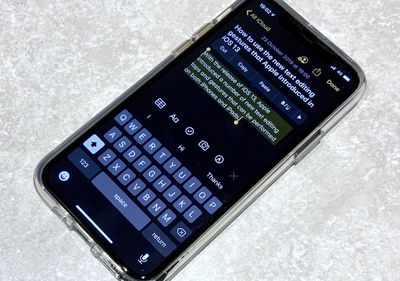
They do take some getting used to though, especially if you're a veteran of the text editing taps and gestures that have been available in iOS for a while. That's why we've compiled the following list to help you get to grips with them until they become second nature. Keep reading for the full rundown.
How to Move the Cursor Around the Editing Window
Moving the cursor works similarly to how it did in earlier versions of iOS, but Apple has tweaked it to improve its behavior. For example, it's now a lot better at snapping to lines and between words as you move it around. You can also now tap and hold the cursor and it will get bigger on the screen so you can see it more easily. Here's how it works.
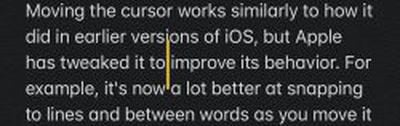
- Start typing some text in an app that supports it.
- Touch and hold the cursor until it gets bigger.
- Drag the cursor to the desired location.
- Remove your finger from the screen.
How to Move the Cursor With the Virtual Trackpad
You can turn the onscreen keyboard into a virtual trackpad that allows you to quickly move the cursor through the text without taking your finger off the display. Note that the way this works on your device depends on whether it has 3D Touch (iPhone 6s and later) Haptic Touch (iPhone XR, iPhone 11, iPhone 11 Pro, and iPhone 11 Pro Max) or a long press (all iPad models).
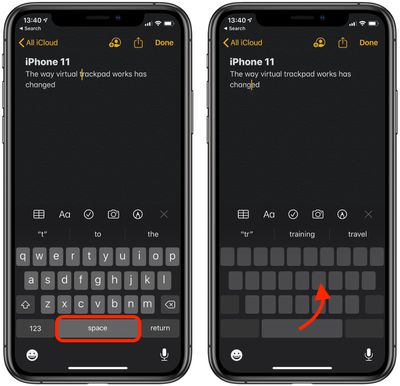
- On an iPad or Haptic Touch device, press and hold on the spacebar. On a device with 3D Touch, press and hold anywhere on the keyboard.
- Drag your finger over the blanked-out keyboard to move the cursor through the text to the desired location.
Note that on an iPad, you can also touch the keyboard with two fingers and move your fingers around to relocate the cursor.
How to Select Text
When you select text using one of the methods described below, a contextual edit menu will appear above the selection, providing you with fast access to cut, copy, and paste, as well as formatting, Look Up, Share, and other options depending on the app you're using.
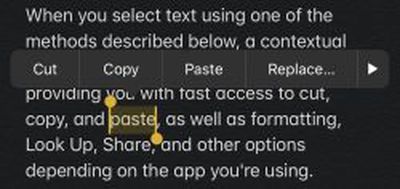
- To select a word, double tap it. Alternatively, tap and hold it until you feel the haptic feedback.
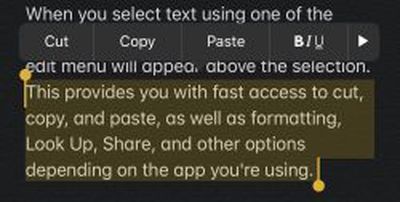
- Triple tap any word within a sentence and the whole sentence will be selected.
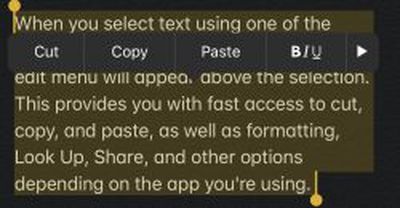
- Quadruple tap a word to select the paragraph in which it appears.
How to Use Intelligent Selection
Intelligent selection is a new feature that lets you quickly select phone numbers, addresses, or email addresses while editing text. Bear in mind that the feature doesn't work when you're simply viewing text – you must be in an editing app for intelligent selection to be available.
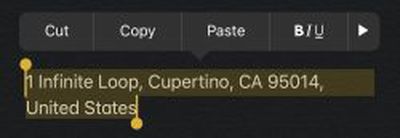
Simply double tap anywhere on the contact information to select it all in one go. Note that intelligent selection is limited to a single line, so if an address uses hard returns to go over two or more lines, it will only select the line that you tapped on. (Note: The address in the example is a single line that runs on.)
How to Adjust a Text Selection
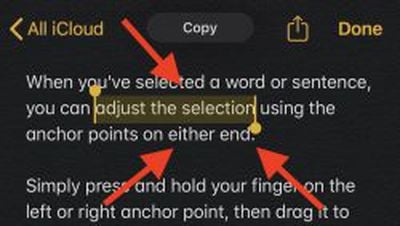
When you've selected a word or sentence, you can adjust the selection using the anchor points on either end.
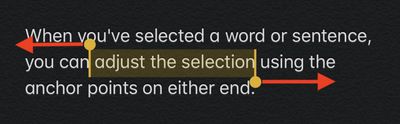
Simply press and hold your finger on the left or right anchor point, then drag it to make the selection larger or smaller.
How to Cut, Copy, and Paste Using Gestures
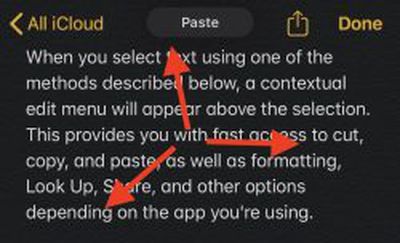
In iOS 12 and earlier, you had to select text and then use the contextual editing menu bar to cut, copy or paste it. In iOS 13, you can use gestures instead. First, select some text, then do one of the following:
- To copy, pinch with three fingers.

- To cut, perform the copy gesture twice until the text disappears, ready to be pasted from the clipboard.
- To paste some text that you've just copied or cut, pinch out with three fingers until the text appears again.
How to Display the Clipboard Bar
Have you noticed the menu bar that appears briefly whenever you perform one of the cut, copy or paste gestures described above? That's the clipboard bar, which offers you an alternative way to cut, copy, and paste text as well as undo and redo edits.
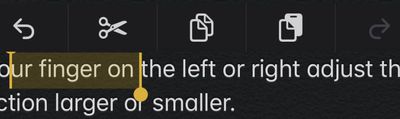
You can reveal the clipboard bar anytime you like when editing text. Simply select some text, then tap and hold the screen using three fingers.
How to Undo and Redo Edits Using Gestures
- Make sure you're in text editing mode (unless you have a physical keyboard connected, the onscreen keyboard will be showing).
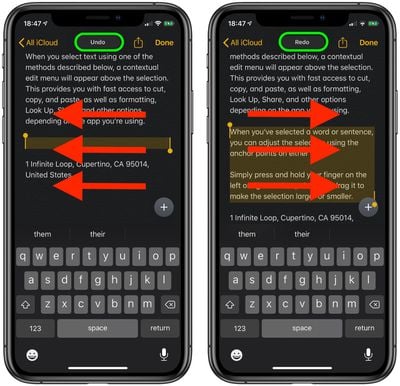
- To undo an edit, perform a three finger swipe leftwards across the editing area.
- To redo an edit, perform a three finger swipe rightwards across the editing area.
How to Scroll Through Text Faster
If you're editing a particularly long piece of text like a document or a threaded email, you can scroll a lot faster by grabbing the scroll bar directly.
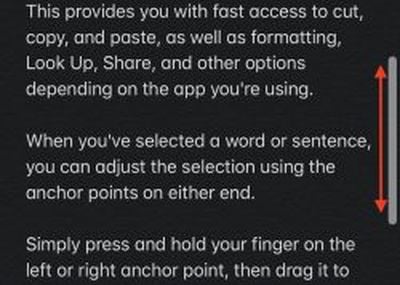
When the scroll bar is visible, press and hold it with your finger and move it up and down the edge of the screen to move rapidly through the text.




















Top Rated Comments
It’s very frustrating, I don’t know why they had to change this to.
I end up having to backspace the entire word to correct that one letter..
Also what’s up with words not getting capitalized if you tab down more than once to start new sentence?
How I wish there were intelligent pasting too, specifically for contacts. How nice would it be to copy a whole address, the clipboard would parse and separate the fields, and then just paste once into a new contact to fill in everything?