How to Use the Effects Camera in Messages - MacRumorsOpen MenuShow RoundupsShow Forums menuVisit ForumsOpen Sidebar
Skip to Content

How to Use the Effects Camera in Messages

by

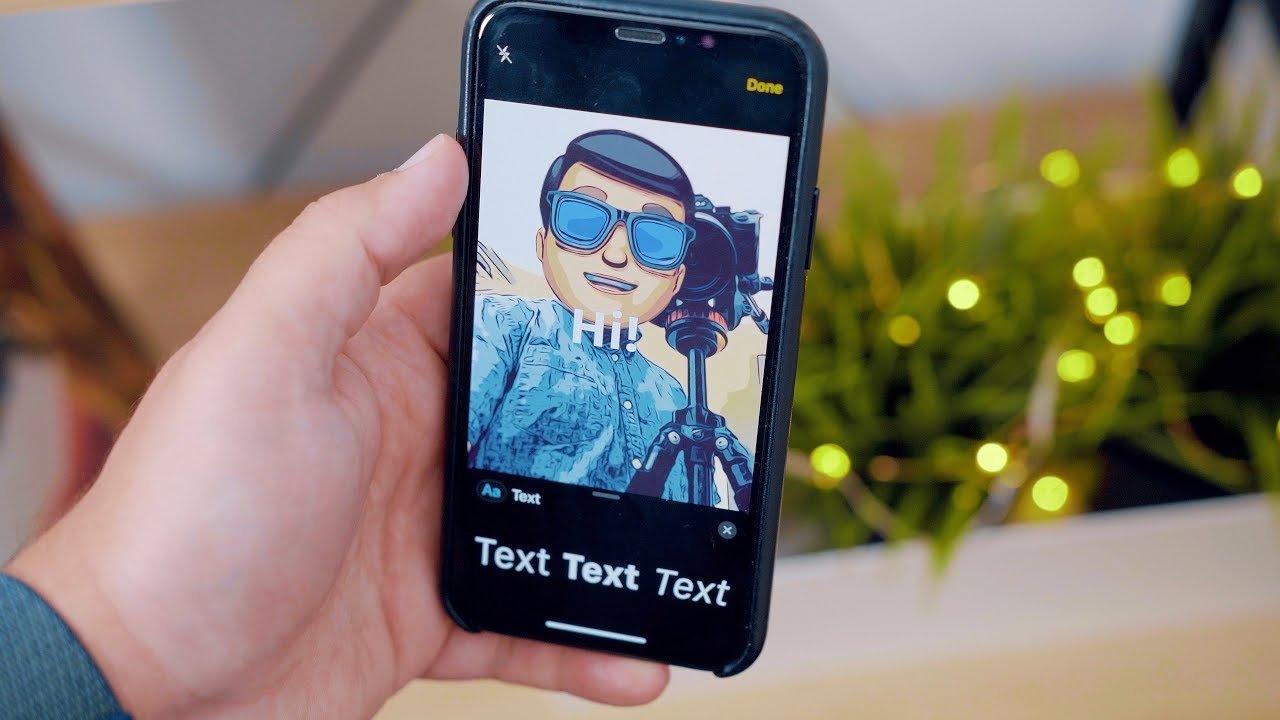
In iOS 12, Apple added a new Effects camera in Messages that's similar to the live camera features in Snapchat and Instagram, allowing you to take a photo in the Messages app and then edit it with stickers, filters, text, and more.

On devices with a TrueDepth camera system, the Effects camera even works with Memoji and Animoji, allowing you to overlay cartoon emoji heads over your own head.
Accessing the Effects Camera

The Effects camera lives in the Messages app, and Apple's made it easy to locate.
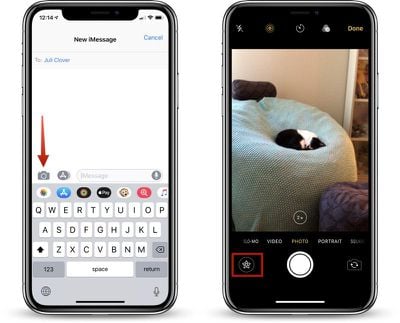
messagescamera

  1. Open the Messages app.
  2. Choose a conversation with someone.
  3. Tap on the Camera icon next to the App Store icon.
  4. Make sure you're in either standard Photo or Video mode.
  5. To get to the available Effects, tap on the small star-shaped icon to the left of the shutter button.

The Camera in the Messages app is located in the same place that it was in iOS 11, but instead of opening up a smaller camera window that also provides access to your already-captured photos, it is a full-screen camera complete with editing tools.

To get to photos you've already taken in the Messages app, you need to open up the app drawer by tapping on the ‌App Store‌ "A" icon and then choosing the Photos icon.

Available Effects Camera Features

There are multiple tools for editing your photos, all of which are displayed in a bar above the camera shutter, organized by icon. Here are the options, in the order that you'll see them in the app.
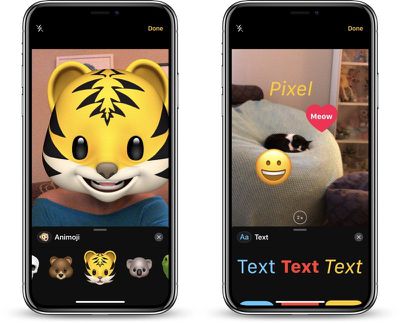
messageseffectsoptions

  1. Animoji/Memoji (TrueDepth devices and front-facing camera only)
  2. Filters
  3. Text
  4. Shapes
  5. Sticker packs

After the four main sections, every other icon represents a different sticker pack that you have installed on your device.

All of these options work in photo and video mode with both the rear and front-facing cameras, with the exception of Animoji and Memoji, which only work with the front-facing camera.

You cannot use the Effects camera with slo-mo videos, portrait mode photos, square-shaped photos, or panoramas, but you can access these types of images in the Messages camera.

Animoji and Memoji

With the Animoji and Memoji filters, you can choose an Animoji or a previously created Memoji that will be displayed over your own face when using the front-facing camera of a device with a TrueDepth camera system.
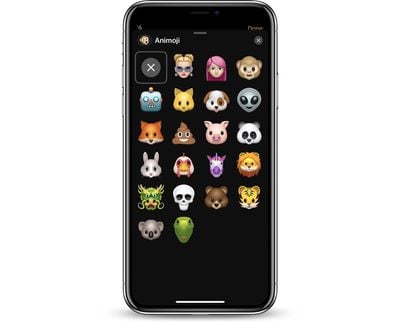
cameraeffectsanimoji
The Memoji and Animoji filter looks similar to what you might expect from a Snapchat filter, and because it uses the TrueDepth system, the Animoji and Memoji stay lined up with your head while you move and talk, mimicking your facial expressions just like when you use Animoji in Messages.

Filters

There are more than a dozen filters you can add to your photos or videos, which display in realtime. The filter section of the Effects Camera is accessed by tapping on the icon that looks like three RBG dots.
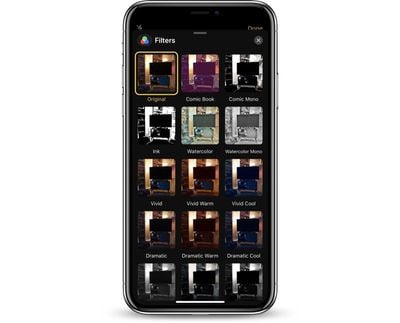
cameraeffectsfilters
There are standard filters for making a photo or video warmer or cooler, several black and white filters, and a selection of fun filters like watercolor, ink, and comic book, that give you a sketched or painted look.

Text

Text can be added to a photo or video by tapping on the icon that looks like "Aa," with plain text, text in bubbles, and text in shapes as available options.
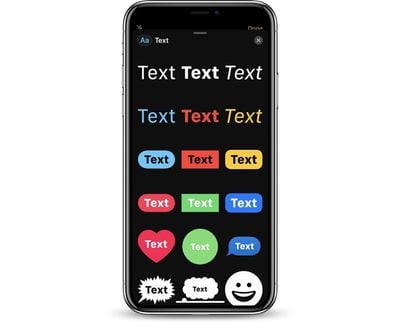
cameraeffectstext
Pick the text design that you want and then type in your message. After you tap "Done," you can resize the text with pinch gestures.

If you choose the icon that looks like a smiley face, you can add any emoji that you want to the photo or the video, and resize it just like standard text.

Shapes

With the Shapes tool, you can insert a variety of shapes in a sketched style, with options that include arrows, fireworks, circles, checkmarks, and squiggles.
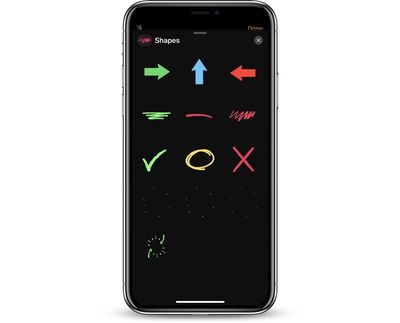
cameraeffectsshapes
There are no options to draw your own shapes, so you can only use the stock options. Shapes are static when used in photos, but will animate when used in videos.

Shapes can be resized with pinch gestures and relocated by placing a finger on the shape and dragging it to a new location.

Stickers

After the four available built-in options, all of the additional icons in the Effects camera will be the sticker packs that you have installed. These sticker packs will vary based on your own downloads and apps, and it will look different for everyone.
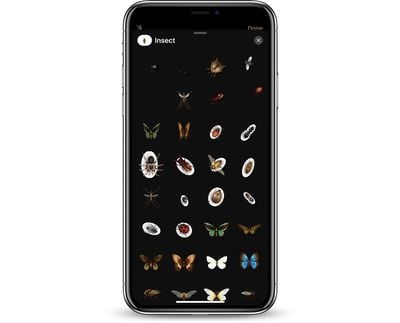
cameraeffectsstickers
Like Text and Shape Effects, stickers can be placed anywhere on the photo or video and resized using pinch gestures. You can drag the sticker anywhere on the photo and reposition it using the same gestures you would use to put stickers within iMessages.

For stickers that animate, you will see the animations when using them in video mode, but there are no animations in photo mode.

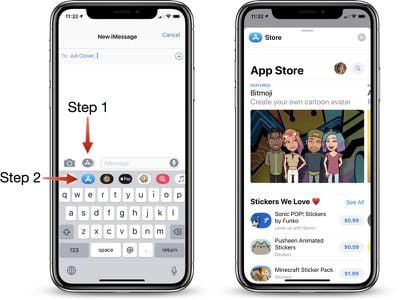
New sticker packs for use with the Effects camera can be downloaded from the Messages ‌App Store‌ using these directions:

messageseffectssteps

  1. Open the Messages app.
  2. Tap on the gray ‌App Store‌ Icon to make sure the app drawer is open.
  3. With the app drawer open, tap on the blue ‌App Store‌ logo to open up the ‌App Store‌.
  4. From here, you can browse through popular stickers, search for sticker packs, or find games and apps that come with stickers you can use with the camera.

Some of the sticker packs are free, while others are available for $0.99 to $1.99 on average.

Stacking Effects

All of the different effects can be stacked up, so you can combine multiple options. You can use filters with Animoji, for example, and also decorate photos and videos with stickers.

To use multiple effects, select your first option, such as Animoji, and choose what you want to apply. From there, tap the "X" in the upper right corner to go back to the Effects camera options and you can choose another category.
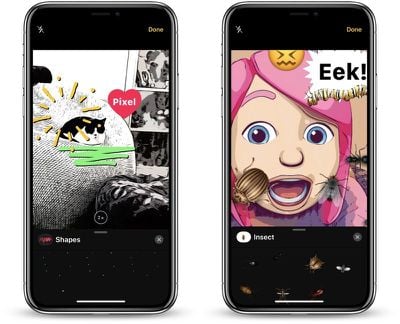
stackingmessageseffects
Using this method, you can stack up all of the effects if desired, using filters, stickers, shapes, and text with Animoji and Memoji options.

Make sure not to tap the Effects camera again while applying your different filters and effects because when you tap it, it will clear all of your set options.

Removing Effects

To remove an Animoji or Memoji filter, tap on the Animoji icon and then tap on the big "X" all the way at the left of Animoji/Memoji list.

To remove a photo filter, open up the filter menu and then scroll over to the first option, which is "Original" and select it.
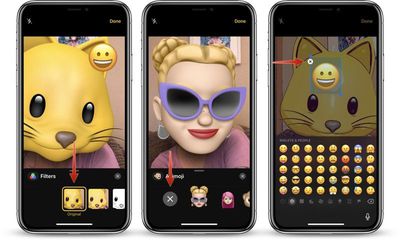
removingmessageseffects
To remove text, stickers, or shapes, tap the item you want to remove in the photo or video field and then tap the "X" to delete it.

If you want to remove all of the effects that you've put in place at once, tap the Effects icon again to go back to the main camera interface. This clears all of your settings, and if you tap the Effects camera icon again, you'll have a blank slate to work with.


Related Forum: iOS 12

Top Rated Comments

hortod1 Avatar
108 months ago
This would be pretty cool...

If I was 12.
Score: 5 Votes (Like | Disagree)
108 months ago
Not supported on my iPhone 6. Maybe you could mention which devices get the feature.
Score: 4 Votes (Like | Disagree)
m0sher Avatar
108 months ago
That “notch” space holding the TrueDepth camera shows its value more and more and what it can do with applications and mostly because of the quality camera that’s housed in that space some do not approve of.
Score: 3 Votes (Like | Disagree)
yaxomoxay Avatar
106 months ago
The stupidest gimmick of iOS 12 that is actually a lot of fun to play with. Seriously. I am enjoying this.


For once... I agree :) I have been playing with effects and memoji to an unprecendented level. Don’t get me wrong, they are totally stupid and I probably wouldn’t miss them if they didn’t exist, but I had more fun than I expected.

A side note on an unexpected consequence. Yesterday my wife had a rough day at work. Nothing major of course, but you know sometimes things happen and they ruin your day. On top of that, despite being a teacher she had to remain at work until late (8-ish pm). We facetime’d, and as she was all tired and kinda on the saddish side, I switched to my newly created Memoji to which she bursted out laughing. Apparently that small thing (and the chicken memoji) was good enough to distract her for a bit from the rough day she had. I was very glad about this. I know it’s stupid, but making someone sad smile/laugh is always important.
[doublepost=1537557147][/doublepost]
It's crazy annoying how they changed it. Especially the fact that right now there's TWO app store icons in the messages app "stickers bar" underneath each other is super confusing. I keep pushing one of them and removing the bar, I was somehow used to pushing the button and then accessing my stickers.
Wait until you find out how to flip the camera in Facetime now..............
Score: 2 Votes (Like | Disagree)
jclo Avatar
108 months ago
I'm sorry. I actually didn't realize it wasn't on the older devices -- I thought it was just Animoji that were restricted. Most of my testing is done on an iPhone X, an iPhone 7 Plus, and an iPad Pro. I'll look into which devices can access the effects camera and update the post. If you guys don't have it on your device, can you let me know? Looks like it may be A9 and later?
To follow up on this, I forgot about the beta notes. During the iOS 12 beta, Messages Effects is limited to the iPhone 6s, iPhone SE, and later. It is not available on iPads. I've added a new section in the post to note this, and I believe all of these limitations will be lifted when iOS 12 launches in the fall because Apple's documentation makes no mention of the feature being unavailable on some devices.
[doublepost=1532718220][/doublepost]
Since the effects button is in the bottom left corner, replacing the camera roll button. How do i look through existing pictures to choose to send one in a message?

Currently I have to go to the photos app, select the picture, select share, select messages, type the name of the person, then send. Its way too many steps.

I hope i'm missing an easier way to do it.
There's a Photos app for Messages, you just need to open up the Messages app drawer and tap on the Photos icon. It's an annoying change, but there's still a way to do it directly in Messages.
Score: 2 Votes (Like | Disagree)
I7guy Avatar
106 months ago
...Wait until you find out how to flip the camera in Facetime now..............
Why, oh, why did they do this?:mad:
Score: 1 Votes (Like | Disagree)

Popular Stories

apple pro tell logo

Apple Launching Five New Products Today

Thursday November 5, 2026 12:59 am PST by
Apple is launching five new products on Friday, November 6, following pre-orders that opened last week, including its first touchscreen MacBook Pro models. The following new products will be available from today: iPad mini with OLED display and A20 Pro chip iMac with M6 chip 14-inch MacBook Pro with M6 chip 14-inch MacBook Pro with OLED touchscreen 16-inch MacBook Pro with OLED...
duo aquarium

More Fun iPhone Duo Apps: 30 New Picks to Try

Friday November 6, 2026 3:27 pm PST by
When the iPhone Duo launched, we shared a list of some of the fun apps developers created for the new form factor. Two weeks out, developers are continuing to come up with fresh ideas, so we thought we'd share some of our favorites. Games Marbles Unhinged ($2.99) - Marbles Unhinged is a marble maze designed for the Duo. When you fold it, the floor turns into a ramp. If you stand the top...
silver iphone 18 pro

Apple Rumored to Drop the iPhone's Action Button Next Year

Friday November 6, 2026 6:07 am PST by
Apple plans to merge the iPhone's Action button with the Camera Control starting next year, according to the leaker known as "Instant Digital." In a new post on Weibo, the leaker claimed that a single press of the combined button would open the camera, while a long press would trigger the function assigned to the Action button. They explicitly clarified that the dedicated Action button would ...
Latest Stories
Siri AI Rumored to Become 'More Like an Agent' as Early as Next Year
6 hours ago
Apple Taking New Approach to Developing iOS 28 and macOS 28
7 hours ago
Early Apple Black Friday Deals on Apple Watch, MacBook Air, and More
1 day ago
'Backglow' Lets You Customize New MacBook Pro's Glowing Apple Logo
1 day ago
Top Stories: Apple Product Launches, iOS 27.3 Beta, and More
1 day ago
More Fun iPhone Duo Apps: 30 New Picks to Try
2 days ago
Hands-On With Apple's New OLED Touchscreen MacBook Pro
2 days ago
Apple Store With All-New Design Opening Soon in Southern California
2 days ago
Control the Glowing Apple Logo on Your New MacBook Pro
2 days ago
Apple Shares New 'Apple Card: Apply and Use in Minutes' Ad
2 days ago
Apple Says More Than 100,000 Apps Optimized for iPhone Duo, Here's What's Still Missing
2 days ago
Early Black Friday Deals Kickoff With Steep Discounts on Apple Watch Ultras and More
2 days ago
The MacRumors Show: iOS 27.3 Looks Like a Huge Update
2 days ago
Best Buy's Black Friday Event Begins With Sitewide Savings on Apple, TVs, More
2 days ago
Apple Releasing Yet Another Two New Products Next Week
2 days ago
MacBook Air Drops to Lowest Price in Months With Amazon's $250 Discount
2 days ago
Apple Rumored to Drop the iPhone's Action Button Next Year
2 days ago
Apple's Extended Return Policy Now in Effect for 2026 Holiday Season
2 days ago
Apple Music Classical Updated With New Icon and Refreshed Design
2 days ago
OLED iPad Mini, M6 iMac, and New MacBook Pros Available From Today
3 days ago
Apple Surveys iPhone Duo Buyers About Crease and Camera
3 days ago
Apple's First Touchscreen Mac is Now Arriving to Customers
3 days ago
Claude Gets Personal Finance Feature With Bank Account Linking
3 days ago
Apple Arcade Adds Crossy Road Rush and NBA 2K27
3 days ago
Apple's New HomeView Smart Home Hub: Here's How Much RAM It Has
3 days ago
iPad Mini vs. iPad Air Buyer's Guide: Now Just $50 Apart
3 days ago
First iOS 27.3 and macOS Golden Gate 27.3 Public Betas Now Available
3 days ago
Apple Announces a New Mac Sales Record
3 days ago
Paid $200 for Logic Pro? Apple Says You Won't Get This New Feature
3 days ago
Instagram's Edits Video Editor is Now Available on Mac
3 days ago