

Now that HomeKit's been available for several months, more and more HomeKit-enabled products are popping up. When HomeKit first launched in June, there was only one smart plug available (the Elgato Eve), but now there are a handful to choose from. ConnectSense is the latest company to develop a HomeKit-enabled plug, debuting its Smart Outlet in October.
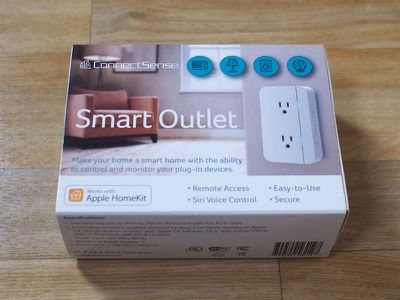
I went hands-on with the new ConnectSense Smart Outlet to see how it measures up to similar HomeKit products that are available for purchase.
Design
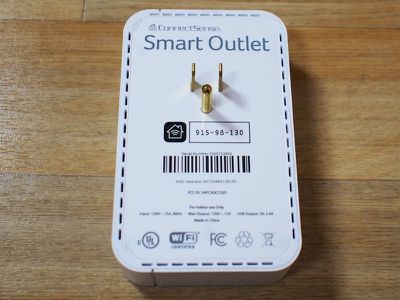
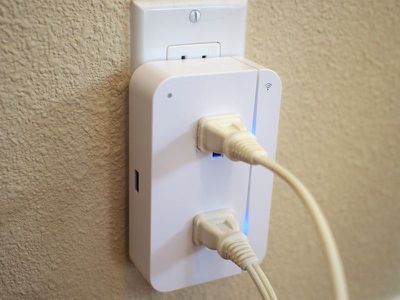
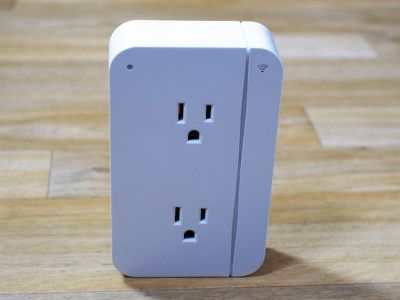
Unlike the other intelligent HomeKit-compatible plugs on the market, the Smart Outlet from ConnectSense combines two outlets in one simple device, with an additional USB charging port for charging an iPhone or iPad. To connect to the iPhone and other HomeKit devices, the Smart Outlet uses Wi-Fi and connects to a home Wi-Fi network.
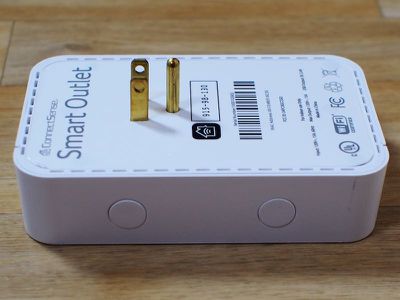
The Smart Outlet plugs into any traditional outlet in the home, fitting into either the bottom or the top socket. Plugged into the top socket, it fits neatly over an in-the-wall outlet, and while it sticks out about an inch, it's largely unobtrusive thanks to a simple design. It can also be plugged into the bottom socket of a standard wall socket, but its shape does not allow it to leave the top socket free for use, so there's no real reason to use it that way.
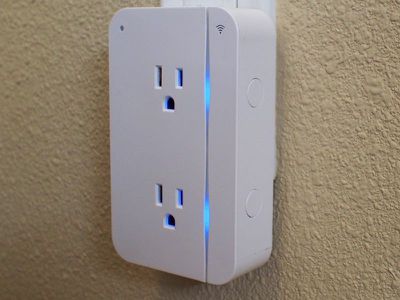
Made of a smooth white plastic with curved edges, the Smart Outlet has an attractive no-frills design and a decent build quality, but I'm not entirely sure it feels like an $80 product.
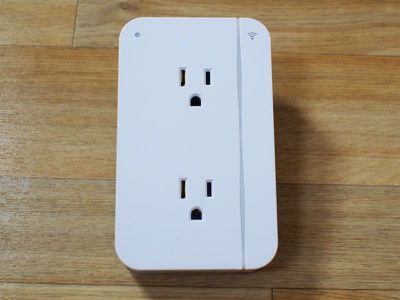
Each socket in the Smart Outlet is treated as an individual HomeKit product, so devices plugged into the Outlet can be controlled separately. On the left side, there's also a USB port for charging iPads and iPhones, but this port can't be controlled via Siri or through the app.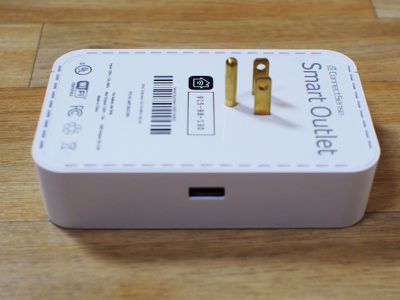
Next to each socket on the Smart Outlet, there's an LED light. These turn blue whenever the Smart Outlet is turned on, but there's an option in the app to turn them off, which is a nice touch. At night, their glow can serve as a muted nightlight, a feature that I liked. I also liked the general design of these indicator lights, which illuminate a line all the way down the right side of the Smart Outlet.
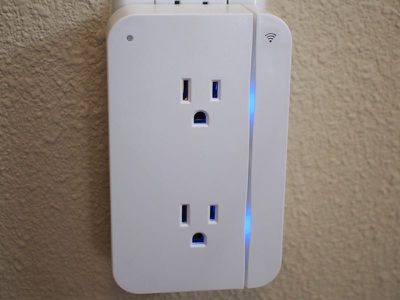
The front of the Smart Outlet also has a power indicator LED that comes on when it's plugged in and a Wi-Fi LED that flickers on when it's first plugged in so it's clear it's connected to a home Wi-Fi network. Neither of these LEDs stays on permanently. On the right side, there are two buttons that are used to reset the device.
Setup, Connectivity, and Troubleshooting
Setting up the ConnectSense Smart Outlet for the first time was simple enough. Getting it working requires plugging it in, downloading the ConnectSense app and following the on-screen instructions. After installing the app, my iPhone detected the Smart Outlet right away, and walked me through connecting it to Wi-Fi and adding it to my HomeKit setup by scanning the HomeKit code on the product.
While I got it connected right away, it didn't stay connected. It was fine for a couple of days, but then it started regularly disconnecting from my Wi-Fi network. Approximately one to three days, I need to unplug it and plug it in again to re-establish a connection. No matter what I try, I can't get the Smart Outlet to stay connected reliably.
I will say, though, that the once a day (or once every few days) disconnects are an improvement over the near hourly disconnects I've had with some other products, like the iHome Smart Plug. I'm not sure why these disconnects happen because there's no easy way to troubleshoot a HomeKit setup. No other devices connected to my Wi-Fi network have had problems.
Connection problems are also a regular issue for other HomeKit users, so I'm inclined to think these connectivity issues are related to HomeKit and not my own Wi-Fi setup. I have the ConnectSense Smart Outlet plugged in less than 10 feet from my router so signal strength isn't a factor either. I'd also like to point out that I don't believe this is a hardware issue or the fault of ConnectSense in any way -- given the widespread disconnects people experience with HomeKit products, it seems like something in the HomeKit service.
At one point when reviewing the Smart Outlet, my entire HomeKit setup got corrupted, something that's happened to me multiple times over the past few weeks. This isn't the fault of the Smart Outlet, of course, but it is representative of the kind of problems you can run into with HomeKit. HomeKit said I was no longer the owner of my own HomeKit setup, making it entirely inaccessible.
The only solution when that occurs is to wipe the HomeKit setup and start from scratch. I did run into some Smart Outlet-specific problems attempting to reset it, because my Smart Outlet did not ship with any troubleshooting tips in the manual, the app includes no troubleshooting information, and there's no section for getting help on the ConnectSense website. Every HomeKit product is reset in a different way, so the steps aren't always obvious.
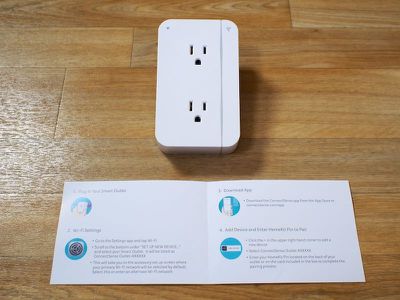
I ended up finding an answer on how to reset it in an Amazon review via Google. With HomeKit being so temperamental, it's essential for HomeKit-enabled products to have detailed troubleshooting advice. Someone who buys a Smart Outlet isn't going to know what to do if it won't connect or if their setup has an issue, which is unacceptable. I emailed ConnectSense and was told an FAQ is being added to the website shortly, but that's something that should have existed before the product shipped.
Every product should have detailed information on what to do in the event of a disconnect, a corrupt HomeKit setup, problems with remote connections, and errors like "iCloud data sync in progress." Apple covers some of these things in a support document, but information like this really should be in the box of all HomeKit devices.
For the record, if the Smart Outlet isn't visible in the app, the solution is to unplug it and plug it in again. If it needs to be reset and added to HomeKit again, the two buttons on the side need to be held down simultaneously until the LEDs flash red. From there, the initial HomeKit setup process needs to be repeated.
App and Siri
The ConnectSense app connects the Smart Outlet to an iPhone and gives users a physical way to control the device. Design wise, it's similar to most other HomeKit apps on the market, organized into sections for each of the HomeKit capabilities like Home, Scenes, Rules, Devices, and Settings.
For the Smart Outlet, the app can be used to turn it on, turn it off, rename the device, give it an icon that corresponds to the item plugged in, and adjust the brightness of the LED.
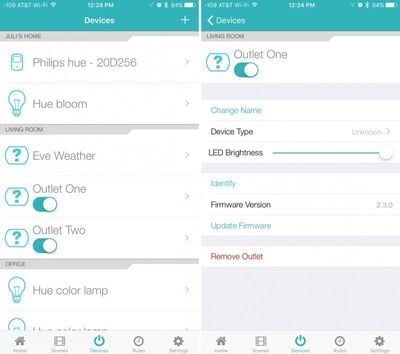
Like most other apps for HomeKit devices, the ConnectSense app will display all of the devices that are connected to an individual's home. It's able to control the Smart Outlet, but it's also able to control my Hue lights with full control over color and brightness. For temperature connected devices like the Elgato Eve Room, it will display temperature and humidity readings.
If desired, it can be used to control an entire home setup. I liked the clean look of the app and the organized way it displayed my devices and their accompanying controls, but I did notice have some problems with frequent crashing while attempting to set up Rules and Scenes.
The ConnectSense app is used to set up Scenes, which are activated in the app or via Siri and Rules, which are timers. Scenes are used to control multiple HomeKit devices at one time, turning on all the lights in the house when someone arrives home from work, or turning off all of the lights at night. A "Welcome Home" scene, as an example, might be used to turn on all the lights in the house, and it's a scene I'd use when getting home. The app comes with pre-programmed scenes to help new users figure out how to use the feature.
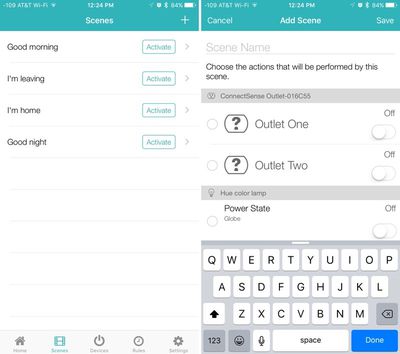
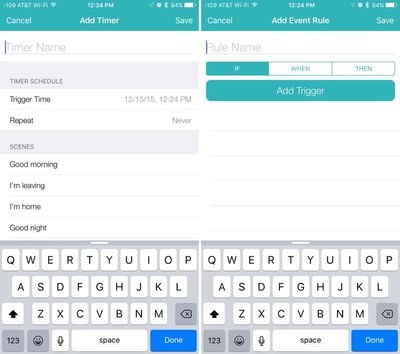
With Rules, the Smart Outlet can be programmed to turn on or off at a certain time, useful for things like turning on the lights as it gets dark or brewing a cup of coffee in the morning. Rules can also incorporate scenes, so all of the HomeKit devices grouped to perform a certain action can be set to do so at a specific time.
In the ConnectSense app, rules can also be set up around an Event, such as the temperature dropping to a certain level, the sun setting, or another light in the house coming on, which can be used to activate a scene. For example, I can create an Event that turns on the "Welcome Home" scene whenever the sun sets and the temperature drops below 60 degrees so I don't need to access the app or Siri to have my lights plugged into the Smart Outlet turn on at the appropriate time.
The app can also be used to name HomeKit products and organize them into Rooms, Zones, and Service Groups, all important for Siri voice commands. Rooms encompass each HomeKit device in a room, like a living room or a bedroom, while Zones refers to specific sections of the house, like the upstairs or the downstairs. Service Groups can group devices in multiple rooms together by type, like lights. Putting all lights in a single service group will allow every light in the house to be controlled with a single command.
Rooms, Zones, Service Groups, Scenes, and Names are all used with Siri. My outlets are named Outlet 1 and Outlet 2 and Siri can turn them on or off individually or tell me their status. I can also refer to them as just "outlets" and Siri will turn both of them on or off at once.
My Smart Outlet is in the living room, so it'll also respond to questions directed at the living room devices. "Turn on the living room" turns on everything in the living room. I put my Smart Outlet in a "Lights" Service Group, so I can control it, the lights plugged into it, and my other lights by asking Siri to turn the Lights on or off. If I had an upstairs and a downstairs, I could add the Smart Outlet into a Zone and ask Siri to turn on or off the upstairs or downstairs devices.
I also put the Smart Outlet in "Welcome Home" and "Good Night" scenes. When I ask Siri to set the "Welcome Home" scene, the lights plugged into it turn on. When I ask Siri to set the "Good Night" scene, the Smart Outlet turns off. These are all universal HomeKit commands that are going to work with any HomeKit device and are the main feature that makes HomeKit useful.
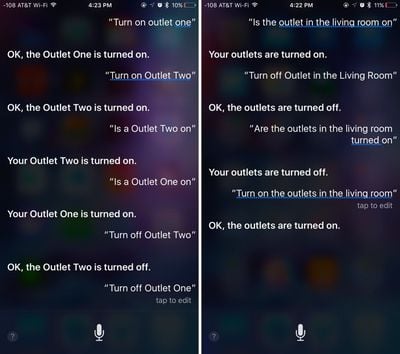
All of the HomeKit Siri commands work relatively well, but there are instances where Siri will mishear and fail to recognize a command. When things are connected properly and Siri hears commands correctly, HomeKit actions are carried out quickly and reliably, with the Smart Outlet and all other HomeKit products. I also didn't have issues with remote access when it was connected.
Bottom Line
I've had a lot of problems with HomeKit over the course of the last few months testing different HomeKit products, and the Smart Outlet is no exception. It disconnects from Wi-Fi sometimes, the app has some kinks that need to be worked out, and it comes with inadequate instructions.
The ConnectSense Smart Outlet has a lot of good design features like two Wi-Fi connected sockets, a USB charging port, and a simple look that fits unobtrusively into any room decor, but does the good outweigh the bad? Perhaps, if you don't mind potentially resetting it every few days for HomeKit connectivity.
At $80, the Smart Outlet is priced more competitively than the iDevices Switch (which is $60 for one) and it's actually available in the United States, which isn't true of the Elgato Eve Energy. It's about on par with the iHome Smart Plug, which is priced at $40 for a single socket device, and it does stay connected longer, in my experience. Comparatively, it's not a bad buy, but I hesitate to recommend any of the Wi-Fi HomeKit plugs because none of them seem to stay connected for all users.
If you're set on giving HomeKit a try and want to make a couple of appliances smarter, the Smart Outlet is a decent pick. Resetting it every so often may not be a huge hassle to some people given the perk of having an outlet that can be controlled via Siri or an iPhone.
As for HomeKit, it continues to be difficult to work with and riddled with bugs. In the last month, I've reset HomeKit at least 10 times, something that's always a hassle with multiple HomeKit devices (and I should mention, I am dealing with multiple HomeKit products, so there are a lot of ways for things to go wrong). HomeKit has no centralized app, so I have to deal with a bunch of different apps, none of which work the same way or have similar interfaces.
It baffles me that Apple hasn't designed a central location to simplify HomeKit setups and to offer solutions for diagnosing and troubleshooting problems. HomeKit is a disjointed, frustrating mess and while a single device isn't too bad to work with, I recommend against outfitting an entire house with HomeKit-enabled devices at the current time.
Pros:
- USB charging port
- Nightlight LEDs
- Two individually controlled sockets
- Rules/Scenes are useful
Cons:
- Expensive
- Poor instructions
- No troubleshooting tips
- Occasionally loses connection to Wi-Fi
How to Buy
The Smart Outlet from ConnectSense can be purchased from the ConnectSense website or from Amazon.com for $79.95.















































Top Rated Comments
WTF? This is an $80 device, and you have to turn it off and on again every couple days? **** that, I think I'll stick to manually turning on my lights until these companies figure out how to stop making *garbage* and trying to sell it at obscene markups.