

We've already looked at LG's UltraFine 5K and 27UD88 displays as companions for Apple's latest notebooks, and today we're taking a look at another USB-C display option that brings something quite different: LG's 38UC99 curved "UltraWide" display.
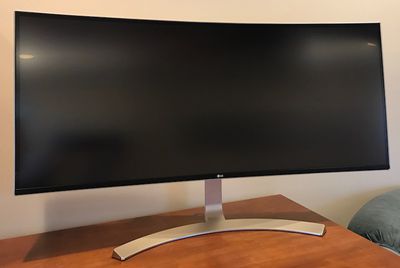
This is a desk-filling display in the truest sense of the term: 37.5 inches on the diagonal with a 21:9 aspect ratio and a native resolution of 3840x1600. It has fewer pixels than a true 4K or Ultra HD display, but its sheer size makes up for it in some unique ways. While the UltraFine 5K and 27UD88 displays work best at Retina or scaled resolutions, the 38UC99 uses a full 3840x1600 desktop that leaves everything on screen at just the right size to be useful. No, it's not a Retina display in this mode, but until we have 8K displays this will have to do.
Even without Retina resolution, this display is impressive. The sheer size of it gives you so much flexibility in terms of your workspace. I can easily have three large windows open side-by-side with room to spare.
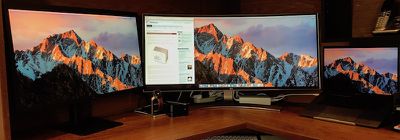
I've been testing this in a three-display setup with the new 15-inch MacBook Pro, an UltraFine 5K, and the 38UC99. It's a ridiculous amount of desktop space that I can barely fit on my desk, and the MacBook Pro with entry-level graphics runs all of it without breaking a sweat.
Setup
Just like the 27UD88, the 38UC99 is dead simple to set up, requiring the same steps of snapping the arm into the back of the display and attaching a very similar curved foot to the bottom of the arm with a pair of screws that can be tightened with a screwdriver, coin, or by hand using grasping rings. The display is compatible with VESA mounting options, although a mounting plate is not included in the box.
The display is stable on sturdy surfaces, with very little wobbling unless you really shake your desk or bump the display itself. The tilt ranges from –5 to +15 degrees for good flexibility in angling the display, while the entire display panel can be easily raised or lowered over a range of 110 mm. The spring-loaded arm means no tools are required for raising or lowering the display, and it stays right where you set it. A cable management clip is included on the back of the arm near the bottom, and the display can be tilted up to 3 degrees left or right for leveling purposes.
The 38UC99 comes with an array of cables, offering good flexibility for connecting to various types of computers and peripherals. In the box are HDMI, DisplayPort, and USB-C to USB-C cables, as well as a USB-C to USB-A adapter.
As with the 27UD88, the 38UC99 unfortunately only supplies up to 60 watts of power over USB-C. That's enough to support a MacBook or a 13-inch MacBook Pro, but it's going to struggle to power a 15-inch MacBook Pro that can draw up to 85 watts. That means if you're a 15-inch MacBook Pro owner, you'll probably have to also plug in your power brick, which means you'll be using up two of your USB-C ports on the machine between the display and power.
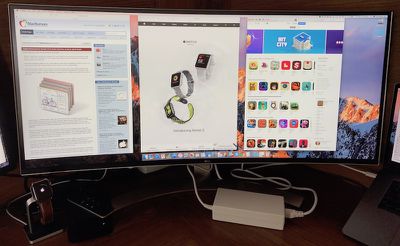
The external power brick for the 38UC99 is quite large, which really makes me appreciate the UltraFine 5K's built-in power supply, but as long as you can hide the power brick away somewhere, it's probably not going to bother you.
Display Resolution
The default resolution upon connecting to a 2016 MacBook Pro is the full 3840x1600 running at 60 Hz. Other available options are 3200x1333, 2560x1067, and Retina 1920x800, plus some others. Pretty much all of those are going to leave your content looking too big unless you're sitting quite far from the screen.
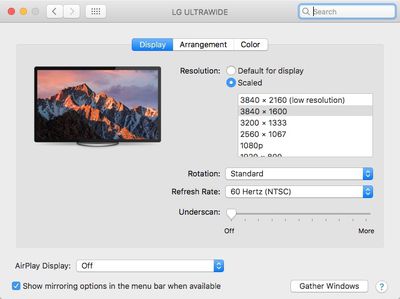
Holding down the option key while clicking the Scaled button in preferences brings up a host other resolution options including some higher pixel counts ranging all the way up to 7680x3200. These are obviously scaled to the display's actual 3840x1600 resolution, but they can give you a really tiny desktop if that's what you're after for some reason.
Rotation settings for the 38UC99 are present in System Preferences on macOS Sierra but beyond the small leveling adjustments the screen doesn't actually rotate, and vertical orientation on a curved display this large wouldn't make a whole lot of sense anyway.
At the display's native resolution of 3840x1600 spread over 37.5 inches of screen, that works out to approximately 111 pixels per inch, which most users will find to be a reasonable desktop size at typical sitting distances. It's not going to give you the sharpness of a Retina display, but the massive size of the desktop you have to work with might be worth sacrificing Retina sharpness for many users.
Display Quality
The maximum brightness of the 38UC99 is just 300 nits according to the manufacturer's specs, which is considerably lower than the 500 nits you can expect from the MacBook Pro and the UltraFine 5K and even a bit lower than the 27UD88's 350 nits. It's clearly a noticeable difference next to a MacBook Pro, but it can be compensated for by turning down the brightness on your computer if you're using a dual-screen setup and you don't mind slightly dimmer displays. It's not a major issue for me.
The backlighting is a little uneven on the 38UC99, with the upper corners in particular appearing a bit dim compared to the rest of the display. Again, it's not a deal breaker for me considering the plusses this display brings.
Like the 27UD88, the 38UC99 has 99+% coverage of the sRGB spectrum and 10-bit color. It's not going to match the wide gamut of the UltraFine 5K or some other high-end displays, but as I noted in my earlier review, sRGB remains the mainstream standard for displays. So unless you're a photo or video professional, there's a good chance you don't need wide gamut, although once you've experienced wide gamut you may feel you're missing out a bit if you have to go back.
Gamers are undoubtedly a major target market for this display, and it supports an array of technologies designed for superior performance, including FreeSync and Motion Blur Reduction.
The UltraWide Curve
One of the highlight features of the 38UC99 is its curved display, and I'm sure many are wondering what its purpose is and whether there are any drawbacks. Personally, I love it. The curve is quite subtle, so your content is not significantly distorted, and when you're sitting just a couple of feet away from a 38-inch display, the curve makes the edges of your screen still feel directly in front of you rather than off at an angle. It's a nice feature, and it makes me feel more immersed in my workspace than a flat display at this size would.
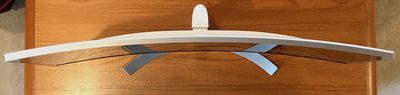
The other defining aspect of this display is its "UltraWide" 21:9 aspect ratio. I've found it tremendously useful, allowing me to place as many as three large windows side-by-side on the desktop with room to spare. That's a huge benefit when you're either multitasking with a number of different apps or working on tasks that require multiple windows such as side-by-side browser windows, or editing apps with lots of palettes, for example.
Having everything all on one screen is a much better experience than having to switch visual focus between displays, even if those displays are right next to each other. Of course, I'm still running a three-display setup, but it means I can have a huge contiguous workspace on the 38UC99 for my main focus while my MacBook Pro and UltraFine 5K displays are used for other apps I need to monitor and like to have visible at all times, such as email, Twitter, Slack, and calendars.

The 21:9 display also comes in handy for another purpose: watching movies. Widescreen shows and films at 1.77:1 or 1.85:1 will be pillarboxed with black bars on the sides of the screen, while 2.39:1 films will just about fill the entire screen, so the 38UC99 doubles nicely as a display for watching video as long as you can sit fairly close to it.
Build Quality and Looks
For the most part, I should just point everyone back to my 27UD88 review here, as these two displays are clearly cut from the same cloth. They have the same all-plastic build with the faux brushed aluminum finish on the arm and foot and fairly thin matte black plastic bezels bordered by silver around the edges. The bottom chin is slightly larger than the top and sides, but it's not a distractingly large difference, and a subtle silver LG logo is centered on the bottom chin.
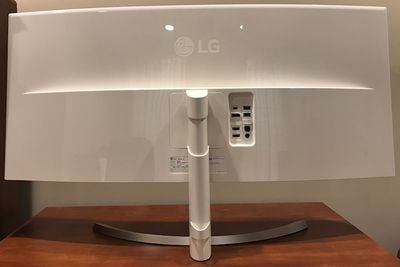
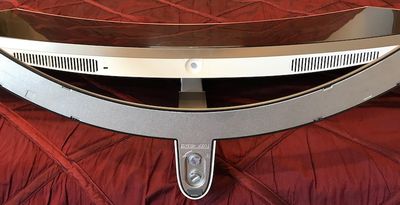
The rear sides of the display and arm are glossy, bright white plastic. It will certainly attract attention if the rear of your display is visible such as in an office setting, but if the display is up against a wall or other surface, you may forget what the back even looks like until you turn it or stick your head behind it to adjust cable connections.
Ports
On the rear of the display, you'll find the exact same set of ports as on the 27UD88 I reviewed earlier: a USB-C port for single-cable connectivity, one DisplayPort 1.2 input, and two HDMI 2.0 inputs. On the downstream side are a pair of USB-A ports with up to 5V/1.5A of charging power.
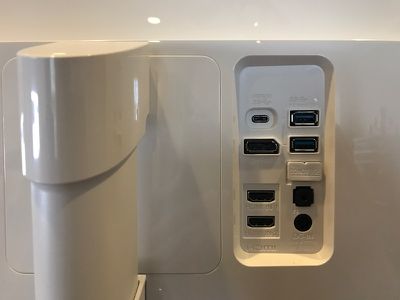
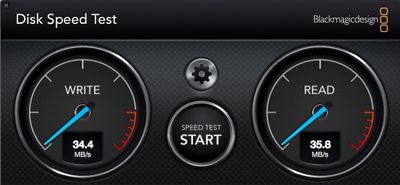
As on the 27UD88, you'll find that while the ports are officially USB 3.0, they will run at USB 2.0 speeds once the display is connected, as all of the USB 3.0 lanes are used to drive the display itself. So if you're looking for fast USB connectivity such as for an external hard drive, you'll want to connect it directly to your computer rather than through the display. My testing found USB 2.0 speeds of around 30–35 MB/s for read and write with a USB 3.0 5400 rpm external hard drive, which may be passable for some users, but if you're moving lots of data you're going to want a faster direct connection.
Finally, the 38UC99 includes a headphone jack and a DC-in port for the power adapter on the rear, while there is a Kensington lock slot on the bottom edge for security.
Audio
The 38UC99 includes a pair of 10W speakers with LG's "Rich Bass" technology, and they actually sound quite good for display speakers. They're not going to replace your home audio system, but they're perfectly acceptable for general computer use including music and gaming.
Another nice inclusion is Bluetooth audio support, which lets you connect other devices to the display's speakers wirelessly, which could be handy if you want to play something direct from an iPhone or other device and want to have higher quality sound.
Joystick Button and Menu Options
The 38UC99 uses LG's familiar joystick button as the sole method of controlling the display. Pressing it turns the display on, while pressing and holding it powers the display off. Moving it right or left adjusts the volume, with a bump forward while the volume is displayed muting or unmuting the sound.
A brief press on the button opens up the main menu, which provides easy access to input selection and Bluetooth audio connections, as well as the rest of the menus for a variety of settings for adjusting inputs, picture, sound, and more. A wide array of adjustments are available to optimize picture modes and quality depending on your preference and the type of content being displayed. There are 11 picture modes available, with a calibrated Custom mode set as the default out of the box. I found Custom mode to be satisfactory and did not need to perform additional calibration, but those options are certainly available for those who want to make adjustments.
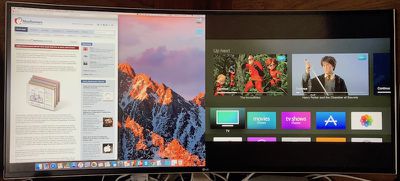
The display supports Picture by Picture (PBP), which lets you display two inputs side-by-side simultaneously. It works rather well due to the display panel's aspect ratio, and I occasionally use it to display an external screen for my computer alongside my Apple TV, which I have hooked up to the display via HDMI. The Apple TV content is significantly letterboxed since I'm displaying a widescreen input on half of a 21:9 display, but things are still large enough that the Apple TV is usable for checking apps and settings or even watching a bit of video.
LG's OnScreen Control app also supports the 38UC99. The app runs in the menu bar on Mac, offering quick access to a Screen Split mode that lets you divide your desktop into up to four different zones, with different apps automatically snapping into zones and maximizing their windows within them, with apps automatically moving out of the way from one region to another as you drag an app to a different zone.
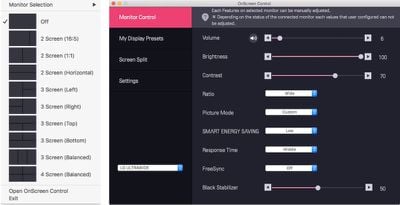
The menu bar also offers quick access to the full OnScreen Control app, which lets you manage several features including general display adjustments, specific display settings on a per-app basis, and more.
Wrap-up
The 38UC99 has some shortcomings in areas such as brightness and evenness of backlighting, but I truly can not get over just how useful this massive desktop is. Sure, the UltraFine 5K and 27UD88 have higher total pixel counts, but they're not usable in non-Retina mode at their full resolutions, as everything is just way too small. But when you blow that 3840 pixel horizontal resolution up onto a 37.5-inch screen, it just gives you so much real estate to work with that's actually usable in size.
Ideally the 38UC99 would be a Retina display, but it's going to be a few more years before we're able to drive 7680x3200 displays given the current technology standards are just barely serving 5K content, and even that has required some creativity. Throw in wide gamut support and we'd really be in business, but we're not quite there yet.
At this price point of display, a webcam and microphone to go along with the speakers might have been a nice inclusion, but unfortunately those features didn't make the cut. LG's standard one-year warranty is also on the short side, with many other manufacturers offering three-year warranties on their displays.
After almost two months using the 38UC99 as my main display, I've found it hard to swap it out for anything else. Even the UltraFine 5K with its razor sharp text, bright screen, and beautiful colors feels like it's falling short simply because it offers a smaller desktop.
All of that said, this is an expensive display considering its lack of truly professional-level specs, so you have to have the budget and the true need for this size of display to make it a worthwhile purchase.
Pricing
The curved UltraWide screen of the 38UC99 doesn't come cheaply, with the display carrying a list price of $1499.99 and available at retailers such as Best Buy.
That's considerably higher than even the full retail price of the UltraFine 5K, which is set to rise to $1299.95 at the end of this month after Apple's temporary 25 percent price cut expires. We haven't really seen any discounts on the 38UC99, and it is even backordered at some retailers, so supplies are apparently tight.
Note: LG provided the 38UC99 display to MacRumors free of charge for the purposes of this review. No other compensation was received. MacRumors is an affiliate partner with Best Buy and may earn commissions on purchases made through links in this article.















































Top Rated Comments
Then again, this display significantly smaller than a 65 inch television. So perhaps that would also be a factor.