Here's How Apple Watch Widgets Work in watchOS 10 - MacRumorsOpen MenuShow RoundupsShow Forums menuVisit ForumsOpen Sidebar
Skip to Content

Here's How Apple Watch Widgets Work in watchOS 10

Apple last week previewed watchOS 10, its next major software update for compatible Apple Watch models. Among a handful of new features, one of the most impactful is the introduction of widgets. Let's take a closer look at how they work and what you can do with them.
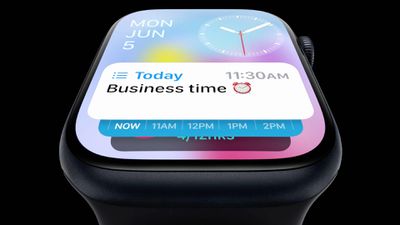
widgets in watchos10

What's Up With Widgets?

Widgets offer a new way to quickly bring up app-related information from any watch face on your Apple Watch, without having to open the corresponding app or rely exclusively on complications. In other words, if you choose simple faces without complications, you can still access the information you want, and if you like complication-rich faces, now you can get even more info at a glance.

In watchOS 10, an upward turn of the Digital Crown or a swipe up from the bottom of the watch face using your finger (Control Center is now accessed via the Side button) reveals a dynamic Smart Stack of widgets below the time and date that takes up half of the screen. You can scroll through these widgets with the Digital Crown or your finger, and tap a widget to open its corresponding app.
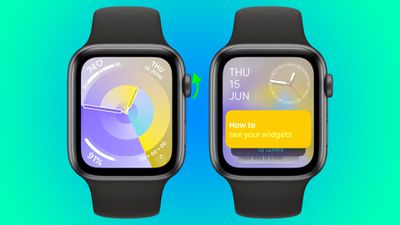
widgets watchos
By using machine learning, the order of widgets can change based on your needs at any given time of day.

For example, if you have upcoming events in your calendar, a boarding pass for an upcoming flight, or tasks you need to complete, these will be displayed in order of priority. Or if you start a timer, it will appear at the top of the widget stack so you can easily see how long is left.

In addition to relevance-based ordering, Smart Stack also includes the ability to manually organize widgets, so the Smart Stack can be as dynamic or as fixed as you want.

There are actually two types of widget in watchOS 10: Dedicated app widgets that provide information from a single app, and a user-configurable complications widget that shows up to three watch face-style complications.
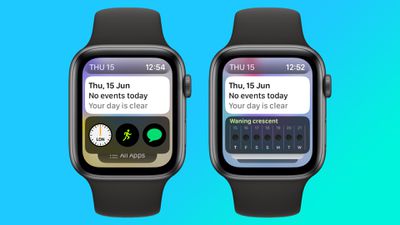
watch widgets complications
At the very bottom of the widget stack is a button that takes you to the traditional app menu to access all your Apple Watch apps.

Choosing the Widgets You Want to See

Like iPhone Home Screen widgets in iOS 16, Apple Watch widgets in watchOS 10 can work as a Smart Stack that changes based on the context or time of day, or you can manually choose the ones you want to include and also pin widgets to the top of the stack. The following steps show you how to edit widgets from any watch face.

  1. On an Apple Watch running watchOS 10, scroll up using the Digital Crown, or swipe up from the bottom of the screen using your finger.
  2. Long press any widget to enter the stack's jiggle mode. (Note that you can't edit the date and time display at the top of the stack.)
  3. Tap the red minus button on a widget to remove it from the stack, or tap the large plus button above the stack to add one.
  4. To pin a widget so that it remains at the top of the stack, tap its yellow pin icon.
  5. To edit the complications widget, scroll to the bottom and tap the minus icon next to a complication, then tap the plus symbol to replace it with another available complication. (Note: You can also pin the complications widget.)
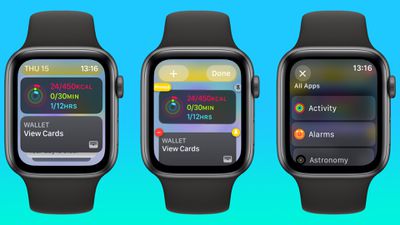
editing widgets watch

Summing Up

Apple is pitching widgets as a way of enjoying simple watch faces like Portrait, without being far from the sort of onscreen information that complications typically provide. By using the Digital Crown, real-time data from your favorite apps is just a dial turn away. What do you think of widgets? Let us know in the comments.

watchOS 10 will be released to the public this fall and is compatible with the Apple Watch Series 4 and later. In addition, you'll also need an iPhone capable of running iOS 17. This includes the iPhone XS or later and iPhone XR or later. For a full list of iPhones compatible with iOS 17, check out our quick guide.
Related Roundup: watchOS 26
Related Forum: Apple Watch

Popular Stories

Apple Watch Series 10 Jet Black Touch ID

Apple Watch Series 12 and watchOS 27: What to Expect Later This Year

Friday May 8, 2026 2:07 pm PDT by
While not too much has been reported about the next Apple Watch models, there are a few rumors about potential design changes and watchOS 27 features. Apple Watch Series 12 and Apple Watch Ultra 4 models are expected to be released in September, and we have outlined some of the key rumored hardware and software changes below. A new Apple Watch SE is not expected this year, as that model was...
ios 26 5 luminance colors 2

A Closer Look at watchOS 26.5's New Luminance Watch Face

Friday May 8, 2026 3:38 pm PDT by
With watchOS 26.5, Apple is introducing a Pride Luminance face, and it's one of the most versatile and customizable watch faces. There are pre-configured color options, but the face also supports custom colors. You can select 1 to 12 colors from a palette that has every color of the rainbow, some in-between shades, and black, white, brown, and gray. The colors you pick are distributed...
watchos 26 gradient light

Apple Releases watchOS 26.5 With New Pride Luminance Watch Face

Monday May 11, 2026 10:03 am PDT by
Apple today released watchOS 26.5, the fifth major update to the watchOS 26 operating system that came out in September. watchOS 26.5 comes a month and a half after Apple released watchOS 26.4. watchOS 26.5 can be downloaded for free on an iPhone running iOS 26.5 by opening up the Apple Watch app and going to General > Software Update, or initiating an update in the Settings app on the...

Top Rated Comments

Adamov Avatar
39 months ago
What I really don't like in watchOS 10 is that Apple removed the ability to swipe between watch faces. Now you have to long press on the watch face to enter edit mode and then swipe :(
Score: 23 Votes (Like | Disagree)
39 months ago
This is a terrific update -- I don't currently use simple watch faces because of lack of complications.
Score: 13 Votes (Like | Disagree)
gank41 Avatar
39 months ago

What I really don't like in watchOS 10 is that Apple removed the ability to swipe between watch faces. Now you have to long press on the watch face to enter edit mode and then swipe :(
Not only did they remove the ability to swipe between Watch Faces, but they also added redundant ways of bringing up these new Widgets while removing the Favorite Apps option completely. You used to swipe up on the Watch Face to bring up the Control Center (Which is Great!), but they now moved that to the Side Button in lieu of the Favorite Apps. So now the only way to navigate to a commonly used app, like Settings, is to press the Digital Crown and then scroooollllllllll all the way to the end of your list of apps. I'm not sure how long things will stay this way, or if maybe we'll see options to choose what the Side button does? Doesn't seem like there needs to be two ways to do the same thing while removing something else.
Score: 12 Votes (Like | Disagree)
WarmWinterHat Avatar
39 months ago

So wish they dropped support for the watch 4. It’s like the iPad 2 or iPhone 6S of watches
There is absolutely nothing wrong with the s4.
Score: 8 Votes (Like | Disagree)
ColeSQ Avatar
39 months ago
I've always felt like I had to have multiple faces just to get easy access to all the data I want to see quickly on my watch so this feels like a big upgrade. No more scheduling faces for particular times of day to prioritize on the limited amount of data I could easily see onscreen, and probably a lot less squinting as a compromise for having a data rich face with tiny tiny data, all crammed in.
Score: 8 Votes (Like | Disagree)
GabooN Avatar
39 months ago

What I really don't like in watchOS 10 is that Apple removed the ability to swipe between watch faces. Now you have to long press on the watch face to enter edit mode and then swipe :(
Not happy to hear of this change. I currently swipe left or right one face to access frequently used things that I don't keep on the main face.
Score: 7 Votes (Like | Disagree)