How to Back Up Your iPhone Photos - MacRumorsOpen MenuShow RoundupsShow Forums menuVisit ForumsOpen Sidebar
Skip to Content

How to Back Up Your iPhone Photos

by

photos iconBacking up the photos you take on your iPhone might not sound like a thrilling prospect, but it's far from a thankless task. On the contrary, it's a crucial step in ensuring that your most precious pictures are never lost. Plus, once you have a system for backing up your photos in place, you can get on with enjoying taking pictures with your smartphone in the confidence that they're safe.

You see, having a backup of your photos prevents them from being lost if you should ever lose your iPhone, or if your handset breaks. And if your device's capacity is slim, an additional benefit of backing up your iPhone's photo library is that it also allows you to save local storage space. With that in mind, let's look at your backup options.

1. Backing Up to iCloud

icloud drive icon iosFirst up, there's Apple's homegrown solution: iCloud Photos works with the Photos app to keep your photos and videos securely stored in iCloud, and up to date across your Apple devices and on iCloud.com.

‌iCloud Photos‌ automatically keeps every photo and video you take in ‌iCloud‌, so you can access your library from any device, whenever you want. Any changes you make to your photo library on one device are reflected on your other devices, ensuring a consistent experience wherever you choose to browse your pictures.

When you sign up for ‌iCloud‌, you automatically get 5GB of free storage. If you need more space, you can buy more ‌iCloud‌ storage, with plans starting from $0.99 a month for 50GB. There are also 200GB and 2TB plans available that also let you share your storage with your family.

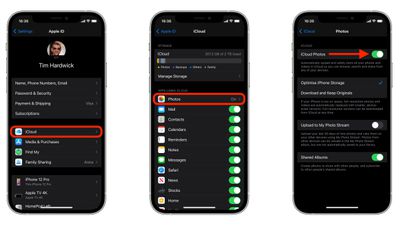
To turn on ‌iCloud Photos‌ on your iPhone, follow the steps below:

  1. Launch the Settings app.
  2. Tap your Apple ID banner.
  3. Tap iCloud.
  4. Tap Photos, then turn on iCloud Photos by toggling the switch.
settings

2. Backing Up to a Computer

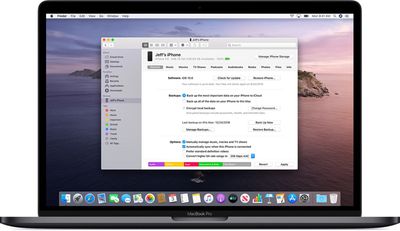
If you want to keep your backups local, you can always just back up your iPhone to your computer. If you already sync your iPhone through Finder on a Mac, or via iTunes on a Windows PC, then you're already backing up your photos to your computer.

macoscatalinafinder
One disadvantage to this method is that you don't have direct access to your backed up photos, so you can't just browse them whenever you want unless they're still on your iPhone. You have to restore the backup file to your iPhone to view or manage your stored photos. In that sense, having a backup of your photos on your computer offers peace of mind in case your iPhone is lost or breaks, but ultimately it lacks the convenience of ‌iCloud Photos‌ or third-party storage alternatives.

3. Alternative Backup Options

If you don't want to be restricted to ‌iCloud‌ or a computer backup, or you just want another backup for redundancy, there are some third-party options available for backing up your iPhone photos. Two of the most popular are Dropbox and Google ‌Photos‌. Both of these services offer free plans that will happily back up your iPhone's photo library, although with some caveats if you're prepared not to shell out for the privilege.

Google Photos

google photos new icon black backgroundEach Google account comes with 15GB of free storage that can be used to store any type of file, including your photos. If you choose to back up photos in their original quality, they will count against your storage quota.

Currently, if you choose to back up photos in high quality, you get unlimited free storage, although that will no longer be the case from June 1, 2021. After that date, all photos and videos uploaded to your Google account will take up your allocated storage.

To back up your iPhone's photo library to your Google account, follow these steps:

  1. Download the Google Drive app for iPhone from the App Store.

  2. Launch the app and create a Google account or log in using your existing Google credentials.

  3. Tap the triple-lined icon in the top-left corner of the app interface, then select Settings.

  4. Tap Backup.
  5. Select Photos & videos and toggle on the switch next to Back up to Google Photos, then select High quality (free unlimited storage) or Original (full resolution - counts against your storage quota).
  6. Return to the previous screen and tap Start Backup.

If you're looking for an alternative way to browse your photos on iPhone, try the Google Photos app, where you can also control backup options.

Dropbox

Dropbox can back up the photos on your iPhone as they're taken, thanks to Camera uploads. With this feature, your iPhone will automatically add your camera roll's photos to Dropbox and will also ask you if you want to back up your existing library.

dropbox
However, expect to pay a subscription if you want to back up photos to Dropbox. The free Basic plan only includes 2GB of storage, which won't go very far at all. However, the Plus plan ($7.99 a month) gets you 2TB of encrypted storage and the ability to use Dropbox Rewind, a 30-day data recovery service.

To back up your iPhone's photo library to Dropbox, follow these steps:

  1. Download the Dropbox app for iPhone from the ‌App Store‌.
  2. Launch the app and sign up to Dropbox or log in using your existing credentials.
  3. Tap Account (the person icon) in the bottom-right corner of the interface.
  4. Tap Camera Uploads.
  5. Toggle on the switch next to Camera Uploads.
  6. Tap Upload.

Background uploading allows Dropbox to upload photos even when the Dropbox app is closed. It automatically uploads your photos whenever it detects a change in your device's location. To turn it on, navigate to the Camera Uploads screen, tap Background uploading, then use the slider to select the battery level or toggle Only while phone is charging to on.

Popular Stories

iphone duo facetime

iPhone Duo's Hidden FaceTime Camera Takes 'Trash' Photos

Wednesday October 21, 2026 11:36 am PDT by
The iPhone Duo's inner screen has an under-display front camera that's largely hidden from view. It's the first time we've seen an under-display camera on an iPhone, and it turns out there's a reason Apple hasn't used the technology before. Apple said the camera offers 1080p video recording, but didn't mention photo quality. Gizmodo said it's a 4-megapixel camera and described the photos as...

homeview faces

HomeView's Faces Include Snoopy, Photos, and Interactive Artwork

Wednesday October 14, 2026 4:00 am PDT by
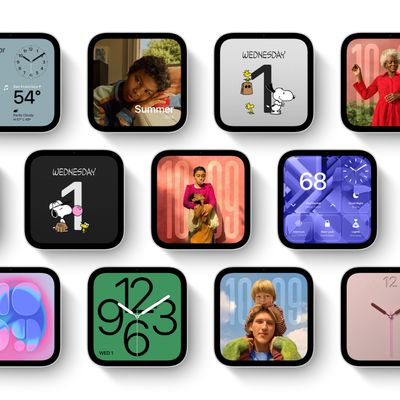
Apple's HomeView includes customizable faces for photos, animations, and smart home controls. Faces Apple has named so far include: Photos Flow Snoopy Calendar Weather Home Modular Home Camera Other clock and widget layouts appear in Apple's promotional images, but have not yet been named. Apple says that selected faces change throughout the day, with different appearances...
duo aquarium

More Fun iPhone Duo Apps: 30 New Picks to Try

Friday November 6, 2026 3:27 pm PST by
When the iPhone Duo launched, we shared a list of some of the fun apps developers created for the new form factor. Two weeks out, developers are continuing to come up with fresh ideas, so we thought we'd share some of our favorites. Games Marbles Unhinged ($2.99) - Marbles Unhinged is a marble maze designed for the Duo. When you fold it, the floor turns into a ramp. If you stand the top...
Latest Stories
Apple Store Subscription Sign-Up Controversy Exposed
2 hours ago
Siri AI Rumored to Become 'More Like an Agent' as Early as Next Year
12 hours ago
Apple Taking New Approach to Developing iOS 28 and macOS 28
14 hours ago
Early Apple Black Friday Deals on Apple Watch, MacBook Air, and More
1 day ago
'Backglow' Lets You Customize New MacBook Pro's Glowing Apple Logo
1 day ago
Top Stories: Apple Product Launches, iOS 27.3 Beta, and More
2 days ago
More Fun iPhone Duo Apps: 30 New Picks to Try
2 days ago
Hands-On With Apple's New OLED Touchscreen MacBook Pro
2 days ago
Apple Store With All-New Design Opening Soon in Southern California
2 days ago
Control the Glowing Apple Logo on Your New MacBook Pro
2 days ago
Apple Shares New 'Apple Card: Apply and Use in Minutes' Ad
3 days ago
Apple Says More Than 100,000 Apps Optimized for iPhone Duo, Here's What's Still Missing
3 days ago
Early Black Friday Deals Kickoff With Steep Discounts on Apple Watch Ultras and More
3 days ago
The MacRumors Show: iOS 27.3 Looks Like a Huge Update
3 days ago
Best Buy's Black Friday Event Begins With Sitewide Savings on Apple, TVs, More
3 days ago
Apple Releasing Yet Another Two New Products Next Week
3 days ago
MacBook Air Drops to Lowest Price in Months With Amazon's $250 Discount
3 days ago
Apple Rumored to Drop the iPhone's Action Button Next Year
3 days ago
Apple's Extended Return Policy Now in Effect for 2026 Holiday Season
3 days ago
Apple Music Classical Updated With New Icon and Refreshed Design
3 days ago
OLED iPad Mini, M6 iMac, and New MacBook Pros Available From Today
3 days ago
Apple Surveys iPhone Duo Buyers About Crease and Camera
3 days ago
Apple's First Touchscreen Mac is Now Arriving to Customers
3 days ago
Claude Gets Personal Finance Feature With Bank Account Linking
3 days ago
Apple Arcade Adds Crossy Road Rush and NBA 2K27
3 days ago
Apple's New HomeView Smart Home Hub: Here's How Much RAM It Has
3 days ago
iPad Mini vs. iPad Air Buyer's Guide: Now Just $50 Apart
3 days ago
First iOS 27.3 and macOS Golden Gate 27.3 Public Betas Now Available
3 days ago
Apple Announces a New Mac Sales Record
3 days ago
Paid $200 for Logic Pro? Apple Says You Won't Get This New Feature
4 days ago