 In iOS 13, Apple enhanced the built-in photo editing capabilities available on iPhones and iPads, and redesigned the photo editing interface to make it easier to manipulate your pictures.
This article offers a brief introduction to the new photo editing interface in the stock Photos app by looking at how you can crop, rotate, and straighten your shots in next to no time.
The first thing to do is launch the stock Photos app on your iPhone or iPad, and then using the Photos tab (shown in the first screen below) tap to select a picture from your Photo library.
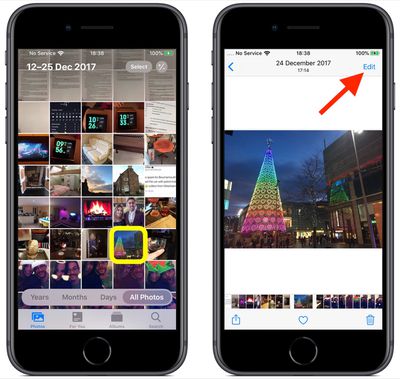
If it isn't a recent photo that you want to edit, you can use the Days, Months, and Years views to whittle down your collection. Alternatively, select a photo from one of your albums via the Albums tab.
Once you've selected a picture, tap Edit in the top-right corner of the screen to enter the black editing interface.
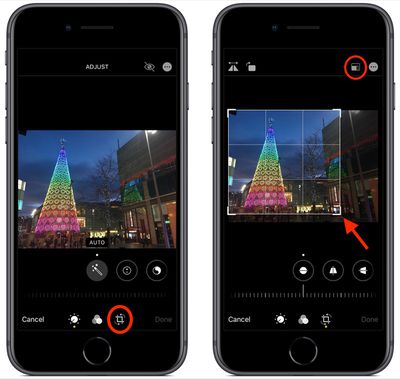
Next, tap the Crop tool (the rightmost tool icon at the bottom of the screen). Notice that a grid now overlays your picture. Drag any corner of this frame to custom crop the image. You can also choose from a set of pre-defined cropping ratios by tapping the first of the two icons in the top-right corner of the screen.
Notice that the horizontal strip of adjustment tools below the photo also changed when you selected the Crop icon. From left to right, these allow you to straighten the image, adjust vertical alignment, and adjust horizontal alignment.
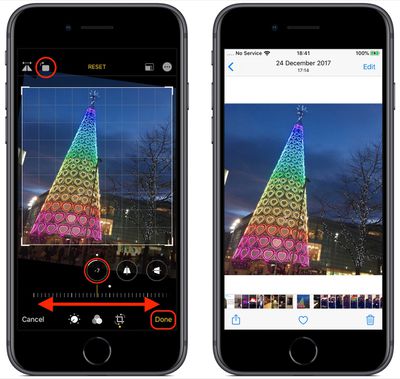
Tap one of the tools and slide the horizontal dial left or right with your finger to adjust to the desired level, indicated by the number in the selected tool's icon. At the top-right corner of the editing interface you'll also see more tools allowing you to flip and rotate the image.
If you make a mistake when editing your photo, simply tap the Reset button to the right of these tools to undo your adjustments. Press Done in the bottom-right corner of the screen when you're happy with your edits and they'll be automatically saved.
Remember, in addition to using the Photos app, you can also use these editing tools whenever you take a picture using the built-in Camera app – you don't even have to unlock your device to edit the photo you just shot.