How to Discreetly Disable Touch ID and Face ID on an iPhone - MacRumorsOpen MenuShow RoundupsShow Forums menuVisit ForumsOpen Sidebar
Skip to Content

How to Discreetly Disable Touch ID and Face ID on an iPhone

by

There's an Emergency SOS feature built into iOS 11 that has hidden functionality -- it automatically disables Touch ID and makes it so your passcode has to be entered to unlock your iPhone.

Because it essentially shuts down the biometrics on your device, you can't be compelled by a police officer or malicious person to unlock your iPhone with a fingerprint, nor can your fingerprint be used to get into your device should you be unconscious after an emergency. On iPhone X, this also applies to Face ID.

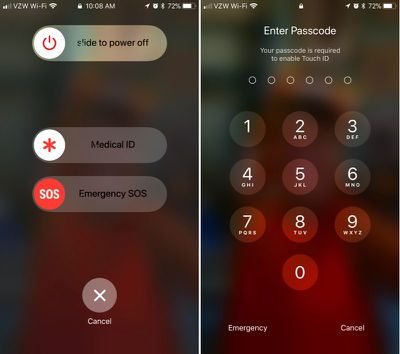
Emergency SOS is enabled by default, and there's only one step to activate it: Press on the sleep/wake (Side) button of your iPhone five times in rapid succession. On the iPhone X, iPhone 8, and iPhone 8 Plus, instead of pressing the Side button five times rapidly, you hold down the Side button and one of the volume buttons at the same time. It's essentially a quick squeeze on either side of the device.
disabletouchidios11
These gestures initiates a screen that gives you the option to power the iPhone off, make a call to emergency services, or access your Medical ID.

Though not expressly stated, once your iPhone is in this emergency state, Touch ID is disabled. You will, however, have to press the cancel button to get back to the Home screen, so it's not an entirely secretive process.

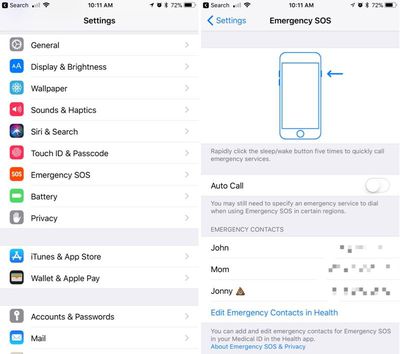
If you're using Emergency SOS to disable the lock screen and don't want to set the feature up to automatically call 911 when the sleep/wake button is pressed, make sure to disable Auto Call in the Settings app. Here's how:

  1. Open the Settings app.
  2. Scroll down to Emergency SOS.emergencysossettings
  3. Disable Auto Call.

With Auto Call disabled, pressing sleep/wake will bring up the aforementioned screen with the option to slide to make the emergency call. With Auto Call enabled, emergency services are called automatically when the sleep/wake button is pressed five times, following a five second countdown timer.

It's best to leave Auto Call on if you want to be able to get in touch with emergency services immediately should you be in danger.

While this feature was likely built to keep your iPhone secure in a situation where you might be incapacitated, it can also prevent authority figures from forcing you to unlock your device.

This is notable because there have been legal rulings where a defendant has been compelled to provide a fingerprint, but not a passcode. Most people will never need to disable Touch ID, but it's worth knowing the option is there should there be a situation where it is necessary.

Related Forum: iOS 11

Top Rated Comments

115 months ago
Useful feature. Hopefully I'll never have to use it, but good to know it's there.
Score: 6 Votes (Like | Disagree)
115 months ago
And to turn it back on, hold it over your head tilted at a 47 degree angle, hop 3 times, and say "Hey Siri, who is John Galt?", then boom, you're back in business.
Score: 4 Votes (Like | Disagree)
115 months ago
And to turn it back on, hold it over your head tilted at a 47 degree angle, hop 3 times, and say "Hey Siri, who is John Galt?", then boom, you're back in business.
You just need to enter your pass code to unlock and biometrics is automatically back on. No need to sarcastically scroll through settings to enable it.
Score: 3 Votes (Like | Disagree)
115 months ago
nor can your fingerprint be used to get into your device should you be unconscious after an emergency.
If you are unconscious, how do you hit the button five times.

People... enough of this crazy paranoid stuff. Unless you are a murderer, kiddie molester or big time drug dealer the police don’t really care about your phone. If a cop gets in your phone illegally, it is thrown out in court.

And for Gods sake, if you are being robbed, give them the damn phone. Disable it later or track it with the police. They can’t do anything without your icloud passcode.
Score: 2 Votes (Like | Disagree)
JRoDDz Avatar
115 months ago
Yes, a nice feature hope to never have to use. Maybe a small detail, but I noticed that the message shown is "Touch ID does not recognize your fingerprint", which also provides a little more protection since it doesn't indicate that you disabled Touch ID or even own the phone necessarily.
Plausible deniability.
Score: 2 Votes (Like | Disagree)
115 months ago
Useful feature. Hopefully I'll never have to use it, but good to know it's there.
Yes, a nice feature hope to never have to use. Maybe a small detail, but I noticed that the message shown is "Touch ID does not recognize your fingerprint", which also provides a little more protection since it doesn't indicate that you disabled Touch ID or even own the phone necessarily.
Score: 2 Votes (Like | Disagree)

Popular Stories

iCloud iPhone 17 Pro

iPhone Users Who Pay for iCloud Storage Get Two New Perks on iOS 27

Thursday July 2, 2026 6:10 am PDT by
If you pay for certain iCloud+ storage plans beyond the 5GB that Apple offers for free, you will receive two more perks on iOS 27 at no additional cost. A summary of the two new iCloud+ perks on iOS 27:Increased daily usage limits for some new Apple Intelligence features, including image generation in the revamped Image Playground app. HomeKit Secure Video cameras receive generated video...
iPhone 4 on Black Feature

Apple Facing One of Its Worst Leaks Since the iPhone 4

Thursday July 2, 2026 9:53 am PDT by
Apple supplier Tata Electronics recently suffered a cyberattack that resulted in thousands of confidential files being published on the dark web, and this reportedly included some photos and documents related to the upcoming iPhone 18 Pro. We have elected not to share any of the leaked photos in this story due to the illegal nature in which they were obtained, but they can easily be found...
American Express Gold Apple Pay Feature

American Express Announces New Apple Pay Feature

Tuesday June 30, 2026 10:27 am PDT by
American Express today announced that you can now redeem Membership Rewards points when checking out with Apple Pay on the web and in apps on the iPhone and iPad. When checking out with Apple Pay on iOS 18 or iPadOS 18 or later, tap on your eligible American Express card (Platinum, Gold, Green, and others) and select the Membership Rewards points option. You can use points to cover all or...