In macOS Tahoe 26, Apple gave Spotlight a major update with a visual overhaul, clipboard access, and Actions for performing tasks within apps directly from the search bar.
There's quite a lot of hidden potential in Spotlight's new manifestation. Below, we've put together a cheat sheet of Spotlight functionality to help you make the most of it.
Getting Started With Spotlight
You can open Spotlight on your Mac at any time by pressing Command + Space Bar or by clicking the magnifying glass icon in the menu bar.
The main Spotlight overlay remains the quickest way to find almost anything on your Mac. Type a keyword to surface apps, documents, emails, contacts, dictionary definitions, or web results. You can drag a file from search results to the desktop or a Finder window, or you can open it by double-clicking it or selecting it and pressing Return.
You can also still access the extra functionality that Apple has added over time, like input calculations and get conversions, find flight information with a flight number, or get an up-to-date weather forecast.

If you move your pointer when Spotlight is open, you'll see four icons appear to the right of the interface: they are Apps, Files, Actions, and Clipboard. You can click to open these browse modes or use keyboard shortcuts to open straight into them and switch between them:
- Command + Space Bar + 1: Apps
- Command + Space Bar + 2: Files
- Command + Space Bar + 3: Actions
- Command + Space Bar + 4: Clipboard
We'll get to these browse modes later on, but first let's look at some Spotlight-wide filter functions.
Filter Search With Categories
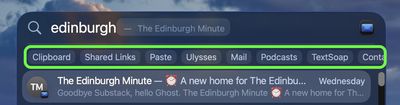
You can narrow your Spotlight results by selecting a category that appears beneath the search field. Press Command + Space Bar to open Spotlight, then start typing. As you search, dynamic categories such as Screenshots, System Settings, or Folders will appear – click any of them to instantly filter your results.
Filter Search by Location
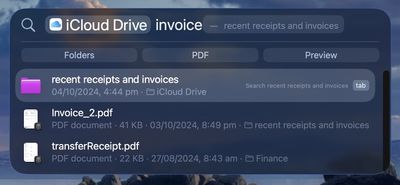
If you're searching for a file, you can filter it based on where the file is stored – like iCloud Drive, for example. Type "iCloud Drive," press the Tab key, and then type the name of the file before pressing Return.
Reveal File Location
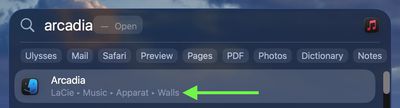
If the file you're looking for is highlighted in the results, hold the Command key to reveal its location path beneath the name. You can also double-click the location to go straight to it in Finder.
Filter Search by App or Kind of Item
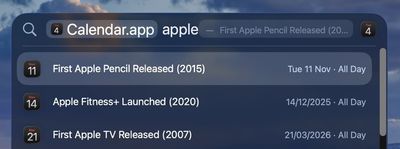
You can specify the type of items you're searching for, such as apps, folders or PDFs. To search by app, type the app name (e.g. Notes, Calendar) then press the Tab key. Now type a term to search only within that app.

To search by kind, enter "/" followed by the type of item or app. For example, to narrow search results to PDFs, enter "/PDF" and press Return, then type your search terms.
Use Keywords
Apple has also implemented keywords for specifying different kinds of item. In the Spotlight search field, add the text "kind:[type of item]" to the beginning of your search. For example, to search for photos of Edinburgh, type "kind:images Edinburgh."
Spotlight supports the following keywords for searching for different types of item:
| Type of Item | Keyword |
|---|---|
| Apps |
|
| Contacts |
|
| Folders |
|
|
|
| Calendar Events |
|
| Reminders |
|
| Images |
|
| Movies |
|
| Music |
|
| Audio |
|
|
|
| Settings |
|
| Bookmarks |
|
| Fonts |
|
| Presentations |
|
You can also refine your searches using specific keywords such as from, to, author, with, by, tag, title, name, keyword, and contains. To use one, type the keyword followed by a colon, then your search term – for example, author:Tim or title:Edinburgh.
Launching Apps
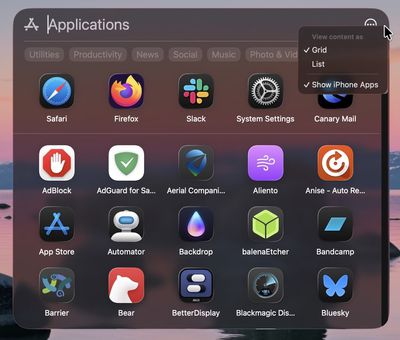
With Launchpad gone, you can use Spotlight's Apps browse mode to launch apps instead (Command + Space Bar + 1). The mode also surfaces iPhone apps when iPhone Mirroring is active, so you can access them directly from your desktop.
If you prefer, you can hide iPhone apps from this view via the browse mode's options button (three encircled dots). You can also change from Grid to List view from this menu. Unfortunately, you can't uninstall apps or rearrange them in Spotlight like you could do in Launchpad.
Actions
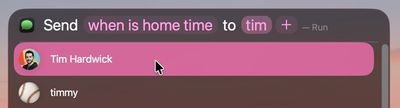
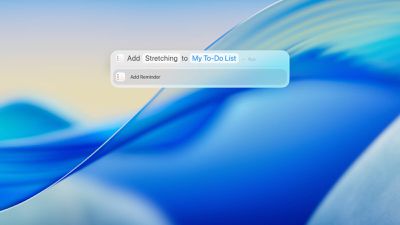
Actions in Spotlight let you do things with apps without having to open those apps. You can send emails, create shortcuts for features in apps, set timers, create Calendar events, make reminders, and much more, plus there's integration with the Shortcuts app to take things even further.
For example, if you want to send a message, press Command + Space Bar + 3 to open Spotlight Actions, then select the Send Message action and hit Return. Type your message, hit Tab, type the name of the recipient, then select their contact and hit Enter again. The steps depend which action you choose to run, but it's the same basic process.
Here are just some actions that you can use:
- Add File to Note: Quickly adds a file on your computer to a note in the Notes app.
- Change Case: Changes the case of copied text.
- Start FaceTime call: Makes a FaceTime call – audio or video – to the person of your choice.
- Random Number: Picks a random number when given a minimum and maximum.
- Recognise Music: Names the currently playing song.
- Remove Image Background: Removes the background from a named image.
- Send Email: Sends an email message to a recipient of your choice.
- Translate Text: Translates selected text from a detected language to the language of your choice.
Quick Keys
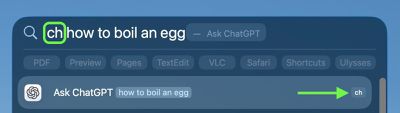
You can use Spotlight Actions to do all kinds of things without opening an app, but there are also quick access phrases you can assign to launch tasks quickly, like "ch" for bringing up ChatGPT. Simply click the "Add quick keys" button whenever you see it in search results.
If you need to, you can reset assigned quick keys to their defaults by clicking Reset Quick Keys in System Settings ➝ Spotlight.
Clipboard Mode
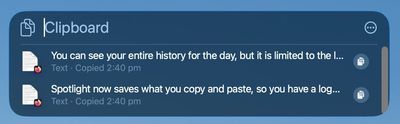
Clipboard mode (Space Bar + Command + 4) is one of the most practical additions to macOS Tahoe. It keeps a searchable history of copied text, links, images, and files, even syncing across your devices through Universal Clipboard. You can copy or paste items directly from this view, or clear history entirely for privacy. You can see your entire history for the day, but it is limited to the last eight hours by default. In macOS 26.1, you can change how long clipboard history is kept in System Settings ➝ Spotlight.
You can copy from the clipboard search results by clicking the Copy icon, then paste the item anywhere by pressing Command + V. To erase the clipboard history, click the options button (three encircled dots), then choose Clear History.
Spotlight History
If you open Spotlight (Command + Space Bar) and start pressing the up arrow key, you can see a history of your past searches.
Customize Spotlight Settings
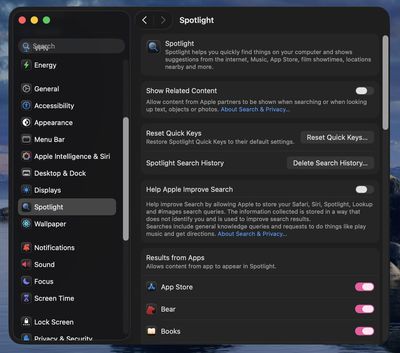
Head to System Settings ➝ Spotlight to fine-tune what appears in results. You can exclude apps and private folders, reset Quick Keys, and delete search history. New in macOS Tahoe 26.1, you can also now adjust how long clipboard history is retained (30 minutes, 8 hours, 7 days), or disable clipboard history completely. The options generally give you greater control over privacy and performance while keeping Spotlight uncluttered.