

WhatsApp end-to-end encrypted backups are now rolling out for iPhone users, Facebook has announced. Until now, WhatsApp let users back up their chat history to iCloud, but the messages and media contained in the backups weren't protected by WhatsApp's end-to-end encryption while in Apple's cloud servers.

End-to-end encryption ensures only you and the person you're communicating with can read or listen to what is sent, and nobody in between, not even WhatsApp, can gain access to this content. With the advent of end-to-end encrypted backup, you can now also add the same layer of protection to your iCloud backup.
That's important from a security perspective. Given that Apple holds the encryption keys for iCloud, a subpoena of Apple or an unauthorized iCloud hack could potentially allow access to WhatsApp messages backed up there. That security vulnerability has now been resolved because you can encrypt and password-protect your chat history before uploading it to Apple's cloud-based platform.
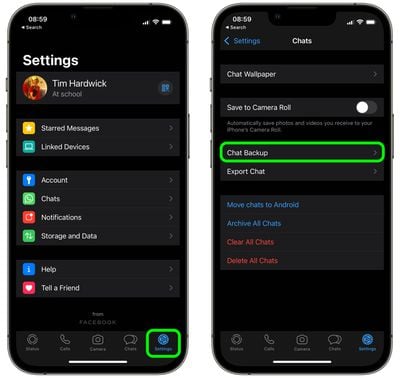
The following steps show you how. Note: If you don't see the encrypted backup option, sit tight – the feature is being rolled out to more than 2 billion users.
- Launch WhatsApp on your iPhone.
- Tap the Settings tab in the bottom right corner of the screen.
- Tap Chats.
- Tap Chat Backup.

- Tap End-to-end Encrypted Backup.
- Tap Continue, then follow the prompts to create a password or key.
- Tap Done, and wait for your end-to-end encrypted backup to be prepared. You might need to connect your iPhone to a power source.
Bear in mind that you won't be able to restore your backup if you lose your WhatsApp chats and forget your password or key. WhatsApp can't reset your password or restore your backup for you.
It's also worth noting that if you have iCloud Backups turned on for your entire iPhone, an unencrypted version of your chat history is also backed up to iCloud. To ensure your WhatsApp chats and media are only backed up with end-to-end encryption, turn iCloud Backup off on your device. You can do this in the Settings app by tapping your Apple ID banner at the top, selecting iCloud, and turning off iCloud Backup.



















