

With the launch of the iPhone 8, iPhone 8 Plus, and iPhone X last year, Apple made some changes to the way a forced restart is performed and also to the way the devices are put into DFU mode. These changes remain in place for Apple's latest iPhone XS, iPhone XS Max, and iPhone XR devices.
A forced restart can be used if an iPhone is freezing, throwing up errors, or has stopped responding completely. DFU mode (standing for Device Firmware Update) on the other hand restores an iPhone if a restart or standard Recovery Mode doesn't solve the problem you're experiencing.
DFU mode lets the device interface with iTunes, update the firmware, and restore the OS without automatically installing the last downloaded version. It's useful for installing older versions of iOS if a beta persistently hangs your phone, or if a jailbreak goes bad.
How to Enable DFU Mode
Before following the steps below, make sure you have the latest version of iTunes installed on your computer.
- Turn on your iPhone if it isn't already.
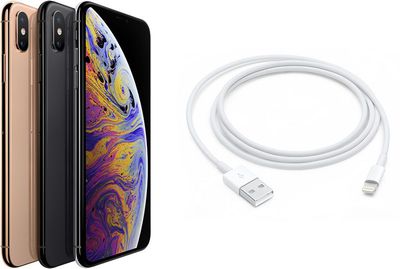
- Connect it to your computer using a Lightning to USB cable.
- Launch iTunes on your computer, and check that your iPhone appears in the list of devices.
- On your iPhone, press the Volume Up button immediately followed by the Volume Down button.
- Next, press and hold the Side button (or power button) until your iPhone's screen turns black.
- Release the Side button and then hold down both the Side button and Volume Down button together for approximately five seconds.
- Now release the Side button, but continue to press the Volume Down button.
- Wait for at least five seconds for iTunes to recognize DFU recovery mode has been enabled.
You should see a message dialog saying "iTunes has detected an iPhone in recovery mode. You must restore this iPhone before it can be used with iTunes". If you don't see the message, repeat the steps above.
Once you've closed the iTunes recovery prompt you can go ahead and restore your iPhone back to factory settings by selecting Restore iPhone on the iPhone Recovery Mode screen. Once restored, your iPhone will automatically exit out of DFU mode and boot up to its activation screen.
How to Exit DFU Mode
If you enabled DFU mode and want to manually exit out of it, here's how it's done.
- Press the Volume Up button on your iPhone and quickly release it.
- Press the Volume Down button and release it.
- Press and hold the Side button until the Apple logo appears on your iPhone's screen.
Your iPhone should now have exited DFU recovery mode.
















Top Rated Comments
You put your right hand in,
You put your right hand out,
You put your right hand in,
And you shake it all about,
You do the hokey pokey
and you turn yourself around
That what it's all about.
I can't image what it will be like when they seal the entire device with no physical buttons.
Click your heels three times and recite three times “May the demigods of microwaves bless my iPhone”
[LIST=1]
* Press the Volume Up button on your iPhone and quickly release it.
* Press the Volume Down button and release it.
* Press and hold the Side button until the Apple logo appears on your iPhone's screen.
4. Turn around clockwise 2x times
5. Jump (1x time)
6. Turn around counter-clockwise 3x times
Perform all these moves while holding the Side Button!