How to Erase an M1 Mac - MacRumorsOpen MenuShow RoundupsShow Forums menuVisit ForumsOpen Sidebar
Skip to Content

How to Erase an M1 Mac

by

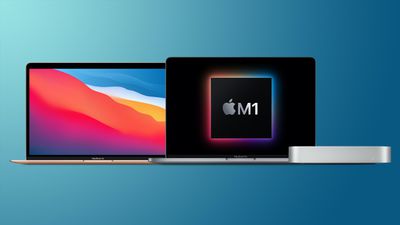
This article explains how to erase (or format) the built-in startup disk of a Mac with Apple silicon. Note that erasing your Mac permanently deletes all files on it, so follow the backup advice carefully. If you plan to give away, sell, or trade in a Mac, erasing your Mac should be the final step.
mac mini macbook pro macbook air m1

First, Back Up Your Data

Before you do anything, you should back up the files on your Mac. You could do this manually by copying across files onto an external drive. If you use iCloud, your photos, mail, contacts, documents, and so on should be automatically backed up in cloud storage.

hero timemachineHowever, we highly recommend that you take the time to perform a Time Machine backup of your system using an external drive. That way, the same backup volume can be used by Apple's Migration Assistant during a macOS installation to quickly transfer your applications, files and settings from the old Mac to a new one.

Check out our dedicated guide on how to back up your Mac using Time Machine.

Unlink your Apps

There are certain apps that will need to be manually unlinked from your Mac before you say goodbye to it. Some third-party apps require licenses that only work on a limited number of computers, so think about any licenses you may have purchased.

apple music logo
Similarly, you should de-authorize your iTunes account on the Mac, as this removes its access to content that you bought from the iTunes Store, iBooks Store, or App Store, including things like music, movies, TV shows, apps, and books.

To learn how to de-authorize your iTunes account, check out our dedicated guide.

Sign Out of iCloud

It's also important to disable Find My Mac and sign out of ‌iCloud‌ in macOS. That way you'll know for sure there isn't anything lingering on your Mac that links your Apple ID to this machine. The following steps show you how.

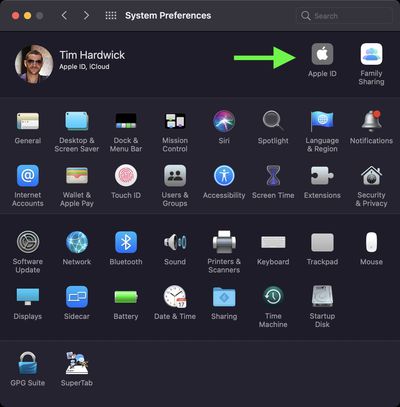
  1. Click the Apple () symbol in the top left corner of your Mac's screen and select System Preferences....
    Mac-preferences

  2. Click Apple ID in the preference pane.

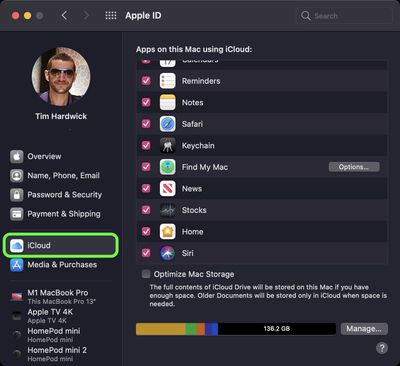
  3. Select iCloud in the sidebar, then uncheck all the boxes in the list to remove copies of the related data on this Mac.
    iCloud Mac

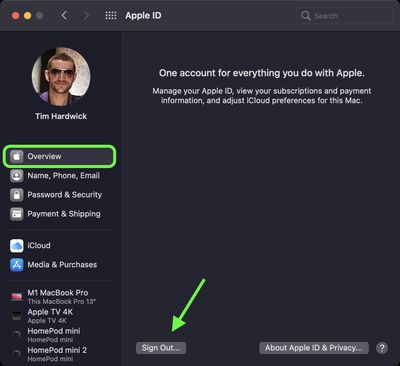
  4. Select Overview in the sidebar, then click Sign Out... to sign out of ‌iCloud‌ completely.
    iCloud Mac

How to Erase Your Apple Silicon Mac

Note that the following steps will cause Bluetooth devices to disconnect from your Mac, so connect your Bluetooth keyboard, mouse, or trackpad with a USB cable if possible.

  1. If your Mac is turned on, power it off by clicking the Apple symbol () in the top-left corner of the menu bar and selecting Shut Down... -> Shut Down. To start up again in macOS Recovery, turn on your Mac and continue to press and hold the power button until you see the startup options window.
  2. Select Options, then click Continue.
    m1 mac startup options

  3. If prompted, select a user, then click Next and enter the password.
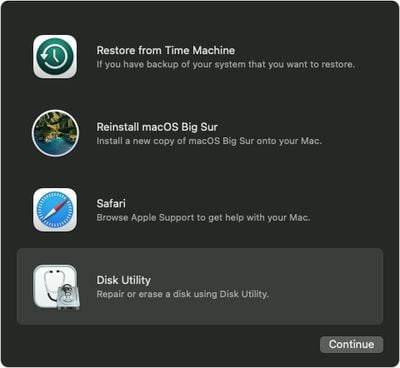
  4. From the utilities window, select Disk Utility and click Continue.
    macos big sur recovery disk

  5. Under the "Internal" section of the Disk Utility sidebar, make sure that you see the volume called Macintosh HD. If you don't see it there and you didn't change the name of the system disk yourself, choose Apple menu  > Shut Down, then unplug all nonessential devices from your Mac and try again.
    disk-utility

  6. If you previously used Disk Utility to create internal volumes on Macintosh HD, select each additional internal volume in the sidebar, then click the delete volume (–) button in the toolbar to delete that volume.
  7. Select Macintosh HD in the sidebar.
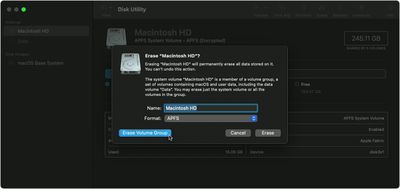
  8. Click the Erase button in the toolbar, then choose another name if desired and format the disk as APFS.
  9. Click Erase Volume Group.
    recovery Mac

  10. Enter your ‌Apple ID‌ if prompted to do so.
  11. Click Erase Mac and Restart to confirm the action.
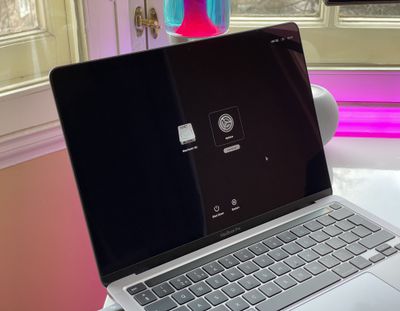
If you're parting ways with your Mac, you're all done. If you're holding on to it and want to start anew, follow the onscreen instructions when your Mac restarts to choose your language. Your Mac will attempt to activate using an internet connection. You can select a Wi-Fi network using the Wi-Fi menu in the menu bar. Alternatively, attach a network cable to your Mac.

After your Mac activates, click Exit to Recovery Utilities, then select Reinstall macOS in the utilities window and follow the onscreen instructions to reinstall macOS.


Popular Stories

skyrim

Skyrim Comes to Apple Silicon Macs With New Unofficial Installer

Tuesday October 20, 2026 7:56 pm PDT by
Bethesda's beloved role-playing game "The Elder Scrolls V: Skyrim" has reached multiple generations of consoles since its 2011 debut, but it never officially came to the Mac. A new unofficial project called SkyrimMT now aims to make playing and modding it on Apple silicon Macs easier than ever. Mac owners have found ways to play Skyrim over the years, including installing Windows through...

apple pro tell logo

Apple Launching Five New Products Today

Thursday November 5, 2026 12:59 am PST by
Apple is launching five new products on Friday, November 6, following pre-orders that opened last week, including its first touchscreen MacBook Pro models. The following new products will be available from today: iPad mini with OLED display and A20 Pro chip iMac with M6 chip 14-inch MacBook Pro with M6 chip 14-inch MacBook Pro with OLED touchscreen 16-inch MacBook Pro with OLED...
duo aquarium

More Fun iPhone Duo Apps: 30 New Picks to Try

Friday November 6, 2026 3:27 pm PST by
When the iPhone Duo launched, we shared a list of some of the fun apps developers created for the new form factor. Two weeks out, developers are continuing to come up with fresh ideas, so we thought we'd share some of our favorites. Games Marbles Unhinged ($2.99) - Marbles Unhinged is a marble maze designed for the Duo. When you fold it, the floor turns into a ramp. If you stand the top...
Latest Stories
Siri AI Rumored to Become 'More Like an Agent' as Early as Next Year
6 hours ago
Apple Taking New Approach to Developing iOS 28 and macOS 28
8 hours ago
Early Apple Black Friday Deals on Apple Watch, MacBook Air, and More
1 day ago
'Backglow' Lets You Customize New MacBook Pro's Glowing Apple Logo
1 day ago
Top Stories: Apple Product Launches, iOS 27.3 Beta, and More
1 day ago
More Fun iPhone Duo Apps: 30 New Picks to Try
2 days ago
Hands-On With Apple's New OLED Touchscreen MacBook Pro
2 days ago
Apple Store With All-New Design Opening Soon in Southern California
2 days ago
Control the Glowing Apple Logo on Your New MacBook Pro
2 days ago
Apple Shares New 'Apple Card: Apply and Use in Minutes' Ad
2 days ago
Apple Says More Than 100,000 Apps Optimized for iPhone Duo, Here's What's Still Missing
2 days ago
Early Black Friday Deals Kickoff With Steep Discounts on Apple Watch Ultras and More
2 days ago
The MacRumors Show: iOS 27.3 Looks Like a Huge Update
2 days ago
Best Buy's Black Friday Event Begins With Sitewide Savings on Apple, TVs, More
2 days ago
Apple Releasing Yet Another Two New Products Next Week
2 days ago
MacBook Air Drops to Lowest Price in Months With Amazon's $250 Discount
2 days ago
Apple Rumored to Drop the iPhone's Action Button Next Year
2 days ago
Apple's Extended Return Policy Now in Effect for 2026 Holiday Season
2 days ago
Apple Music Classical Updated With New Icon and Refreshed Design
2 days ago
OLED iPad Mini, M6 iMac, and New MacBook Pros Available From Today
3 days ago
Apple Surveys iPhone Duo Buyers About Crease and Camera
3 days ago
Apple's First Touchscreen Mac is Now Arriving to Customers
3 days ago
Claude Gets Personal Finance Feature With Bank Account Linking
3 days ago
Apple Arcade Adds Crossy Road Rush and NBA 2K27
3 days ago
Apple's New HomeView Smart Home Hub: Here's How Much RAM It Has
3 days ago
iPad Mini vs. iPad Air Buyer's Guide: Now Just $50 Apart
3 days ago
First iOS 27.3 and macOS Golden Gate 27.3 Public Betas Now Available
3 days ago
Apple Announces a New Mac Sales Record
3 days ago
Paid $200 for Logic Pro? Apple Says You Won't Get This New Feature
3 days ago
Instagram's Edits Video Editor is Now Available on Mac
3 days ago