iOS 14: How to Actually Hide the Hidden Photos Album - MacRumorsOpen MenuShow RoundupsShow Forums menuVisit ForumsOpen Sidebar
Skip to Content

iOS 14: How to Actually Hide the Hidden Photos Album

by

Sometimes you might not want certain pictures shot on your iPhone or iPad to be visible in your Photo Library, but for whatever reason, you might not want to outright delete them either. That's why Apple's Photos app includes an option to hide certain photos from the main library.

ios14 hide folders but the folders have photos soooo

Prior to iOS 14, this option would hide pictures from the ‌Photos‌ and For You sections of the ‌Photos‌ app, but they would still show up in the Albums section under an album called "Hidden," which wasn't exactly an inconspicuous way of squirreling away private pictures.

With that in mind, Apple has added an option in iOS 14 and iPadOS 14 that allows users to hide the Hidden album from the ‌Photos‌ app, quite literally. The following steps run you through the process of hiding a picture and then making sure the Hidden album is concealed in the ‌Photos‌ app.

Once you've completed the steps, the Hidden album won't show up in the ‌‌Photos‌‌ app; just be aware that you'll still see the Hidden album when you use the image picker in third-party apps, so it's not completely invisible from prying eyes.

How to Hide a Photo

  1. Launch the Photos app on your iPhone or ‌iPad‌.
  2. Tap Select in the top-right corner of the screen.
  3. Tap the pictures you want to hide.
  4. Tap the Share button in the bottom-left corner of the screen. (It looks like a square with an arrow pointing out.)
  5. In the Share Sheet's actions menu, select Hide.
    photos

  6. Tap the prompt that appears at the bottom of the screen to confirm.
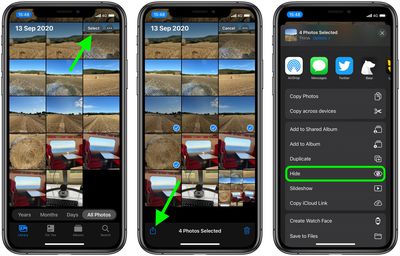
Again, this hides the photo from the general album view, but conspicuously places the photo in an album called "Hidden". To hide that "Hidden" folder in iOS 14:

How to Hide the 'Hidden' Folder in Photos

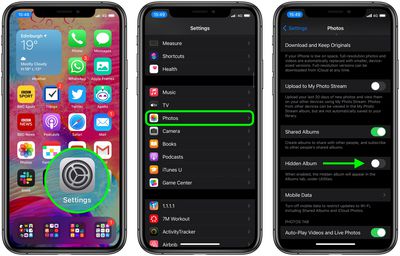
  1. Launch the Settings app.
  2. Scroll down and select Photos.
  3. Make sure the switch next to Hidden Album is in the grey OFF position.
    photos

If you ever want your Hidden album to appear in ‌Photos‌ again, go to Settings -> Photos and then toggle the switch next to Hidden Album so that it's in the green ON position.

Note that while the album is hidden in the ‌Photos‌ app, it can appear in the photo picker from 3rd party apps. At best this just makes it harder for casual snoopers from running across your private photos.

Related Forum: iOS 14

Top Rated Comments

76 months ago
why don’t they just allow you to
Lock the album with face/Touch ID or a passcode?
Score: 51 Votes (Like | Disagree)
76 months ago
nudes. this is for nudes, guys.
Score: 29 Votes (Like | Disagree)
GeoStructural Avatar
76 months ago
We all know what this album is for.

Thanks for the guide, by the way. But I wish the hidden album (or any album) could be password-locked or accessible only with Face ID/Touch ID.

Better yet, bring GUEST MODE to iPhone, usage scenarios:

* You want to make a call? sure...
* Can I quickly look up something on the Internet in your phone?... go for it...
* Want to handle the music? By all means.

All without access to our private information (chats, nudes, credit cards, passwords, emails, notes, phone directory, etc.)


I hate to sound so bitchy but just gotta plug my cause: not a fan of dark mode.
Have you tried not using it? It might work.
Score: 17 Votes (Like | Disagree)
luismedina Avatar
76 months ago
We should have an option to Face ID or passcode protect this Hidden album, for a company which says to care a lot for privacy this should be mandatory.
Score: 17 Votes (Like | Disagree)
gaximus Avatar
76 months ago
I love the hidden photos album. When someone leaves their phone out, I know exactly where to go to find the “good” photos, instead of trying to swipe through a ton of photos in the main album. /s
Score: 13 Votes (Like | Disagree)
Icaras Avatar
76 months ago
Why can we password protect Notes, but not Photos?
Score: 11 Votes (Like | Disagree)

Popular Stories

apple intelligence photos tools

Apple to Bring AI Reframing and Editing Tools to Photos App

Monday June 8, 2026 11:16 am PDT by
Apple today announced new AI-powered photo editing tools coming to the Photos app as part of Apple Intelligence, including an upgraded Clean Up tool, a new Extend tool, and a new Spatial Reframing feature. Spatial Reframing allows users to reposition the virtual camera angle of a photo after it has already been taken. By touching and dragging, users can adjust the framing and perspective of...
iOS 26 Glass Photos Feature

Apple Photos Finally Gets a Slideshow Maker

Monday June 8, 2026 5:04 pm PDT by
Apple today announced new slideshow features coming to the Photos app, allowing users to play any set of photos and videos as a slideshow. There are options to set the slide duration, transition style, and music. iOS 27 also lets users save any slideshow directly as a video to their Photos library for easy playback later. Additional new features include the ability to save individual...
iCloud iPhone 17 Pro

iPhone Users Who Pay for iCloud Storage Get Two New Perks on iOS 27

Thursday July 2, 2026 6:10 am PDT by
If you pay for certain iCloud+ storage plans beyond the 5GB that Apple offers for free, you will receive two more perks on iOS 27 at no additional cost. A summary of the two new iCloud+ perks on iOS 27:Increased daily usage limits for some new Apple Intelligence features, including image generation in the revamped Image Playground app. HomeKit Secure Video cameras receive generated video...