Almost everyone who uses the internet will have encountered CAPTCHA challenges, where websites and app sign-in screens require you to pass a little test like having to tap on images of traffic lights or decipher squiggly text.
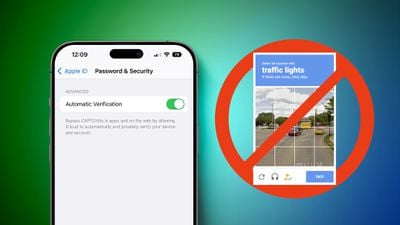
CAPTCHA challenges are used to prove you're a human and not a robot, but they can be repetitive and annoying. Fortunately, Apple includes a feature in iOS 16 and later that can help skip many of these challenges altogether. It's called Automatic Verification, and here's how it works.
Instead of being asked to to complete a CAPTCHA, Automatic Verification uses an Apple server to validate your device and Apple ID. The verification is sent to an Apple-verified third-party token issuance server, which generates a private access token that is then used to verify you to the app or website.
As you'd expect, privacy is key to this process: Apple never learns which app or website you're signing in to, and it can't access your browsing history. Likewise, the token issuance server only knows that you've passed verification, and never learns information about your device or Apple ID. Meanwhile, all the app or website receives is the private access token.
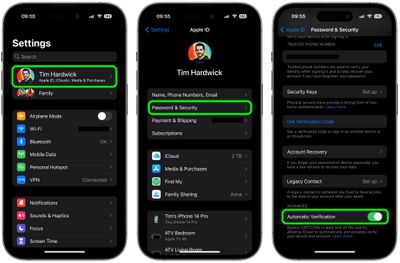
Automatic Verification is enabled by default on iPhone, but if you want to check whether it's on (or even if you want to turn it off) simply follow the steps below.
- Launch the Settings app on your iPhone.
- Tap your name in the Apple ID banner at the top.
- Tap Password & Security.
- Scroll to the bottom and turn on/off Automatic Verification.
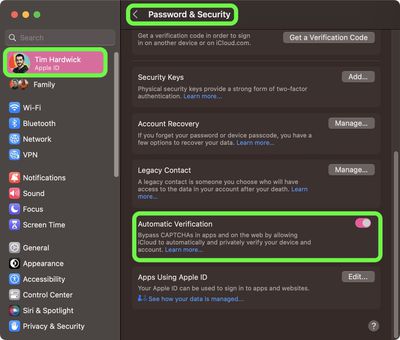
The feature is also supported on iPadOS 16.1 and later, and the above steps apply on iPad. If you're using a Mac running macOS Ventura or later, you can find the same Automatic Verification toggle in System Settings -> [your name] > Password & Security.
If you're still getting CAPTCHAs, make sure you're signed into your device with your Apple ID, and make sure you're updated to the latest operating system. If you've done both of these things and you're still encountering CAPTCHAs, it may just be that the app or website doesn't support Apple's Automatic Verification.