

Apple has made available the third public beta of iOS 26, bringing the new software to a wider audience following initial testing by developers. Keep reading to learn how to prepare your device for the beta software and how to install it.
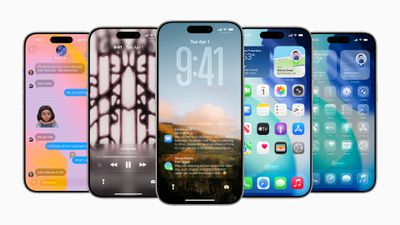
Signing up to get the iOS 26 or iPadOS 26 public beta is simple, and can be done by enrolling an iPhone or iPad in Apple's free Apple Beta Software Program. The steps you need to complete to install the software on your device are provided towards the end of this article, but before you jump ahead, here are a few things worth considering.
Is My iPhone Compatible With iOS 26?
iOS 26 is compatible with the iPhone 11 series and newer. In other words, the following models are supported:
- iPhone 16e
- iPhone 16
- iPhone 16 Plus
- iPhone 16 Pro
- iPhone 16 Pro Max
- iPhone 15
- iPhone 15 Plus
- iPhone 15 Pro
- iPhone 15 Pro Max
- iPhone 14
- iPhone 14 Plus
- iPhone 14 Pro
- iPhone 14 Pro Max
- iPhone 13
- iPhone 13 mini
- iPhone 13 Pro
- iPhone 13 Pro Max
- iPhone 12
- iPhone 12 mini
- iPhone 12 Pro
- iPhone 12 Pro Max
- iPhone 11
- iPhone 11 Pro
- iPhone 11 Pro Max
- iPhone SE (2nd generation and later)
Should I Install iOS 26 Public Beta?
Great question! Before downloading the update, it's worth noting that Apple does not recommend installing iOS 26 beta updates on your main iPhone, so if you have a secondary device, use that. This is beta software, which means there are often bugs and issues that pop up that can prevent software from working properly or cause other problems. Apple undoubtedly has plenty of fixes to make before the final release.
Make an Archived Backup of Your Device First
Before installing the beta, make sure to back up your iOS device before installing the software using the following method, otherwise you won't be able to revert back to iOS 18 if things go wrong.
- Plug your iPhone into your Mac using the supplied cable.
- Allow the accessory to connect by clicking Allow in the dialog prompt.
- Open a Finder window by clicking the Finder icon in the Dock.
- Click your iOS device's name in the sidebar.

- If this is the first time connecting your device to your Mac, click Trust in the Finder window.
- Tap Trust on your device when prompted, then enter your passcode to confirm.
- In the General tab, click the circle next to where it says Back up all of the data on your iPad to this Mac.
- If you want to encrypt the backup, check the box next to Encrypt local backup, then enter a password to protect your data.
- If you don't want to create an encrypted backup, or you've already set up encrypted backups, click Back Up Now.
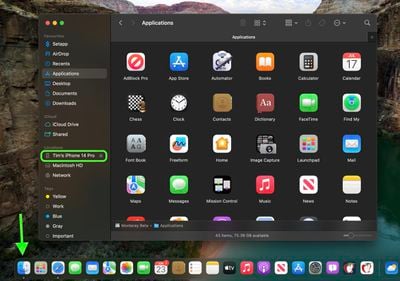
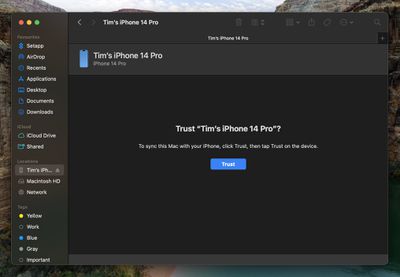
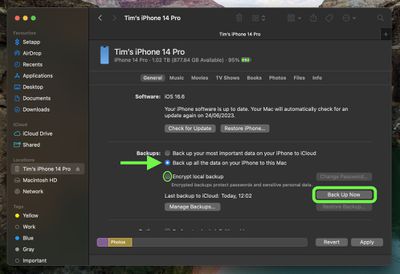
When the backup is finished, you can find the date and time of the last backup in the General tab, just above the Manage Backups button. Remember that this backup will not be overwritten when you manually or automatically back up your iPhone in the future, so you can restore it at any time by using the Restore Backup... option in the same Finder screen.
How to Download iOS 26 Public Beta
Downloading and install the iOS 26 Public Beta is very straightforward. Simply follow these steps:
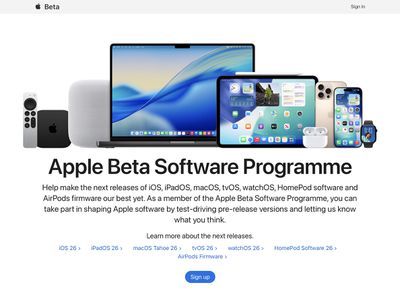
- Head over to Apple's Beta Software Program website and sign up using your Apple Account credentials.
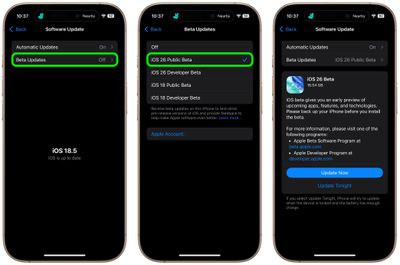
- Now go to Settings ➝ General ➝ Software Update on your iPhone.
- Tap Beta Updates. If you don't see the option, try switching off Download iOS Updates (Automatic Updates ➝ Download iOS Updates), then tap Back and it should appear.
- Select iOS 26 Public Beta in the list, then tap Back.
- Wait for the Software Update screen to check Apple's servers. When the iOS 26 Public Beta appears, tap Download and Install, then follow the instructions and wait for installation to complete.
iOS 26 Features
iOS 26 introduces a striking system-wide redesign built around Liquid Glass, a translucent material that reflects and refracts ambient content and dynamically responds to user input. The new aesthetic applies across the Lock Screen, Home Screen, toolbar controls, navigation elements, app icons, and widgets.
The update also brings new Apple Intelligence features. With Live Translation available in Messages, FaceTime, and Phone, conversations across languages are now seamless and entirely on-device to ensure privacy. New Visual Intelligence capabilities mean you can ask questions about screen content. There are also smarter Shortcuts with intelligent actions to make automation easier.
Communication apps gain smart upgrades too. The revamped Phone app now combines Favorites, Recents, and Voicemails in one view, adds Call Screening, and includes a clever Hold Assist feature. Messages gains filtered inboxes for unknown senders, typing indicators in group chats, custom backgrounds and polls, and Apple Cash transfers.
CarPlay gets a visual refresh aligned with the Liquid Glass design and now includes compact call notifications, tappable Message reactions, pinned conversations, widgets, and Live Activities support.
Apple has also updated some of its key apps: Apple Music adds Lyrics Translation and Pronunciation plus AutoMix DJ-style transitions; Maps introduces privacy-protected "Visited Places" and smarter route preferences; Wallet supports installment/rewards payments, refreshed boarding passes with Live Activities, and deeper integrations with Maps and Find My. Lastly, a new Games app debuts as a central hub for mobile gaming, featuring a unified library, Apple Arcade support, event tracking, and friend status updates.
For a full breakdown of what's new, be sure to check out our dedicated iOS 26 roundup.















