

Messages in iOS 10: How to Use Emoji Replacement and Prediction - MacRumorsOpen MenuShow RoundupsShow Forums menuVisit ForumsOpen Sidebar
Skip to Content

Messages in iOS 10: How to Use Emoji Replacement and Prediction

by

In iOS 10, Apple is making it even easier to use emojis with an all-new replacement and predictive system that replaces key words and phrases with relevant emoji characters. Although still short of a full-featured search functionality -- which many have asked for -- the new emoji replacement ability turns text messages into emoji-filled communications that are fun alternatives to basic blocks of text.

Using Emoji Replacement

To insert a few emojis into texts for yourself, follow these steps:
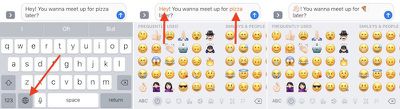
How To Emoji 3

  1. Open Messages.
  2. Tap on the person you want to chat with.
  3. Type a message as normal, but don't hit the send arrow yet.
  4. Long-tap on the Globe icon to bring up your list of installed keyboards, and choose "Emoji."
  5. Tap any orange-highlighted word directly in your text message to turn it into an emoji. If no highlighted words appear, Apple didn't find any potential emoji replacement opportunities in your message.
  6. Tap the send arrow when you're finished.

Some emojis have multiple potential keywords, and for these you'll be presented with a pop-up box where you choose the emoji you want to use. The word "confused," for example, is associated with both the "confused" and "neutral" faces.
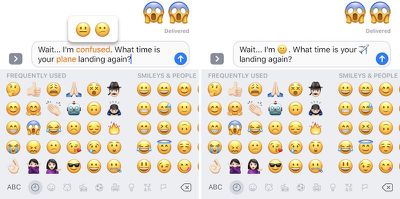
How To Emoji 4

Using Emoji Prediction

Emoji predictions also begin as you type your message out, thanks to the predictive text box in the iOS keyboard. Follow these steps to make sure you have the setting enabled, and then start sending out emojis faster than ever.
How To Emoji 6

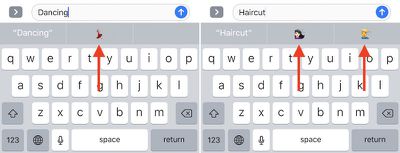
Refer to the image above for Steps 6-8

  1. Open Settings and go to "General." Then scroll down to "Keyboard" and tap it.
  2. Scroll down to the bottom of Keyboard settings to find "Predictive," and toggle it on if it isn't already.
  3. Open Messages and navigate to the person you want to chat with.
  4. Type a word connected to an emoji, like "Happy," "Beach," or "Sheep" to see its related emoji pop up in one of the three predictive text boxes.
  5. Tap the emoji to replace the typed word with a character.
  6. Keep typing out your message, and tap the send arrow when you're finished.

This predictive feature has the potential to be used as a search function for simply-titled emojis, mainly emotional ones like "Sad" or things related to the weather, but complex characters are still tough to propagate. Words in the ballpark of "Smiling Imp" and "Information Desk Woman" never successfully call up the relevant emojis, but as long as you're searching for basic characters emoji prediction is yet another useful and fun feature addition in iOS 10's new Messages app.


Related Forum: iOS 10

Top Rated Comments

chrismail627 Avatar
127 months ago
I really hope people don't start texting me like this...
Score: 13 Votes (Like | Disagree)
127 months ago
So much for English. Lets communicate with hieroglyphics instead. If anyone starts sending this crap to me they're gunna get deleted off my contacts list and banned.
SMS tough guy right here. XD
Score: 11 Votes (Like | Disagree)
predation Avatar
127 months ago
The human race is becoming dumber.
Score: 4 Votes (Like | Disagree)
Bawstun Avatar
127 months ago
I get the sarcasm. But really, sometimes emoji can be better than words. You can't interpret the 'lol' a million different (condescending) ways if the user chooses to turn it into a laughing emoji . The usefulness varies, but I kind of like the idea for lightening up the feel of some chats.
Score: 4 Votes (Like | Disagree)
127 months ago
So much for English. Lets communicate with hieroglyphics instead. If anyone starts sending this crap to me they're gunna get deleted off my contacts list and banned.
Score: 4 Votes (Like | Disagree)
127 months ago
Doesn't seem to work for me unless I switch over to the Emoji keyboard after typing out my message. Would be more convenient if it could identify matches on the fly and highlight them and yellow so I could just select and replace them without having to go to the Emoji keyboard.
Score: 4 Votes (Like | Disagree)

Popular Stories

Aston Martin CarPlay Ultra Screen

Apple Says CarPlay Ultra is Coming to These Vehicle Brands

Thursday May 21, 2026 11:53 am PDT by
Last year, Apple launched CarPlay Ultra, the long-awaited next-generation version of its CarPlay software system for vehicles. Nearly a year later, CarPlay Ultra is still limited to Aston Martin's latest luxury vehicles, but that should change fairly soon. In May 2025, Apple said many other vehicle brands planned to offer CarPlay Ultra, including Hyundai, Kia, and Genesis. CarPlay Ultra...
iphone 18 pro blue%402x

iPhone 18 Pro: Dark Cherry, Light Blue, and Dark Gray Chassis Leaked [Update]

Thursday June 4, 2026 5:18 am PDT by
Update: Since publication, new information has come to light suggesting the images have been AI-manipulated and are not in fact iPhone 18 Pro chassis parts. The original article follows. The color options Apple is reportedly planning for the upcoming iPhone 18 Pro and ‌iPhone 18 Pro‌ Max have appeared online today in the form of images of chassis parts of unknown authenticity....
iOS 27 All the New App Features

iOS 27: All the Rumored App Features

Wednesday June 3, 2026 3:48 pm PDT by
Siri is getting a major overhaul in iOS 27, but Apple also has some big updates planned for apps like Camera, Photos, and Wallet. There are multiple new AI features in the works, plus some non-AI upgrades. Camera Apple is moving Visual Intelligence from the Camera Control button to the Camera app in iOS 27, according to Bloomberg. There will be a Siri mode that will be available alongside...













