

How to Find Notifications in iOS 11's New Lock Screen and Cover Sheet - MacRumorsOpen MenuShow RoundupsShow Forums menuVisit ForumsOpen Sidebar
Skip to Content

How to Find Notifications in iOS 11's New Lock Screen and Cover Sheet

by

Apple made waves last year when it completely redesigned how the lock screen functions on iOS 10 by removing the iPhone's well-known "Slide to Unlock" instruction from the screen. The improvements allowed for a more seamless unlocking experience on iPhones that supported Raise to Wake and Touch ID, and with iOS 11 that process isn't changing (although there are still ways to get around it thanks to Accessibility options).

The main change in iOS 11's lock screen is how the new software deals with notifications and the methods you'll have to go through in finding a push notification you might have missed.

Finding Notifications in iOS 11's Lock Screen
how to cover sheet 4

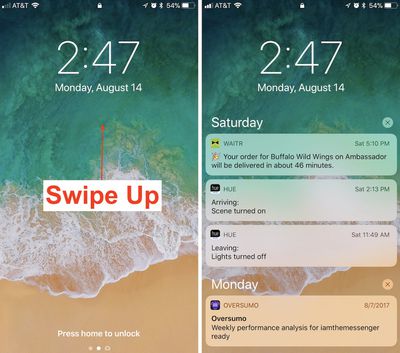
  1. Awaken your iPhone by using Raise to Wake or tapping the lock button.
  2. Swipe up from the middle of the screen to find a list of notifications, and continue scrolling for older notifications.
  3. On any one notification, swipe left-to-right to open it directly.
  4. Or, swipe right-to-left to "view" or "clear" it.

Accessing the New Cover Sheet
how to cover sheet 3

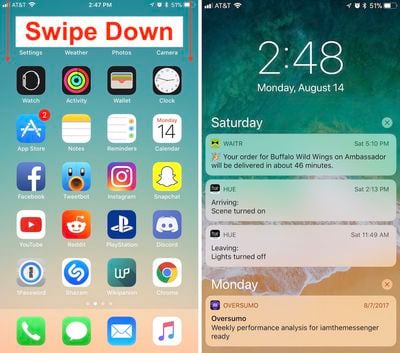
  1. Unlock your iPhone.
  2. Swipe down from the top edge of the screen to bring up the all-new Cover Sheet.
  3. You can interact with notifications as before, and 3D Touch the "x" to clear them all.
  4. Swipe left-to-right (avoiding notifications) to enter the Today section and find your widgets.
  5. Back on the notification screen, swipe right-to-left to enter the Camera.
  6. Swipe up from the very bottom edge of the screen or press the home button to dismiss the Cover Sheet.

With Cover Sheet, the "Notification Center" of iOS 10 has been replaced with a screen that looks visually just like your lock screen, and functions essentially the same way. Notifications are displayed in reverse chronological order, starting with the latest unseen notifications, continuing with "Earlier Today" if you have any missed notifications from the past 24 hours, and then extending into previous days.

Those who purchase an iPhone X later in the year should also note that the redesigned iPhone will house Cover Sheet in its own unique area. When the iPhone X is unlocked, instead of swiping down from the top edge of the smartphone, you'll have to swipe down from the top left ear to bring up your notifications.

Related Forum: iOS 11

Top Rated Comments

roland.g Avatar
115 months ago
So everyone start using iOS 11. Swipe down for Cover Sheet and up for Control Center.

Ok. Now you've got your iPhone X a month or 5 later. Do the opposite. Hmm...
Score: 9 Votes (Like | Disagree)
jeremiah256 Avatar
115 months ago
The ease, discoverability, and standardization of iOS is, or was, one of the main points I’d bring up when asked about the difference between iOS and Android. This isn’t helping.
Score: 6 Votes (Like | Disagree)
itsmilo Avatar
115 months ago
The fact that we need an article explaining how to access something that is supposed to be so simple speaks volumes of today’s iOS.

“When I look for good design, I look for something which is easy to use, approachable, friendly, you can use it without a manual, it’s fun.”

- Scott Forstall

Please bring that guy back. I don’t even want to hear anyone bring up skeumorphism, either, that is irrelevant. I didn’t hear anyone complaining about using their iOS devices and how bad, lacking detail, laggy, and inconsistent things were from iOS 1-6 (apart from some lacking features) to the widespread extent we have today.
Multitasking on iPad is the most confusing thing ever. I dont think anyone i know will even be aware of its existence to be honest. So much swiping and flipping around
Score: 4 Votes (Like | Disagree)
115 months ago
Changes all so stupidly unnecessary. Looking forward to all the calls from my more senior relatives trying to talk them through this.
Score: 4 Votes (Like | Disagree)
Superhappytree Avatar
115 months ago
The fact that we need an article explaining how to access something that is supposed to be so simple speaks volumes of today’s iOS.

“When I look for good design, I look for something which is easy to use; approachable; friendly; you can use it without a manual; it’s fun.”

- Scott Forstall

Please bring that guy back. I don’t even want to hear anyone bring up skeumorphism, either, that is irrelevant. I didn’t hear anyone complaining about using their iOS devices and how bad, lacking detail, laggy, and inconsistent things were from iOS 1-6 (apart from some lacking features) compared to the widespread extent we have today.
Score: 3 Votes (Like | Disagree)
Ds6778 Avatar
115 months ago
This was one of the dumbest changes in iOS 11. Change just for the sake of it.
Score: 3 Votes (Like | Disagree)

Popular Stories

iCloud iPhone 17 Pro

iPhone Users Who Pay for iCloud Storage Get Two New Perks on iOS 27

Thursday July 2, 2026 6:10 am PDT by
If you pay for certain iCloud+ storage plans beyond the 5GB that Apple offers for free, you will receive two more perks on iOS 27 at no additional cost. A summary of the two new iCloud+ perks on iOS 27:Increased daily usage limits for some new Apple Intelligence features, including image generation in the revamped Image Playground app. HomeKit Secure Video cameras receive generated video...
iPhone 4 on Black Feature

Apple Facing One of Its Worst Leaks Since the iPhone 4

Thursday July 2, 2026 9:53 am PDT by
Apple supplier Tata Electronics recently suffered a cyberattack that resulted in thousands of confidential files being published on the dark web, and this reportedly included some photos and documents related to the upcoming iPhone 18 Pro. We have elected not to share any of the leaked photos in this story due to the illegal nature in which they were obtained, but they can easily be found...
American Express Gold Apple Pay Feature

American Express Announces New Apple Pay Feature

Tuesday June 30, 2026 10:27 am PDT by
American Express today announced that you can now redeem Membership Rewards points when checking out with Apple Pay on the web and in apps on the iPhone and iPad. When checking out with Apple Pay on iOS 18 or iPadOS 18 or later, tap on your eligible American Express card (Platinum, Gold, Green, and others) and select the Membership Rewards points option. You can use points to cover all or...













