With Apple's latest iPhone 16, iPhone 16 Plus, iPhone 16 Pro, and iPhone 16 Pro Max models, you can use the latest-generation Photographic Styles to adjust specific colors in certain parts of your photos to create the exact look you want.
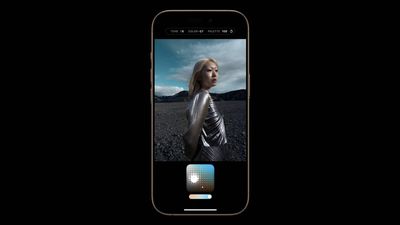
When you choose a default Photographic Style, it's saved and reflected across all of the photos you take, and you can make adjustments to it in the Camera app or edit it in the Photos app.
Choose your Default Photographic Style
The Photographic Style you choose for your camera optimizes photos based on the skin tones it detects. You're not locked into this choice, though. Before taking a photo, you can easily switch or adjust styles directly in the Camera app. Note that before choosing a Photographic Style on iPhone 16, you need to have taken at least four photos with your iPhone camera.
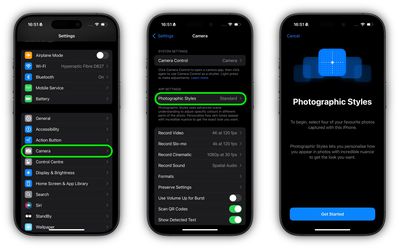
- Open the Settings app on your iPhone 16.
- Tap Camera.
- Under "App Settings," tap Photographic Styles.
- Tap Get Started, then follow the onscreen instructions.
Adjust Your Photographic Style
After you choose a default Photographic Style on your iPhone 16, you can fine-tune its tone, color, and intensity before you take a photo in the Camera app.
- Open the Camera app on your iPhone.
- Tap the dotted square icon in the top-right corner.
- Drag your finger on the square below the viewfinder to simultaneously adjust the tone and color.
- Drag your finger on the slider below the square to adjust the intensity level.
- Tap the dotted square icon in the top-right corner to finish.
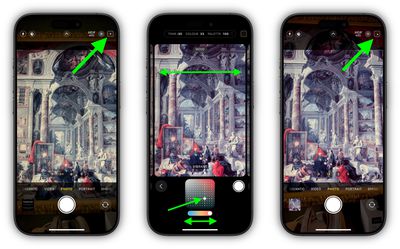
Bear in mind that as you make adjustments, the values for tone, color, and intensity will be shown at the top of the screen. To reset these values, simply tap the round arrow.
To use a different Photographic Style in the Camera app, tap the dotted square icon in the top-right corner, then simply swipe left or right on the camera frame to choose a new style such as Amber, Rose Gold, Quiet, or Ethereal. Tap the dotted square again when you're happy with the result.
Did you know that you can also adjust the photographic style of a picture after it has been taken? Click the link to our dedicated how-to article to learn how.