How to Let a Contact Bypass iOS 12's Do Not Disturb Mode Without Adding Them to Your Favorites List - MacRumorsOpen MenuShow RoundupsShow Forums menuVisit ForumsOpen Sidebar
Skip to Content

How to Let a Contact Bypass iOS 12's Do Not Disturb Mode Without Adding Them to Your Favorites List

by

In iOS 12, Do Not Disturb mode conveniently allows you to silence all calls, alerts, and notifications on iPhone or iPad for a given period and reduce the potential for unnecessary distractions.

Aside from new time-limited options in iOS 12's Control Center, Do Not Disturb can be turned on and scheduled ahead of time by going to Settings -> Do Not Disturb. Among these settings, there's also an Allow Calls From option for which you can choose Everyone, No One, or Favorites.
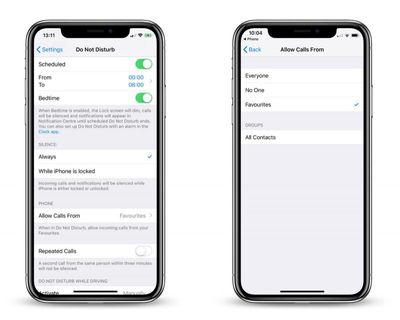
do not disturb allow calls from favorites
Given these last three choices, it would seem fair to assume that the only way to let specific contacts get through to you when Do Not Disturb is on, is to add them to your Favorites list. However, there's another way to let a contact bypass Do Not Disturb mode, and it has nothing to do with enabling the Repeated Calls option.

In fact, the little-known feature described below is arguably more powerful, since it lets you receive only text messages from that contact, or only phone calls from them (or both, if you wish) for just as long as the feature is enabled. Keep reading to learn how it's done.

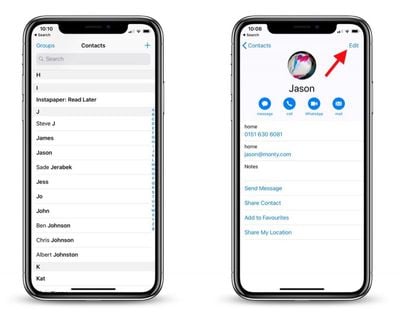
  1. Launch the Contacts app on your iPhone.
    how to enable contacts bypass do not disturb

  2. Tap a contact in the list.
  3. Tap Edit.
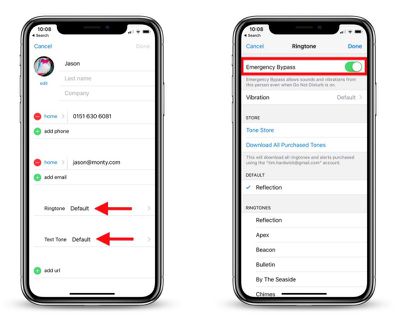
    how to enable contacts bypass do not disturb 2

  4. If you want to let calls come through from this contact when Do Not Disturb mode is active, tap Ringtone and then on the next screen toggle the Emergency Bypass switch to the green ON position.

  5. Tap Done to return to the Contact card.
  6. Similarly, if you want to let text messages come through from the contact, tap Text Tone and then enable Emergency Bypass on the next screen.
  7. Tap Done to return to the Contact card.

  8. Tap Done to finish.

As some readers have noted, enabling Emergency Bypass also allows the contact's call ringtone or message alert to sound even when your iPhone or iPad is muted, so it's best to use the feature selectively, i.e. when you're expecting to hear from that contact.

Related Forum: iOS 12

Top Rated Comments

99 months ago
One caveat to this, if you have your phone's side switch set to silent / vibrate, the sound of the call or text still comes through.
Score: 6 Votes (Like | Disagree)
eternlgladiator Avatar
99 months ago
That is a little known feature and is really handy.

For me the problem I’ve encountered isn’t allowing notifications to get through but absolutely preventing them. I wish there was an ‘absolutely do not disturb’ option. The problem I’ve had is with alarms. Once I had a bedtime alarm set. I woke up well before the alarm and went to an earlier church service. I set my phone to vibrate with DND. Yet, during the worst possible time when it was especially quiet I suddenly hear my gentle bed time alarm song. I was mortified. After this I turn my phone off when I really don’t want to be disturbed.
Why would you want DND to stop alarms? That sounds like a recipe for disaster...

On a side note, I've been wondering how to do this for years. Now I can finally allow texts from my wife to come through while keeping my phone on DND when she's working late.
Score: 6 Votes (Like | Disagree)
99 months ago
One caveat to this, if you have your phone's side switch set to silent / vibrate, the sound of the call or text still comes through.
Yes, and that’s a VERY important caveat.

I learned this the hard way while being in a meeting where my phone was supposed to be completely silent (yes, there are such occasions) and all of the sudden the phone started playing the ringtone. It took a while for me to figure out why the mute switch didn’t do its job.

So, even though this is a great lesser known feature, you should be carefull playing with it!

To sum up, this feature doesn’t only affect the DND setting but also the mute switch—be careful since there’s no way making sure your phone stays silent once you enable this feature (except for turning your phone off)!
Score: 4 Votes (Like | Disagree)
99 months ago
One caveat to this, if you have your phone's side switch set to silent / vibrate, the sound of the call or text still comes through.
Awe man... I was excited about this until I read that it over rides the mute switch as well
Yeah, it's unfortunate that there isn't an option to bypass DND but not the side switch.
Score: 2 Votes (Like | Disagree)
99 months ago
One caveat to this, if you have your phone's side switch set to silent / vibrate, the sound of the call or text still comes through.
My ringtone is set to a *silent* mp3. No matter what happens with incoming calls & texts, it never audibly rings!
Score: 2 Votes (Like | Disagree)
99 months ago
I'm still waiting for a way to send all non-contact phone calls direct to voicemail without ringing (and mute the voicemail notification). That would take care of 99% of unwanted calls.
Score: 2 Votes (Like | Disagree)

Popular Stories

Aston Martin CarPlay Ultra Screen

Apple Says CarPlay Ultra is Coming to These Vehicle Brands

Thursday May 21, 2026 11:53 am PDT by
Last year, Apple launched CarPlay Ultra, the long-awaited next-generation version of its CarPlay software system for vehicles. Nearly a year later, CarPlay Ultra is still limited to Aston Martin's latest luxury vehicles, but that should change fairly soon. In May 2025, Apple said many other vehicle brands planned to offer CarPlay Ultra, including Hyundai, Kia, and Genesis. CarPlay Ultra...
iphone 18 pro blue%402x

iPhone 18 Pro: Dark Cherry, Light Blue, and Dark Gray Chassis Leaked [Update]

Thursday June 4, 2026 5:18 am PDT by
Update: Since publication, new information has come to light suggesting the images have been AI-manipulated and are not in fact iPhone 18 Pro chassis parts. The original article follows. The color options Apple is reportedly planning for the upcoming iPhone 18 Pro and ‌iPhone 18 Pro‌ Max have appeared online today in the form of images of chassis parts of unknown authenticity....
iOS 27 All the New App Features

iOS 27: All the Rumored App Features

Wednesday June 3, 2026 3:48 pm PDT by
Siri is getting a major overhaul in iOS 27, but Apple also has some big updates planned for apps like Camera, Photos, and Wallet. There are multiple new AI features in the works, plus some non-AI upgrades. Camera Apple is moving Visual Intelligence from the Camera Control button to the Camera app in iOS 27, according to Bloomberg. There will be a Siri mode that will be available alongside...