

How to Get Your Mac's Dock to Show Running Apps Only - MacRumorsOpen MenuShow RoundupsShow Forums menuVisit ForumsOpen Sidebar
Skip to Content

How to Get Your Mac's Dock to Show Running Apps Only

by

Last week we explained how you can use a simple Terminal command to insert spaces in your macOS Dock and visibly group together app icons. In this article, we're going to highlight another simple Terminal hack that turns the Dock into more of a straightforward app switcher by making it display only apps that are currently running on your Mac.
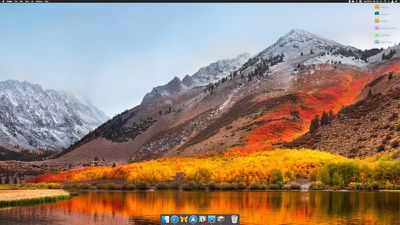
macos dock only open apps
Seeing only active apps at the bottom of your desktop can be a refreshing change if your Dock has become cluttered with various app shortcuts over time, and you can always use Spotlight (key combination Command-Space to activate) or an alternative method to launch your Mac apps.

When following the simple steps below, just bear in mind that Terminal is a powerful app, so make sure you enter the commands properly, especially if you're not familiar with it.

How to Show Only Active Apps in Your Dock

  1. Launch the Terminal app found in Applications/Utilities. (To quickly open the Utilities folder in Finder, select Go -> Utilities from the menu bar, or use the key shortcut Shift-Command-U.)

  2. At the Terminal prompt, type the following command and press Enter: defaults write com.apple.dock static-only -bool true; killall Dock
    recent apps only dock Terminal command

  3. Your Dock will reboot in order to show only the currently running apps on your Mac in the order they were launched.

    mac dock only active apps

How to Revert the Dock Back to Its Original State

If you decide you don't like this way of using the Dock, follow the steps below to return it to its usual behavior.

  1. Launch the Terminal app again if it's not already open.

  2. At the Terminal prompt, type the following command and press Enter: defaults write com.apple.dock static-only -bool false; killall Dock

  3. Your Dock will reboot and revert to showing both running and non-running apps.

If there's a specific active app that you'd like to hide from the Dock for whatever reason, there are a couple of third-party utilities that might help. Dock Dodger is a free drag-and-drop tool that can hide certain apps from the Dock even when they're running (once placed on the tool's droplet, you have to restart the app in question to hide it, although our success rate varied depending on the app). If you're willing to open your wallet, GhostTile is a more recent and reliable paid-for alternative with similar functionality.


Top Rated Comments

frou Avatar
107 months ago
For the longest time, I have simply dragged all of the default app "shortcuts" off of my Dock, and used Spotlight via the keyboard to launch everything.
Score: 3 Votes (Like | Disagree)
sunapple Avatar
107 months ago
What’s the difference with removing all apps from the Dock and opening new ones from another place?
Score: 3 Votes (Like | Disagree)
107 months ago
I don't get this tip.

After I implemented this command, I was able to right-click on the icons of the running apps and select "Keep in Dock". After that, when I closed the apps, their icons remained on the Dock. So, how is this different from just dragging all your icons off the dock one at a time?
Score: 2 Votes (Like | Disagree)
Amazing Iceman Avatar
107 months ago
I hardly use the dock to launch apps. Using [COMMAND] [SPACE] and typing the app name to launch it is a faster approach.
Score: 2 Votes (Like | Disagree)
sp3k0psv3t Avatar
107 months ago
This is nice. Really cleans things up a bit since I have a gazillion apps in my dock lol.

Thanks for the tutorial.
Score: 2 Votes (Like | Disagree)
107 months ago
Just apply the technique and then add the download folder manually (drag it to the dock).
Score: 1 Votes (Like | Disagree)

Popular Stories

macOS 27 on MacBook Pro

Apple Says macOS 27 Won't Be Compatible With These Macs

Wednesday June 3, 2026 8:29 am PDT by
During WWDC 2025, Apple revealed that macOS 26 Tahoe would be the final major macOS version for Intel-based Macs. macOS 27 will be compatible with Apple silicon Macs only, meaning that you will need a Mac with an M-series chip or a MacBook Neo with an A18 Pro chip in order to install the software update. Apple will unveil macOS 27 during its WWDC 2026 keynote this Monday, June 8, and the...
MacBook Neo on Yellow Feature

MacBook Neo is So Popular That Apple Reportedly Doubled Production

Wednesday June 3, 2026 9:24 am PDT by
On an earnings call in late April, Apple's CEO Tim Cook said that customer response to the MacBook Neo was "off the charts," and the popularity of the laptop has reportedly led the company to significantly boost production. Apple supply chain analyst Ming-Chi Kuo this week said he believes that MacBook Neo shipments to Apple were doubled from an initial target of 5 million units to 10...
iphone 18 pro blue%402x

iPhone 18 Pro: Dark Cherry, Light Blue, and Dark Gray Chassis Leaked [Update]

Thursday June 4, 2026 5:18 am PDT by
Update: Since publication, new information has come to light suggesting the images have been AI-manipulated and are not in fact iPhone 18 Pro chassis parts. The original article follows. The color options Apple is reportedly planning for the upcoming iPhone 18 Pro and ‌iPhone 18 Pro‌ Max have appeared online today in the form of images of chassis parts of unknown authenticity....
















