StandBy is a customizable Lock Screen mode in iOS 17 that activates only when an iPhone is positioned on its side (i.e. horizontally in landscape orientation) while connected to a charging cable, a MagSafe charger, or a Qi-based wireless charger.
Think of it as a kind of smart display for your iPhone that offers fast access to different screens of glanceable information that can be viewed at a distance, when your device is charging on a kitchen, desk, or nightstand, for example.
At night, StandBy mode will get darker if the room you're in is dark, and the display will adopt a red tint, so that it is not distracting at night while you're sleeping. It's similar to Nightstand Mode on the Apple Watch, since it functions in much the same way.
StandBy Mode Won't Turn On: What to Do
If StandBy mode isn't automatically activated when you attach your iPhone to a power source, make sure it's positioned on its side (i.e. horizontally, also known as landscape orientation) and at an upright angle (i.e. not flat on a desk).
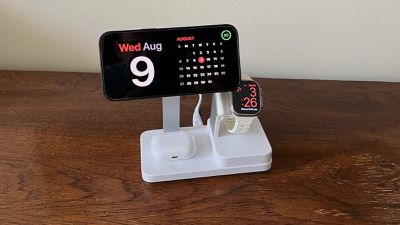
If it's still not coming on, make sure StandBy mode is enabled in the Settings app (Settings -> StandBy Mode). If the switch next to StandBy is in the gray OFF position, tap it to turn it to the green ON position, then try charging your iPhone again in the required orientation.
StandBy Mode Won't Remain On: What to Do
If StandBy mode turns itself off after a while and refuses to remain viewable on your iPhone's display, there are a couple of reasons why it could be happening.
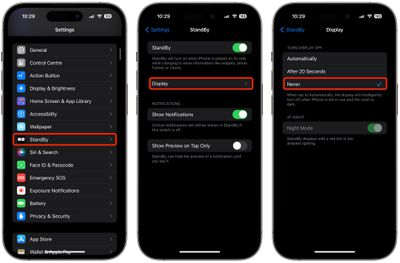
The first thing to check is that you have the right StandBy setting enabled. Go to Settings ➝ StandBy ➝ Display, and under "Turn Display Off," select Never if it isn't checked already.
If that's not the issue, check if your iPhone has Low Power Mode on. If Low Power Mode is enabled (Settings -> Battery -> Low Power Mode) your iPhone's screen will automatically turn off after a few moments of inactivity, so Low Power Mode needs to be off for StandBy mode to remain visible.
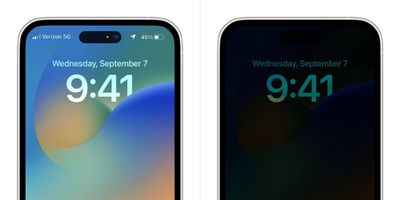
If Low Power Mode is disabled and StandBy mode still won't stay on, check your iPhone model. Continuous StandBy mode requires an iPhone with an Always-on display, and this feature is only available on iPhone 14 Pro and iPhone 15 Pro devices.