How to Add a Recent or Favorite Items Stack to Your Mac's Dock - MacRumorsOpen MenuShow RoundupsShow Forums menuVisit ForumsOpen Sidebar
Skip to Content

How to Add a Recent or Favorite Items Stack to Your Mac's Dock

by

Continuing our recent how-to focus on customizing the macOS Dock, in this article we're going to share with you a method for adding a recent or favorite items stack to the right of the Dock divider.
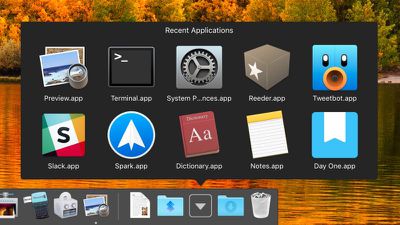
macos dock recent apps stack
Most users are aware that you can drag any folder into the right-hand side of the Dock to turn it into a stack, but the following lesser-known trick creates a unique stack type containing your most recently opened applications, documents, or servers.

Alternatively, you can also set this unique type of stack to show the Favorite folder locations and Device links that appear in your Finder's sidebar.
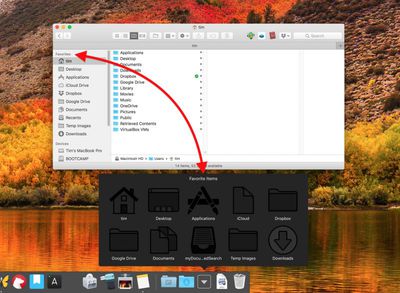
favorite finder locations dock stack
Unfortunately, you can't use stacks if you have the Dock set up to show only actively running apps. With that caveat in mind, simply follow the steps below to create the stack type that best suits your workflow. Just bear in mind that Terminal is a powerful app, so make sure you enter the commands properly, especially if you're not familiar with it.

How to Create a Recent or Favorite Items Stack

  1. Launch the Terminal app found in Applications/Utilities. (To quickly open the Utilities folder in Finder, select Go -> Utilities from the menu bar, or use the key shortcut Shift-Command-U.)

  2. Copy the following command text and paste it into Terminal at the prompt, then press Enter: defaults write com.apple.dock persistent-others -array-add '{"tile-data" = {"list-type" = 1;}; "tile-type" = "recents-tile";}'; killall Dock
    recent apps stack dock terminal command

  3. Repeat the command (hit the up arrow and press Enter) to create additional recent or favorite stacks in the Dock as required.

  4. To choose whether a new stack contains certain types of favorite items or recent items, right-click (or Ctrl-click) the stack and select one of the options in the pop-up menu.
    select recent or favorite item dock stack

  5. To change the default Grid view, right-click (or Ctrl-click) the stack and select one of the other options under View content as in the pop-up menu.

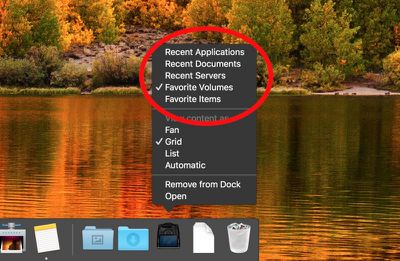
Note that you can change the number of items shown in a recent items stack in the following way: Click the Apple () logo in the menu bar, select System Preferences..., open the General preference pane, and choose another number from the Recent items dropdown menu.
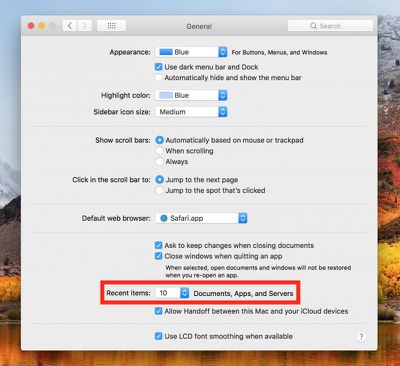
recent items shown system preference
To remove a Recent or Favorite Items stack from your Dock, simply right-click (or Ctrl-click) it and select Remove from Dock. Alternatively, click and drag the stack out of the Dock then let go of the mouse button to delete it.


Top Rated Comments

91 months ago
I upgraded my iMac to macOS 10.15 Catalina, and my recently used apps Stacks on the Dock was removed. Failed to add it back using the terminal command.
Score: 2 Votes (Like | Disagree)
90 months ago

I upgraded my iMac to macOS 10.15 Catalina, and my recently used apps Stacks on the Dock was removed. Failed to add it back using the terminal command.
Same with my MBP. Sadly.

Anyone have a work around? Over the years I've really become used to having a stack with my recent docs. Would love a way to get it back.
Score: 1 Votes (Like | Disagree)
CJM Avatar
110 months ago
[doublepost=1522662568][/doublepost]Alternately, especially if your not a geek, you can download the 'Onyx', a free app from such sites as MacUpdate and just click a box that is listed under the 'Parameters' heading and the sub-heading 'Dock. It also allows you to put the folder on the left side. I also believe 'Tinker Tool' which is a free subset APP of 'Onyx' and just contains the 'Parameters' tool.
Best to use as few apps as possible.

Thanks for the tip, Macrumors. I find that choosing 'recent servers' shows duplicates. I wonder if there's a way to prevent that.
Score: 1 Votes (Like | Disagree)

Popular Stories

iOS 27 Next to iPhone

Here's When iOS 27 Rolls Out Today in Every Time Zone [Update: It's Out]

Sunday September 13, 2026 3:00 am PDT by
Update 10:04 a.m.: iOS 27 is rolling out now, though it may take a bit for all users to see it, so keep checking! Apple is about to release iOS 27, which will finally deliver more advanced Siri AI capabilities as well as a variety of other refinements, improvements, and new features to iPhones. It's Apple's biggest software update of the year, and Apple announced at Wednesday's iPhone event...
iOS 27 Icon iPhone

iOS 27 Available Now With These 8 New Features

Monday September 14, 2026 9:00 am PDT by
Update — 10 a.m. Pacific Time: Apple has released iOS 27. During its iPhone 18 Pro and iPhone Duo event last week, Apple announced that iOS 27 will be released widely on Monday, September 14. iOS 27 should be available around 10 a.m. Pacific Time / 1 p.m. Eastern Time today via the Settings app, under General → Software Update. Below, we have highlighted eight new features and...
Apple iCloud Plus expansion hero

iCloud+ Now Includes Apple TV, Apple Arcade, and Curated Apple Music Stations in Over 100 Countries

Tuesday September 15, 2026 1:43 am PDT by
Apple today announced a new subscription initiative that turns paid iCloud+ subscriptions into a broader services bundle in more than 100 countries. In select countries, Apple says every paid iCloud+ plan, including the cheapest 50GB tier, now includes Apple TV and Apple Arcade "at no additional cost," while family sharing extends the storage, TV and Arcade access to up to five people....