

 With the public release of macOS High Sierra, Apple introduced some additional features to its native Safari web browser. Here we'll cover just what they are and how you can customize them to make your web browsing experience a more enjoyable one.
Individual Website Settings
One of the most welcome new changes in Safari 11 is the ability to customize a range of settings for individual websites. Once these options are set up for a site, Safari applies them automatically so you don't have to bother with them again. Here's how.
- Navigate to a site you frequently visit.
- Right-click on the URL or website name that appears in the address bar, and select "Settings for This Website". Alternatively, click Safari in the menu bar and you'll see the same option under Preferences.
- Select your preferences from the drop-down pane that appears below the address bar to control how the website behaves, either by checking the boxes or selecting a setting from the available options.
Safari's built-in Reader mode strips online articles of extraneous web page furniture to make them more readable. Reader is usually enabled by clicking an icon that sometimes appears in the far left of the address bar, but you can check "Use Reader when available" to switch to this by default.
The box next to "Enable content blockers" lets you set whether to activate any ad-blocking extensions you may have installed, while the Page Zoom setting lets you adjust the size that website fonts and images display, allowing you to make them easier to read and navigate.
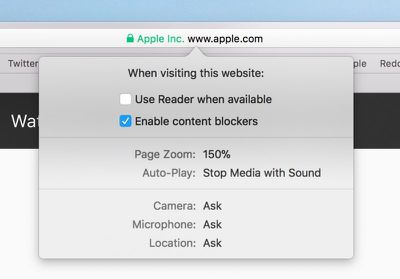
With the Auto-Play setting, you can prevent websites from playing video the moment you visit a page, which should make browsing a lot less infuriating. The options are Allow All Auto-Play, Stop Media with Sound, and Never Auto-Play.
The last three options in the preferences pane let you choose whether to allow or deny the site access to your Mac's camera and microphone, and whether to enable location detection. If your preference is likely to change from time to time for these, set them to "Ask", and Safari will query you whenever access is requested by the site.
Safari Website Preferences Tab
Helpfully, Apple has added a new tab to Safari preferences for you to keep track of your individual website settings. You can access it at any time by clicking "Preferences" In the Safari menu bar and selecting the Websites tab.
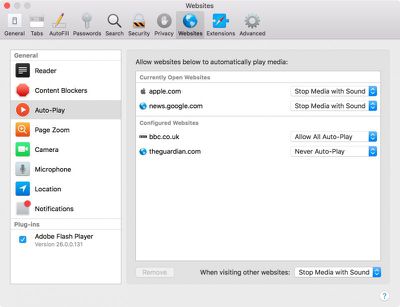
Here you'll find lists of websites that are currently open as well as ones you've customized in the past, categorized by individual settings, where you easily can adjust them. You'll also see an additional setting in the General column listing your preference for websites you've visited that have prompted you about receiving Notifications.
Intelligent Tracking Prevention
Another new feature Apple has added in the latest Safari is Intelligent Tracking Prevention (ITP). Apple's own testing has found that popular websites can harbor more than 70 cross-site tracking and third-party cookie trackers that all silently collect data on users while making the browsing experience increasingly sluggish.

To solve this, ITP uses local machine learning to identify cookie types and partition them or purge the cross-site scripting data of suspect ad trackers, without affecting the functioning of helpful cookies like those containing localized data or login details, for example. The feature should increase user privacy as well as boost overall browsing speed. You don't need to do anything to enjoy the benefits of ITP – it's on by default.




















Top Rated Comments