

Apple has introduced several improvements to Focus modes in iOS 16, and one of them is the ability to link a custom Lock Screen to a particular Focus mode. With the wealth of personalization options that can now be applied to Lock Screens, this means you can customize them specifically to better reflect your focus.
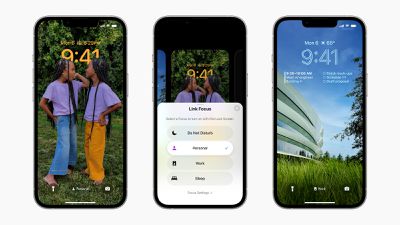
One of the great things about iOS 16 is that it allows you to make Lock Screens more informative or functional, and then switch to your preferred one when you need to. For example, when you're at the office you might have a Lock Screen featuring work-focused widgets and a family photo. Or in the evening when you're winding down before bed, you might prefer a minimal Lock Screen with fewer widgets and a soothing sunset wallpaper.
The great thing is that by linking a Lock Screen to a Focus mode, you can make the switch to your custom Lock Screen happen automatically. As the image above shows, you can link Lock Screens to existing Focus modes by tapping the Focus button that appears in the Lock Screen gallery, which is accessed from your iPhone's currently active Lock Screen with a long press.
You can also select a Lock Screen in the course of creating a new Focus mode in Settings. Here's how it works in iOS 16.
Setting a Lock Screen for Your Focus Mode
In this example, we've already customized a Lock Screen that we want to become active when the work day is done, and now we're going to create a Focus mode to link it to by following the steps below.
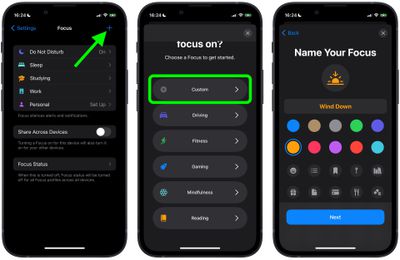
- On iPhone, go to Settings -> Focus, and tap the + icon in the top-right corner of the screen to create a new Focus.
- Tap Custom in the next screen, proceed to give your Focus a name and related icon, then tap Next.

- Set any notification silence options for people and apps when your Focus is active, then under "Customize Screens," choose the Lock Screen option.
- Create a New Lock Screen from the gallery, or Choose From Existing Lock Screens.
- Tap Done in the top-right corner.
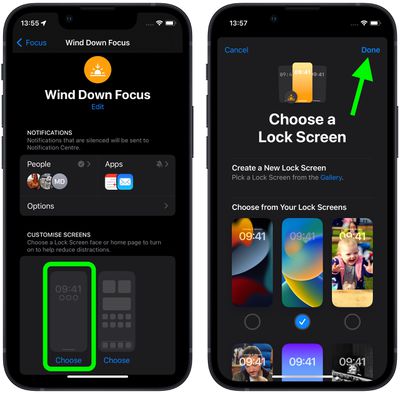
With your Lock Screen now linked to your Focus Mode, it will be activated automatically whenever you enable your Focus.















