

 Apple's HomeKit framework allows you to easily control compatible connected smart devices you have installed in your home using the Home app on iOS. However, there are some features of HomeKit that require you to designate a device as a Home Hub, which remains powered on and connected at your home when you're away.
The main benefit of setting up a Home Hub is that it allows you to use location-based automation features if your HomeKit devices support them. For example, some thermostats can change the temperature to something more economical whenever you leave your home by using a virtual geographical boundary (geofencing).
A Home Hub also allows you to use Siri to trigger actions when you're away from home. For instance, if you're leaving the office, you could ask Siri to increase the temperature of a connected thermostat at home so that it's nice and cozy when you arrive.
You can use an Apple TV as a Home Hub (just like you can use an iPad or HomePod), and the setup process is incredibly easy. Simply follow the steps below.
How to Set Up Your Apple TV as a Home Hub
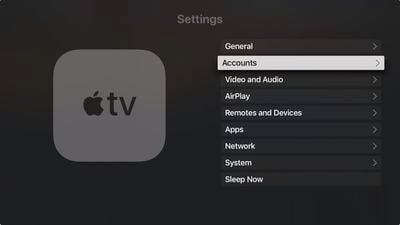
- Launch the Settings app on your Apple TV.
- Select Accounts.

- Make sure that you're signed into iCloud with the same Apple ID as your iOS device.
- Once you've signed in to iCloud, your Apple TV automatically sets itself up as a Home Hub.
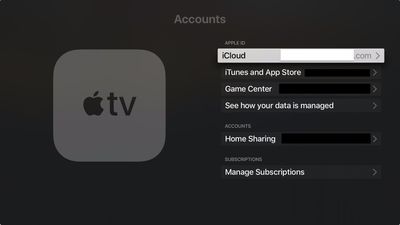
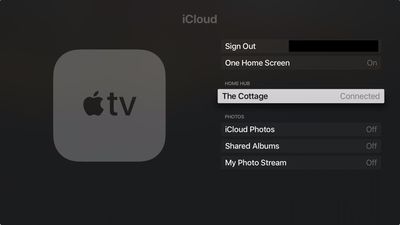
You can check your Apple TV's Home Hub status by looking in Settings -> Accounts -> iCloud, where you should see the name of the home that it's connected to.
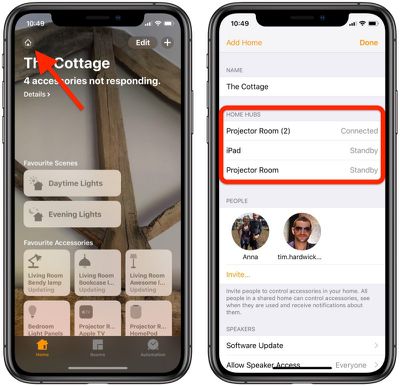
You can also check the status of your home hub to if it's connected in the Home app on your iOS device. Tap the Home icon in the upper-left corner of the screen. (If you have multiple homes set up, tap Home Settings next, then tap a home.) Look under Home Hubs to see if your home hub is connected.
 Once you've set up your home hub, you'll need to enable two-factor authentication on your iCloud account, otherwise you won't be able to remotely access your HomeKit accessories.
Now that you have everything set up, the next time you're away from home you can give Siri commands on your iOS device to trigger actions, which will obviously depend on the sort of accessories you have installed.
A couple of examples might be "Turn on the living room light" or "Open the garage door," or you could ask Siri to check the temperature of a thermostat, for example. You can find Apple's regularly updated list of all HomeKit-compatible devices.



















