How to Share One Pair of Powerbeats Pro Earphones With a Friend - MacRumorsOpen MenuShow RoundupsShow Forums menuVisit ForumsOpen Sidebar
Skip to Content

How to Share One Pair of Powerbeats Pro Earphones With a Friend

by

Splitting a pair of Powerbreats Pro earphones between two people is perfectly possible thanks to their integrated H1 Apple chip, and it's a neat way of using the wireless features of the earpieces to share your listening experience.

Listen Together With One Pair of Powerbeats Pro Earphones

There's nothing stopping you and a friend from each wearing a Powerbeats Pro earpiece to enjoy music or watch a movie together on your iPhone or iPad. Thanks to Automatic Ear Detection, both earphones sense when they're placed in an ear, regardless of whether they're attached to the same head.
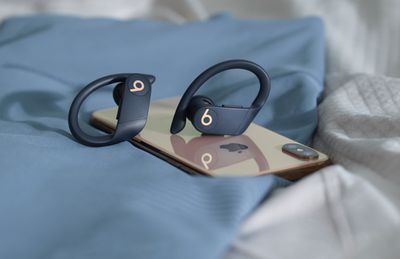
powerbeatsproiphone
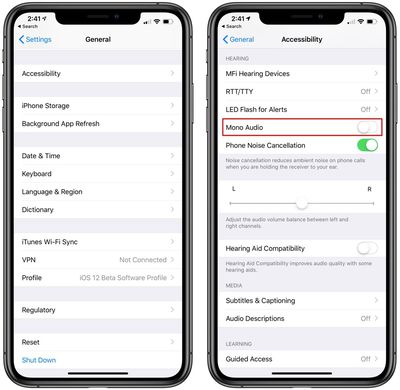
The only caveat to sharing ‌Powerbeats Pro‌ between two people is that you're effectively splitting stereo channels, so you'll want to convert to mono audio. You can do that by following these steps:

  1. Open up the Settings app.
  2. Tap General and then tap Accessibility. Powerbeats pro mono audio settings for sharing earbuds
  3. Scroll down to where it says "Mono Audio" and toggle it on.
When you're done sharing your AirPods with a friend, make sure to turn the Mono Audio setting back off so you get regular stereo sound when you're using both of your AirPods.

Share a Call With a Friend Using One Pair of Powerbeats Pro

Splitting a pair of ‌Powerbeats Pro‌ earphones between two people to take a phone call is a different situation that has one important drawback.

Although both earphones have built-in microphones, only a single mic can be active at any one time, so if you're sharing a pair with a friend, both of you can listen in on the call but only one of you will be able to talk back to the caller.

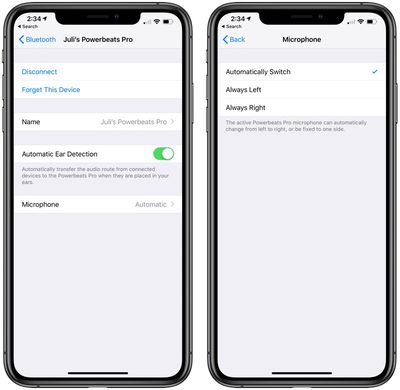
If you want to get to decide who take part in the conversation during a shared call, you can select which ‌Powerbeats Pro‌ earbud has the active mic.

Powerbeats Pro microphone settings
To do so, open the Settings app on your connected iOS device and tap Bluetooth, then tap the circled 'i' icon alongside ‌Powerbeats Pro‌ in the Devices List. Then tap Microphone and choose either the left or right earpiece.
Popular Stories

iPhone 18 Pro and Pro Max Feature

'Apple Upgrade' Program Reportedly Launching Next Week

Tuesday July 21, 2026 8:30 am PDT by
Apple and Klarna are partnering on a new "Apple Upgrade" leasing program set to launch in the U.S. on Tuesday, July 28, according to Bloomberg's Mark Gurman. The program will allow you to finance most iPhone, iPad, Mac, and Apple Watch models, with a 24-month term for iPhones and Apple Watches and a 36-month term for iPads and Macs. Customers will be able to pay off the device early during...
iPhone 18 Pro Deep Red Feature

iPhone 18 Pro Launching in Two Months With These 12 New Features

Tuesday July 21, 2026 6:22 am PDT by
It is now mid-July, and that means the iPhone 18 Pro and iPhone 18 Pro Max are now just two months away. The devices are expected to look similar to the iPhone 17 Pro and iPhone 17 Pro Max, but there will still be many year-over-year changes, with rumored features including a smaller Dynamic Island, 5G via satellite, and more. Apple is expected to unveil the iPhone 18 Pro, iPhone 18 Pro Max, ...
iPhone 18 Pro Deep Red Feature

iPhone 18 Pro Launching in Two Months With These 12 New Features

Friday July 17, 2026 10:39 am PDT by
It is now mid-July, and that means the iPhone 18 Pro and iPhone 18 Pro Max are now just two months away. The devices are expected to look similar to the iPhone 17 Pro and iPhone 17 Pro Max, but there will still be many year-over-year changes, with rumored features including a smaller Dynamic Island, 5G via satellite, and more. Apple is expected to unveil the iPhone 18 Pro, iPhone 18 Pro Max, ...