How to Assign Relationships to Contacts for Siri Labels in macOS - MacRumorsOpen MenuShow RoundupsShow Forums menuVisit ForumsOpen Sidebar
Skip to Content

How to Assign Relationships to Contacts for Siri Labels in macOS

by

In macOS, Apple includes a feature that allows you to establish relationships for different contacts, which makes getting in touch with the people close to you much more personable.

macbook pro hey siri
The Contacts app's relationships feature goes hand in hand with Siri, so rather than asking it to "Text Hannah," you can say "Text my sister" and the voice-activated assistant will know that Hannah is your sister.

The following steps show you how to create contact relationships using ‌Siri‌ or by adding them manually in the Contacts app. If you own additional Apple devices, the cool thing is that you only have to do this once and iCloud will sync the changes you make across all of them.

How to Create a Contact Relationship on macOS

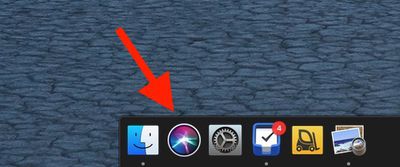
  1. First, activate ‌Siri‌. You can do this on your Mac by clicking the ‌Siri‌ icon in the Dock, clicking the ‌Siri‌ menu bar icon, or using a keyboard shortcut. You can also say simply "Hey ‌Siri‌" handsfree if your Mac supports the function.
    siri in dock

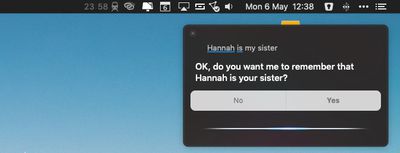
  2. Say the name of the contact and your relationship with them, such as "Hannah is my sister." (If you have two sisters, you can help ‌Siri‌ distinguish them by saying "Hannah is my older sister," for example.)
    establishing relationships with contacts using siri macos

  3. When ‌Siri‌ asks if you want it to remember the relationship, answer "Yes" or click the Yes button in the ‌Siri‌ panel.

Add a Relationship Manually in the Contacts App

If you want, you can manually add relationships in the Contacts app instead. Here's how.

  1. Open the Contacts app.
  2. Select your personal contact card.
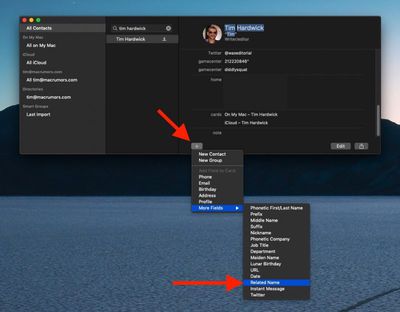
  3. Click the plus (+) button at the bottom left of the card and select More Fields -> Related Name.
  4. Enter the name of the contact you want to establish a relationship with.
    how to establish relationships between contacts siri macos 1

  5. Click the relation field next to the contact's name and select the relationship you want to establish with them. (Select Custom to define a relationship not offered in the list.)
    how to establish relationships between contacts siri macos 2

  6. Click Done.

Remember, you can establish as many relationships as you want using the above methods, so long as the person exists in your contacts.

Popular Stories

iphone 16 teal

Siri Lawsuit: Apple Agrees to Pay Owners of These iPhone Models

Thursday May 7, 2026 6:30 am PDT by
Apple has agreed to pay $250 million to settle a U.S. class action lawsuit over delayed Siri features, and eligible iPhone users could receive up to a $95 payout. Below, we have answered some key questions regarding the lawsuit. Why Was Apple Sued? In June 2024, Apple previewed new Siri capabilities powered by Apple Intelligence, including understanding of a user's personal context,...
Finder Siri Feature

iOS 27 Getting Major Siri Redesign With Chat Interface and Dedicated App

Tuesday May 12, 2026 1:38 pm PDT by
Apple is introducing an overhauled version of Siri in iOS 27, evolving the personal assistant into a more capable chatbot and AI agent able to compete with ChatGPT, Claude, and Gemini. With Siri's transition, Apple will be making multiple Siri-related design changes in iOS 27, according to a new report from Bloomberg. Siri will largely live in the Dynamic Island in iOS 27, but there will also be...
OpenAI vs Apple Feature

OpenAI Considering Legal Action Against Apple Over 'Strained' Siri Partnership

Thursday May 14, 2026 10:52 am PDT by
OpenAI is preparing to potentially take legal action against Apple due to a "strained" relationship with the iPhone maker, according to Bloomberg's Mark Gurman. The two companies reached a partnership in 2024 that saw ChatGPT integrated into features like Siri and Image Playground across iOS, iPadOS, and macOS. iPhone users can also subscribe to ChatGPT directly via the Settings app, with...